U-M Google Updates

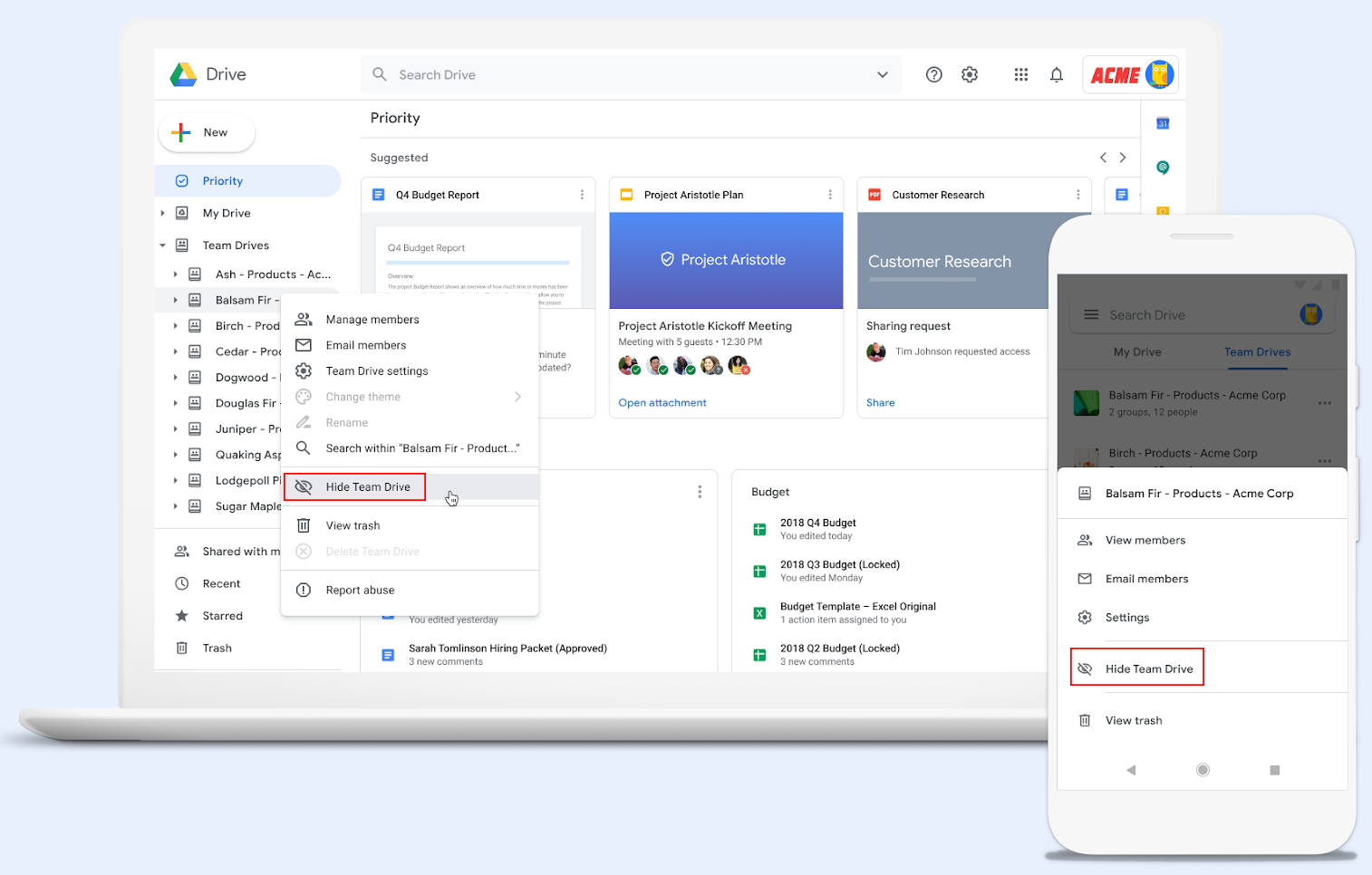
New Name for Google Team Drives

" " 

Google has decided to rename “Team Drives” to “shared drives”. This will not affect functionality; it is only a name change. In the Google Drive web app, in the left side panel, “Team Drives” will become “Shared drives”. The names of the drives and their content should not change.

File paths of content linked from Drive File Stream—like shortcuts, scripts, etc.—will need to be updated to “shared drives” as soon as possible after May 31, 2019 to avoid broken paths. For example:

  • D:\Team Drives\ITS INF AO PROJ Google\Meeting Notes
    Will need to be changed to…
  • D:\shared drives\ITS INF AO PROJ Google\Meeting Notes

According to Google, this change will begin to roll out to iOS on May 21, to Android on May 28, to Drive File Stream on May 31, and to the web app on June 3. Google states that feature visibility will take 1-3 days. 

U-M Google April Monthly Summary

The monthly U-M Google Summaries inform campus of Google releases for Core Apps as well as the Non-Core Apps (those that are not part of the G Suite for Education agreement). We communicate important information on Core Apps throughout the month. Core and Non-Core Apps are listed on the G Suite website.

Core Apps:

You can now customize the actions you can take when swiping on an email in Gmail on your iOS device.

Swipe actions can be set up to do any of the following actions: Archive, Trash, Mark as read/unread, Snooze, and Move to.

gif of new Gmail swipe actions

You can access the swipe configuration settings by going into the Gmail iOS app and navigating to Settings > Swipe actions, and choosing the swipe options that work best for you.

Google has added the ability for users to embed MP3 and WAV audio files from Drive into Slides.

To insert an audio file into Slides:

  • Insert > Audio and select from your audio files in Drive
  • Hover over the icon to see playback controls

Once the audio file is inserted, you can find audio settings by clicking Format options in the toolbar. From there, you can set playback options, volume, and looping. You can also hide the audio icon or replace it with an image of your choice.

open computer to Slides showing new audio functionality

The ability to add an audio file into Slides is currently only available on desktop, though audio will play on all platforms.

Soon you will be able to edit the theme colors for your presentations in Slides, making it easier to set up a new theme or apply bulk color changes to existing presentations. To do this, go to any color picker dropdown and click the edit button for your Theme color palette. In the Theme color sidebar, select a color from the dropdown to begin editing.

gif of how to customize colors in Google Slides

Note: These changes will only apply to the current theme and will not create a new theme

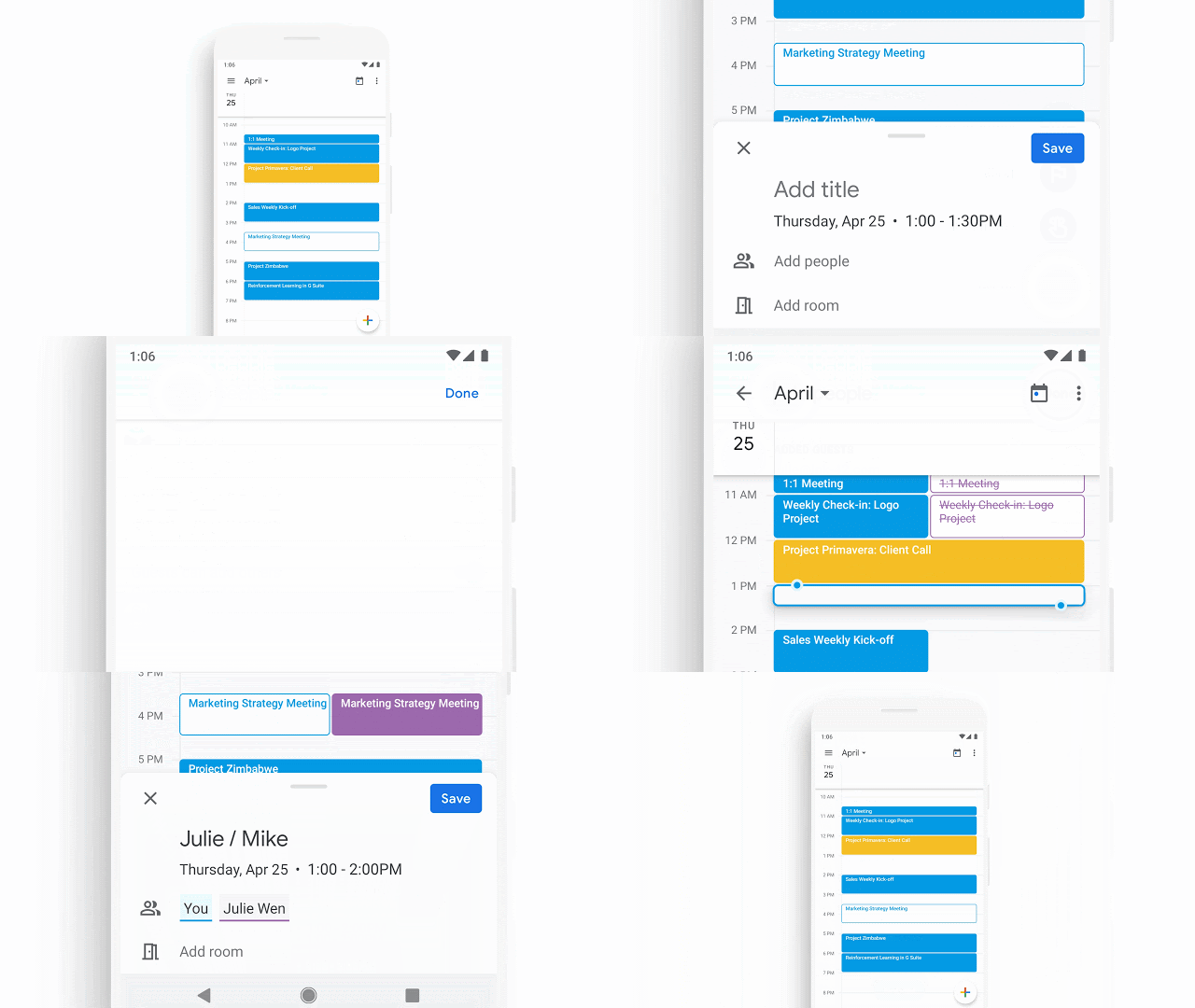
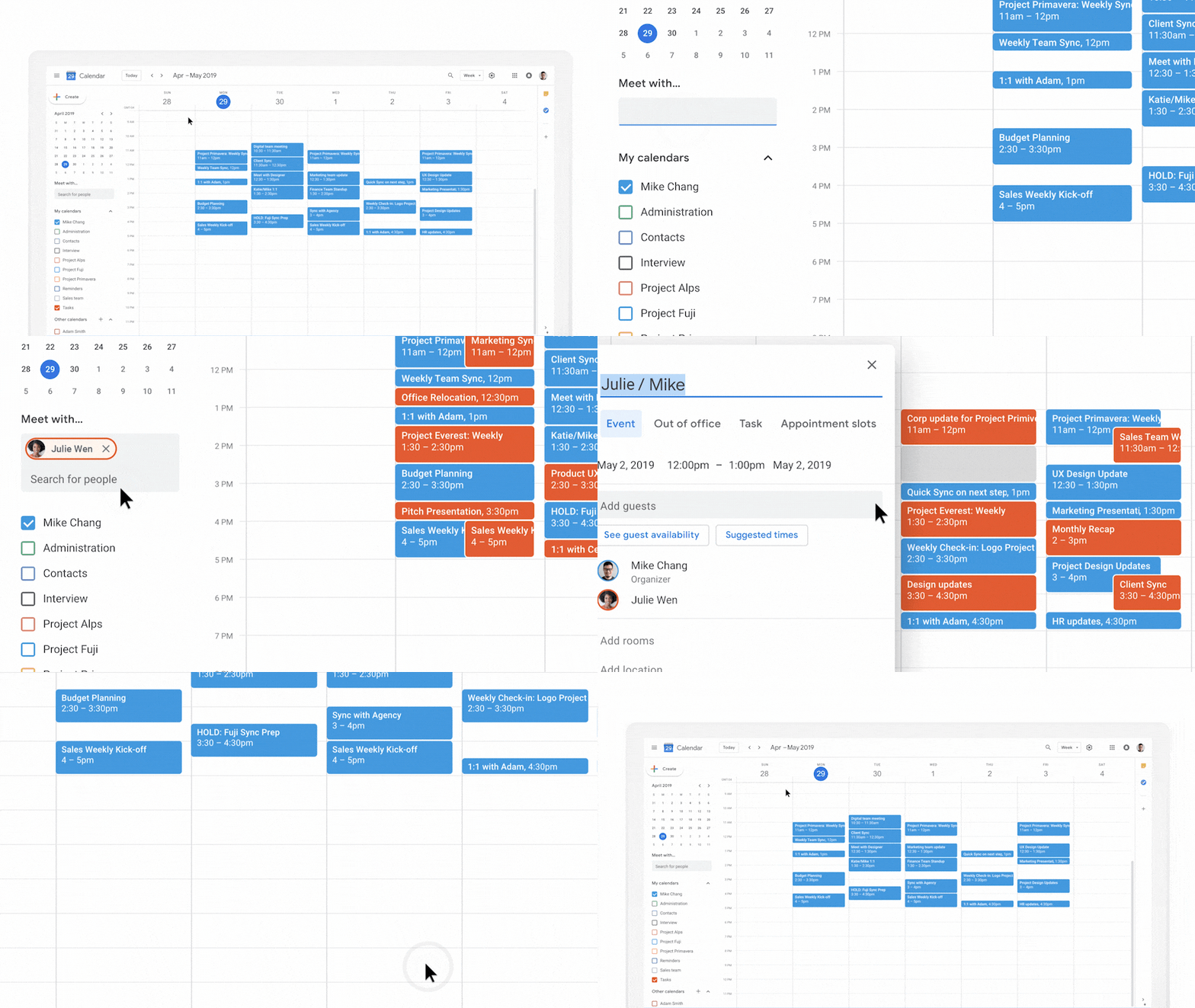
Now, if guests of a Calendar event have been granted permission to invite others, recipients of forwarded invitation emails can RSVP to the event, adding them to the event as a guest. This eliminates the step of having to go into the event in Calendar to invite additional guests.

gif of how to  use the new RSVP via email for Calendar

Note: For this feature to work, the organizer must have granted permission for guests to add other guests to the event.

Option for allowing guests to invite other individuals to an event

Rooms will no longer accept two Calendar events that overlap in time. Previously, if an event was created directly on a room’s calendar by someone with permissions, the room would accept this meeting even if another event had already added this room for that same time. Now, if the room has already accepted another meeting, creating a new event at the same time on the room’s calendar will result in a room decline of this conflicting meeting.

Google has added new features and tools to create more compelling and stylized reports in Sheets:

  • Guides
    You can use guides to help you align, size, and position various objects within your sheets. Guides are also helpful in making sure multiple objects within the same sheet are in proportion to one another.
  • Multi-Selecting Objects
    To select multiple charts, drawings, and images to move, resize, or delete in bulk, hold down the Control or Shift key and select.

gif of multiselection in GOogle Sheets

  • Enhanced Pivot Table Insertion
    When adding a new pivot table, you now have the option to either place it in a new sheet or in a custom location on an existing sheet.
  • To create a new pivot table, go to Data > Pivot Table and select a data range.
  • In the dialogue box, under Insert to, select New sheet or Existing sheet, and click Create.
Note: If you select an existing sheet, you’ll have to select a specific cell location for the pivot table.
  • Copy and paste images into Sheets
    You can now copy images from other websites and paste them directly into your sheet. Simply right-click on an image and select Copy, then in Sheets right-click and select Paste to insert the image over the grid.
  • Formula backed charts inserted from Answers
    Now, when you use Sheets Explore to create charts, the charts you insert from the Q&A feature (Answers) will be backed by formulas. This means that charts will automatically update if the underlying data changes, ensuring you always have a fresh chart with the latest information.

According to Google, these features began rollout on May 2nd and may take up to three days for feature visibility.

Google has made it possible to copy much larger sites in order to help users efficiently copy their existing sites, allowing them to back up their work, iterate on previous sites, or create ‘templates’ to start new sites.

To make a copy with the improved site copy, open a site in the new Google Sites, click More > Duplicate site.

gif depicting how to duplicate a larger site
 

Previously Communicated:

Note: Keep in mind that even when Non-Core Apps are found in a Core App (like Add-ons in Gmail and Google Drive), they are not covered by the G Suite for Education agreement.

Reminder: Google classic Site Creation Ends Today

Beginning today, you are no longer able to create classic Google Sites in U-M Google. For the time being, existing classic Sites will remain available for updates. This step is in preparation for the eventual retirement of classic Sites. We urge you to convert any remaining classic Sites to the new Sites format. Beginning today, you will only be able to create new Sites in U-M Google.  

New Google Sites are stored in Drive, so you can create them like any other Google file type. From Drive, click +New > More > Google Sites. Classic Sites remain available at sites.google.com by clicking Back to Classic Sites

New live captions in Hangouts Meet!

Google has made Hangouts Meet more accessible for hearing impaired users with live captions. Live captions help make meetings more accessible by reducing barriers to holding meetings between users of different hearing abilities, regardless of whether they are participating remotely or in person.

Screenshot of Google Hangouts Meet example of captions

On the web, navigate to the triple-dot menu at the bottom right corner of your screen and select it. Then, select Turn on captions. The captions will start to generate when someone begins speaking.

Google Hangouts Meet turn on captions button

When you turn on captions, they will only be visible on your device. In order for other participants in the meeting to see captions, they’ll have to individually turn it on for their devices.

Currently, live captions are only available in English. Finally, captions will not appear in a recording of a meeting.

For more information, visit Google’s Product Updates blog post.

Threading changes in Gmail conversation view

Google has announced changes to how Gmail threads messages when you have conversation view turned ON. This change helps to make sure that messages are only threaded when there is a definite relationship between them.

Gmail settings turn Conversation View On

Previously, Gmail would thread together messages when either:

  • A message is sent in reply to another, or
  • A message has:
    • The same sender or recipients
    • The same subject
    • Is sent within one week of an earlier message in the thread

With this change, Google has added the requirement that an incoming message’s Reference header, if present, must reference IDs of previous messages in order to thread. This means that if you receive two emails with the same subject from the same sender, these emails will not be threaded together unless one explicitly references the other.

For further clarification, the first email’s Message-ID should match the second email’s References and In-Reply-To.

Gmail threading example with emails

For more information, visit Google’s G Suite Updates blog.