The monthly U-M Google Summaries inform campus of Google releases for Core Apps as well as the Non-Core Apps (those that are not part of the G Suite for Education agreement). We communicate important information on Core Apps throughout the month. Core and Non-Core Apps are listed on the G Suite website.
Core Apps:
You can now customize the actions you can take when swiping on an email in Gmail on your iOS device.
Swipe actions can be set up to do any of the following actions: Archive, Trash, Mark as read/unread, Snooze, and Move to.

You can access the swipe configuration settings by going into the Gmail iOS app and navigating to Settings > Swipe actions, and choosing the swipe options that work best for you.
Google has added the ability for users to embed MP3 and WAV audio files from Drive into Slides.
To insert an audio file into Slides:
- Insert > Audio and select from your audio files in Drive
- Hover over the icon to see playback controls
Once the audio file is inserted, you can find audio settings by clicking Format options in the toolbar. From there, you can set playback options, volume, and looping. You can also hide the audio icon or replace it with an image of your choice.
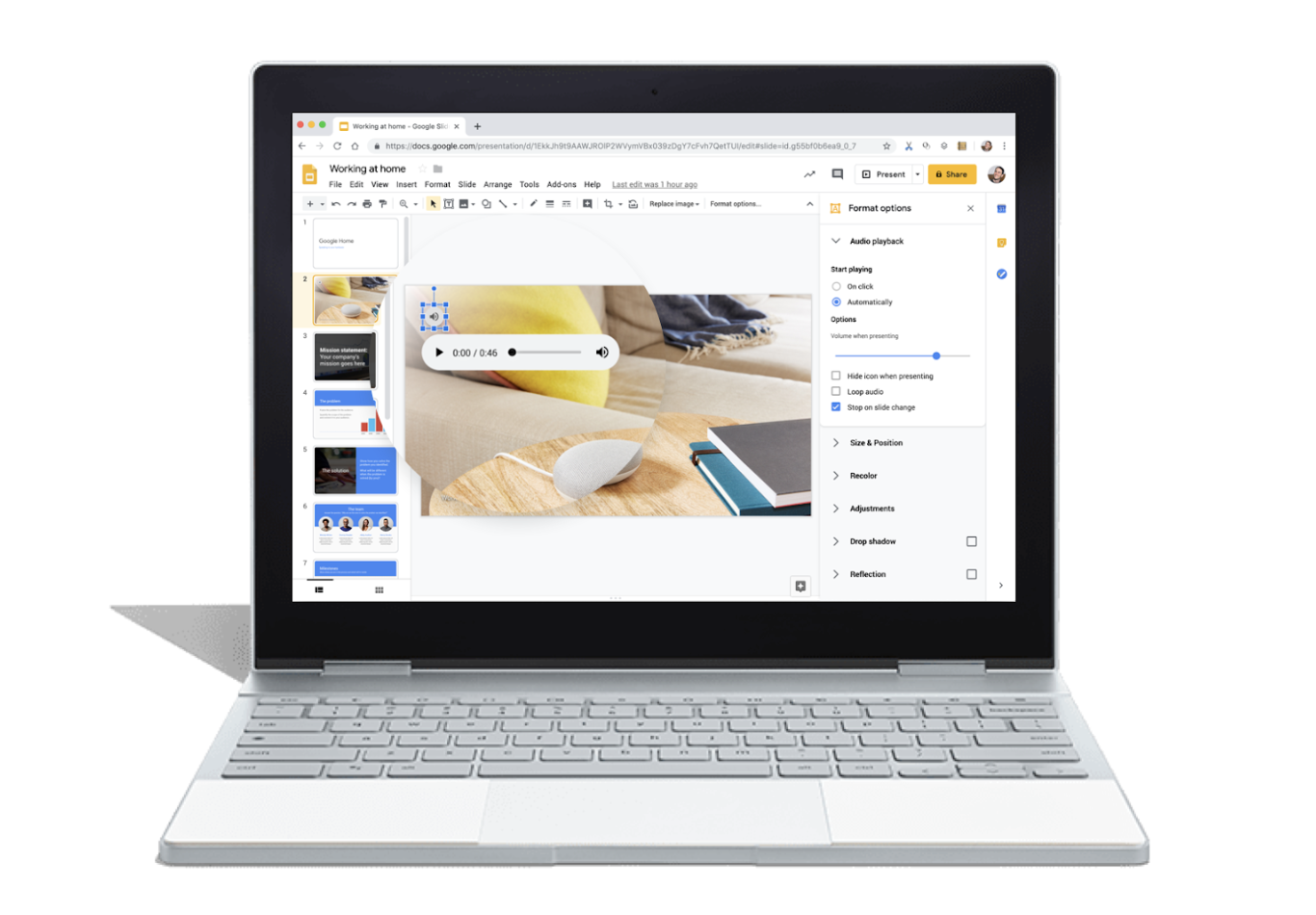
The ability to add an audio file into Slides is currently only available on desktop, though audio will play on all platforms.
Soon you will be able to edit the theme colors for your presentations in Slides, making it easier to set up a new theme or apply bulk color changes to existing presentations. To do this, go to any color picker dropdown and click the edit button for your Theme color palette. In the Theme color sidebar, select a color from the dropdown to begin editing.
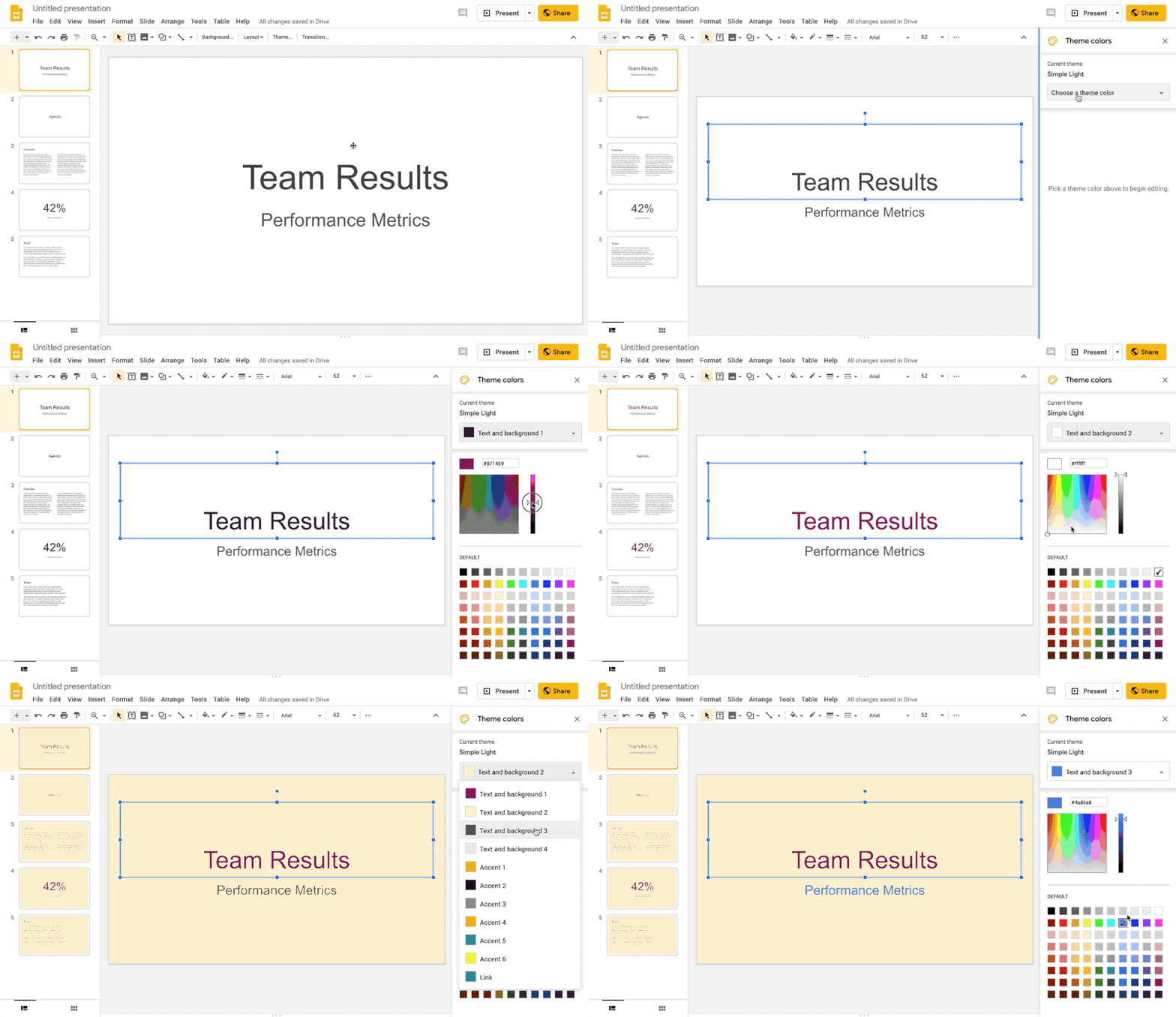
Note: These changes will only apply to the current theme and will not create a new theme
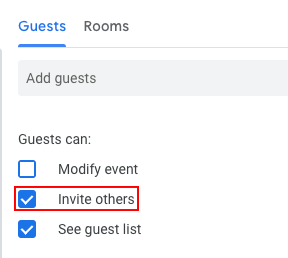
Now, if guests of a Calendar event have been granted permission to invite others, recipients of forwarded invitation emails can RSVP to the event, adding them to the event as a guest. This eliminates the step of having to go into the event in Calendar to invite additional guests.
%20(1).gif)
Note: For this feature to work, the organizer must have granted permission for guests to add other guests to the event.
Rooms will no longer accept two Calendar events that overlap in time. Previously, if an event was created directly on a room’s calendar by someone with permissions, the room would accept this meeting even if another event had already added this room for that same time. Now, if the room has already accepted another meeting, creating a new event at the same time on the room’s calendar will result in a room decline of this conflicting meeting.
Google has added new features and tools to create more compelling and stylized reports in Sheets:
- Guides
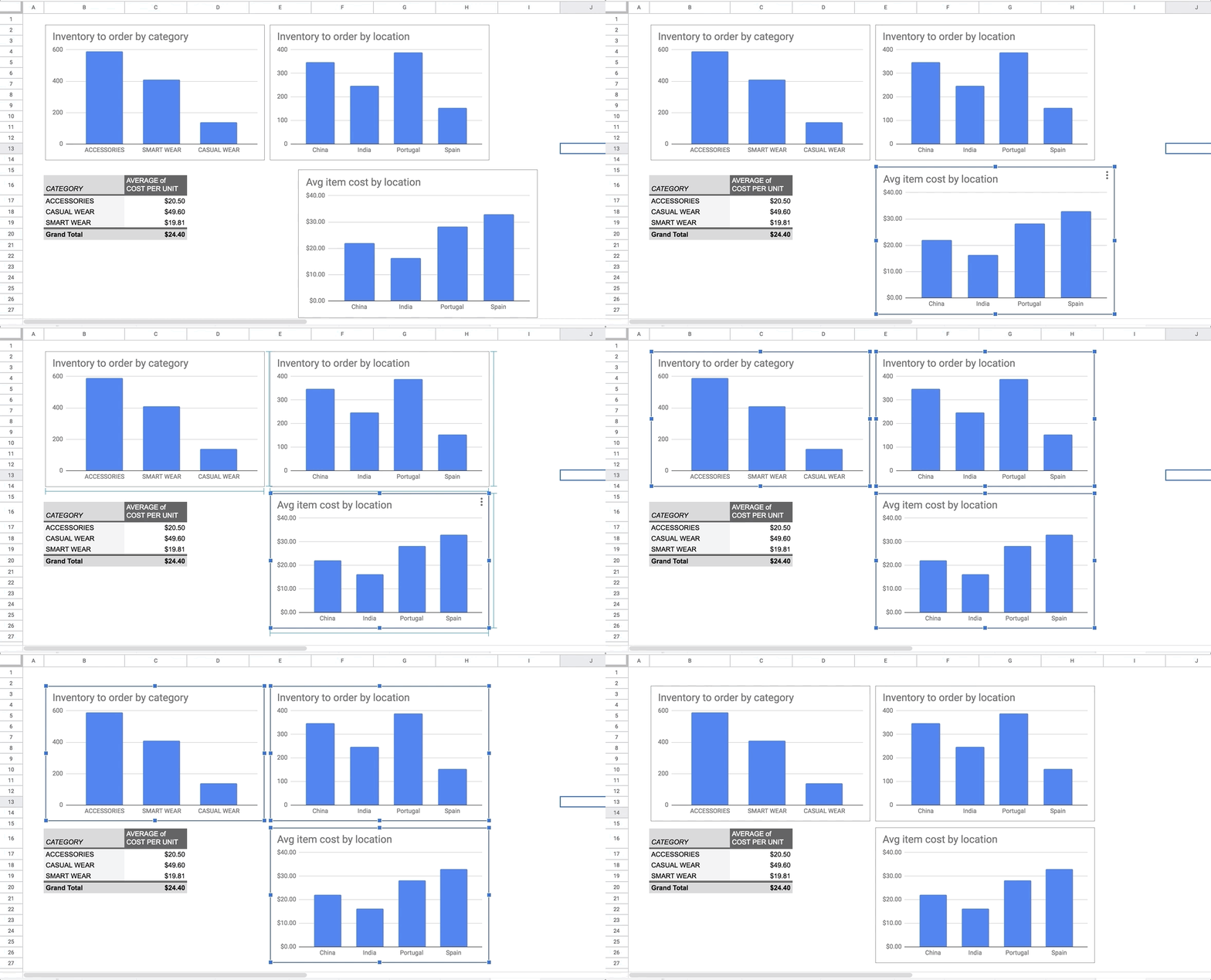
You can use guides to help you align, size, and position various objects within your sheets. Guides are also helpful in making sure multiple objects within the same sheet are in proportion to one another.
- Multi-Selecting Objects
To select multiple charts, drawings, and images to move, resize, or delete in bulk, hold down the Control or Shift key and select.
- Enhanced Pivot Table Insertion
When adding a new pivot table, you now have the option to either place it in a new sheet or in a custom location on an existing sheet.
- To create a new pivot table, go to Data > Pivot Table and select a data range.
- In the dialogue box, under Insert to, select New sheet or Existing sheet, and click Create.
Note: If you select an existing sheet, you’ll have to select a specific cell location for the pivot table.
- Copy and paste images into Sheets
You can now copy images from other websites and paste them directly into your sheet. Simply right-click on an image and select Copy, then in Sheets right-click and select Paste to insert the image over the grid.
- Formula backed charts inserted from Answers
Now, when you use Sheets Explore to create charts, the charts you insert from the Q&A feature (Answers) will be backed by formulas. This means that charts will automatically update if the underlying data changes, ensuring you always have a fresh chart with the latest information.
According to Google, these features began rollout on May 2nd and may take up to three days for feature visibility.
Google has made it possible to copy much larger sites in order to help users efficiently copy their existing sites, allowing them to back up their work, iterate on previous sites, or create ‘templates’ to start new sites.
To make a copy with the improved site copy, open a site in the new Google Sites, click More > Duplicate site.
.gif)
Previously Communicated:
Note: Keep in mind that even when Non-Core Apps are found in a Core App (like Add-ons in Gmail and Google Drive), they are not covered by the G Suite for Education agreement.


.png)