Updates
Calendar
New calendar sharing permission level and changes to recurring event visibility
Google has added an additional calendar sharing permission called “Make changes (see private events as free/busy).” This permission allows you to grant someone edit access to your calendar while keeping the details of your private events hidden.
In addition to this permission change, you can no longer change the visibility of a single event in a recurring series. Any changes to visibility will be applied to all events in the series. Existing events in a recurring series have been updated to match the strictest visibility setting of any event in that series. For example, if one event in the series is marked private but the others are not, all events in that series were changed to private.
Custom event colors
You have access to an expanded color palette so you can personalize events and visually organize your calendar by color. Previously, you were restricted to 11 default colors. Now, you can have up to 200 custom colors for individual events, and on Calendar on the web, you can define additional colors by using a full RGB color picker. Learn more about using colored labels to organize your Calendar events.
Chat
New discoverable space setting
Google expanded how individuals can find and join Chat spaces by adding a third access option called "Discoverable." Discoverable spaces appear when individuals browse for spaces within U-M, but the conversation history and messages remain private until a space owner or manager approves their request to join. Previously, spaces were either private (invite-only) or open (anyone at U-M can find and join). According to Google, space access types can only be changed in space settings, but they will be available at space creation in the future. Learn more about changing Chat space access levels.
Group conversations now allow external collaborators
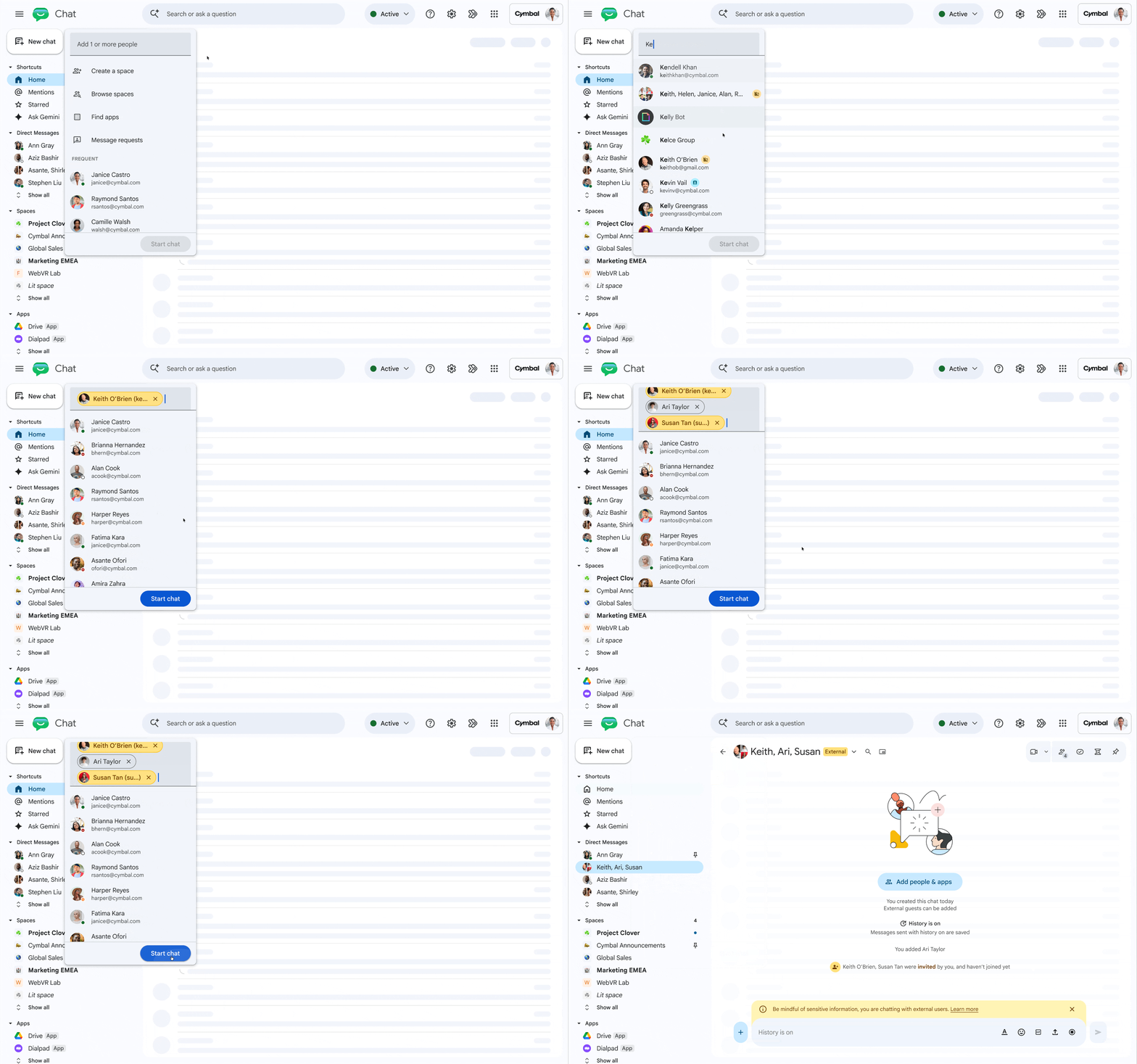
Google has improved external collaboration in Chat by making it possible to create group conversations that include external (non-UM) accounts. Previously, you could only create 1:1 conversations with external accounts or create a space with external access enabled. Group conversations with external members are labeled with a visible badge.
External accounts can’t be added to existing group conversations with only U-M accounts. External accounts that are added to group conversations will receive an email invitation and must accept the invitation to participate in the group conversation. Learn more about external group conversations in Chat.
Drive
Improvements to Out-of-Domain file-level warnings
Google has improved the Out-of-Domain file-level warnings announced in April 2025. The following scenarios will now show an external badge or indicator:
- Files in the Android and iOS apps for Drive, Docs, Sheets, and Slides
- Files shared in an externally shared Chat space or 1:1/group conversation
- Files that are accessible by externally-owned service accounts
- Comment and file-sharing email notifications for external files and accounts
These badges help you identify potentially harmful files and when to be cautious when sharing confidential information in external files.
Timestamped comments on Drive videos
You can now anchor comments to a specific timestamp in a video stored in Drive. While you must create timestamped comments on the web, mobile users viewing videos on iOS or Android can still see these entries formatted as standard file-level comments. Learn more about commenting on Drive videos.
Import 3D bar charts into Sheets
Sheets now supports importing 3D bar charts. Previously, when you imported files containing 3D bar charts into Sheets, they appeared as 2D bar charts.
Import and create combo charts in Sheets
You can create new “combo” chart types in Sheets, enabling complex dataset visualization with different scales and metrics without requiring manual replotting. Additionally, your combo charts with secondary axes are now preserved when importing Microsoft Excel spreadsheets into Google. Previously, importing external files that contained combo charts with a secondary axis dropped the secondary axis. Learn more about creating and editing charts in Sheets.
Import and create scatter charts with multiple x-series in Sheets
Sheets now supports creating and importing scatter charts with multiple independent x-series. Previously, importing Excel files with multiple x-series scatter charts dropped the extra axes and reverted to a single x-axis.
Improved file importing in Sheets with tables and linked pivot tables
Google has introduced two key improvements in Sheets that preserve formatting and linked data when converting files from Microsoft Excel. Sheets now fully supports importing Excel pivot tables that are backed by table ranges. Also, Excel tables will now import as Sheets tables. Previously, when converting Excel files, pivot tables linked to tables were replaced with static grids, and tables did not import as Sheets tables.
Expanded options for header images in Forms
Form creators now have more options for header images. Previously, creators could only use a pre-selected theme, upload an image, or choose an image from Google Photos. In addition to these options, creators can now choose an image from Google Drive, Google Images, or use a URL. Learn more about adding a Form header image.
Scan multiple pages in Drive app on Android
The Google Drive app on Android has added a new “Document Scanner” feature, allowing you to scan multiple pages at the same time. Note that this is only available for Android devices with 8GB+ RAM.
Gemini & Notebook
NotebookLM is now Gemini Notebook
As many of you have likely already noticed, NotebookLM has been renamed “Gemini Notebook.” Learn more about using Gemini Notebook at U-M.
Automatic Drive syncing in Gemini Notebook
As the content in your Drive files changes, the files imported to your notebook now sync automatically. Previously, you had to manually re-sync each Drive file in your notebook to reflect updates. Additionally, if your access to a Drive file is revoked, you can no longer use that file as a source. However, it will still appear in your sources list with a link to request access. If a file is deleted from Drive, it will be removed from the notebook’s sources list.
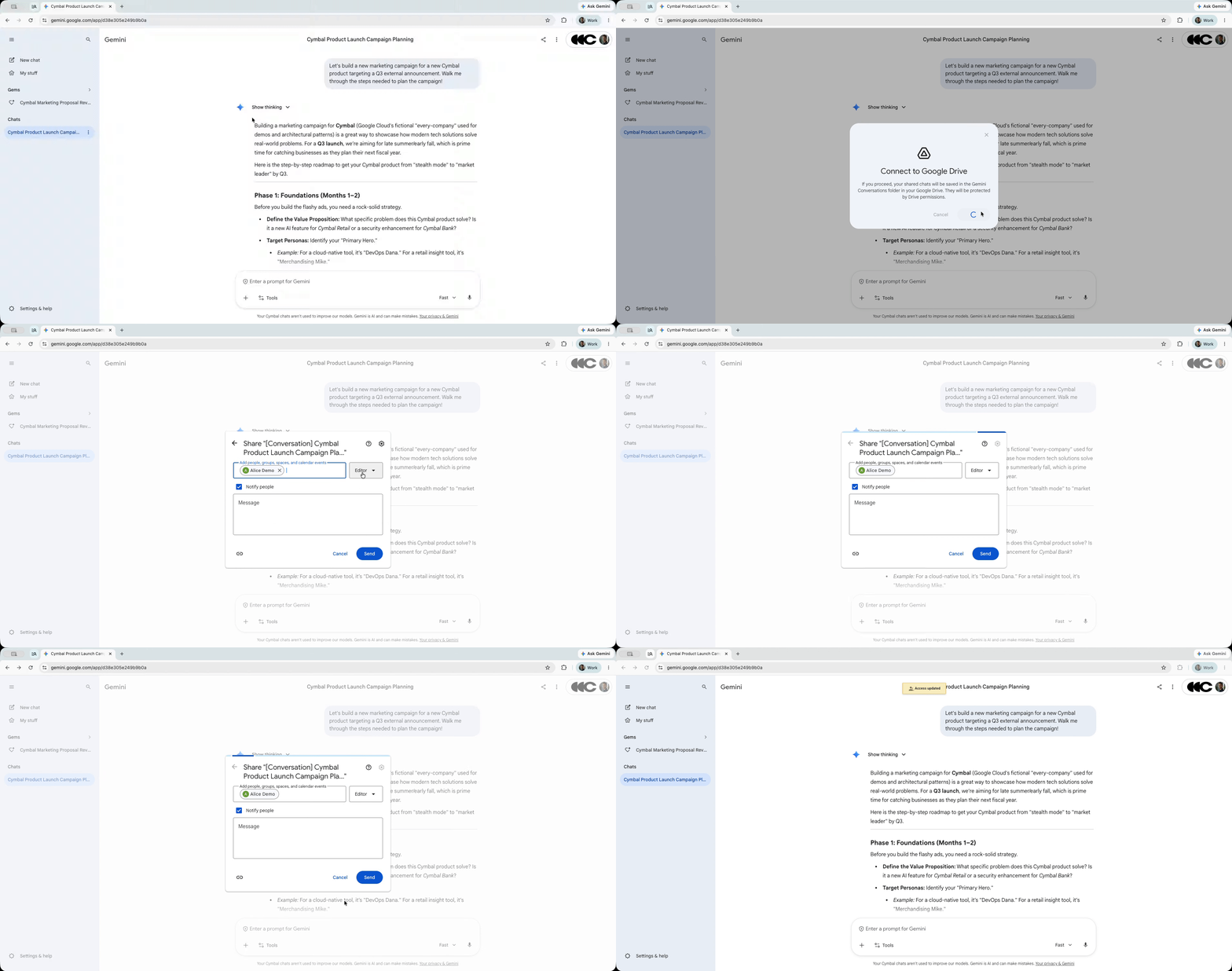
Share chats, canvases, and generated media from the Gemini app via Drive
You can now share your Gemini conversations, canvases, and other generated media from the Gemini web app using the standard Drive sharing menu. (As with Drive files, you can share Gemini artifacts with external (non-UM) collaborators, too.) From within the conversation or other artifact you’d like to share, click the three-dot icon in the top right corner and select Share via Drive. Learn more about sharing your Gemini chats.
Mail
Work with delegated accounts from mobile devices
The iOS and Android Gmail app now allows account delegates to read, manage, and compose emails on behalf of a delegator directly from their mobile devices. Previously, you could only work with delegated Gmail accounts through the web interface. (Delegators do not need to perform any additional setup to enable mobile access for their existing delegates.) Learn more about account delegation in Gmail and at U-M.
New reply all warning banner
Google introduced a new warning banner in Gmail related to the reply-all feature. This warning displays whenever you attempt to reply all to an email thread where your email address is not listed explicitly in the To or CC fields (such as BCC'd, auto-forwarded, or delegated emails), preventing accidental disclosure.
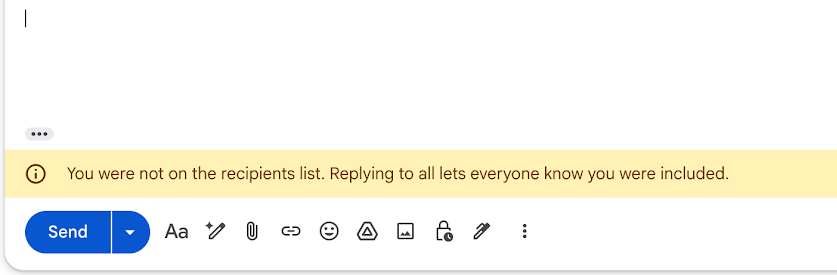
This banner may also appear when replying all to an MCommunity group or Shared Account. Because of how MCommunity groups function within U-M Google, Google interprets these groups as having members who are "hidden" from recipients and other group members. Since your account's email address is not explicitly named within the To or CC fields (just the group or Shared Account email), you will always receive this banner. Refer to the ITS Knowledge Base for more UM-specific information.
Meet
Now available on Android Auto
If you use an Android, you can now access Meet directly from your car's dashboard through Android Auto. Please note that when you join a meeting, your camera is turned off, and you won’t see incoming video. You will hear the meeting audio and have audio input via your car’s microphone. Learn more about using Meet on Android Auto.
Redesigned Meet homepage
The new homepage at meet.google.com provides a centralized view where you can access meeting descriptions and calendar attachments for upcoming calls and find meeting notes from past calls.
Previously Communicated

 ) will be at the top of the screen.