
U-M Google Updates

Spelling and Grammar Improvements in Google Docs

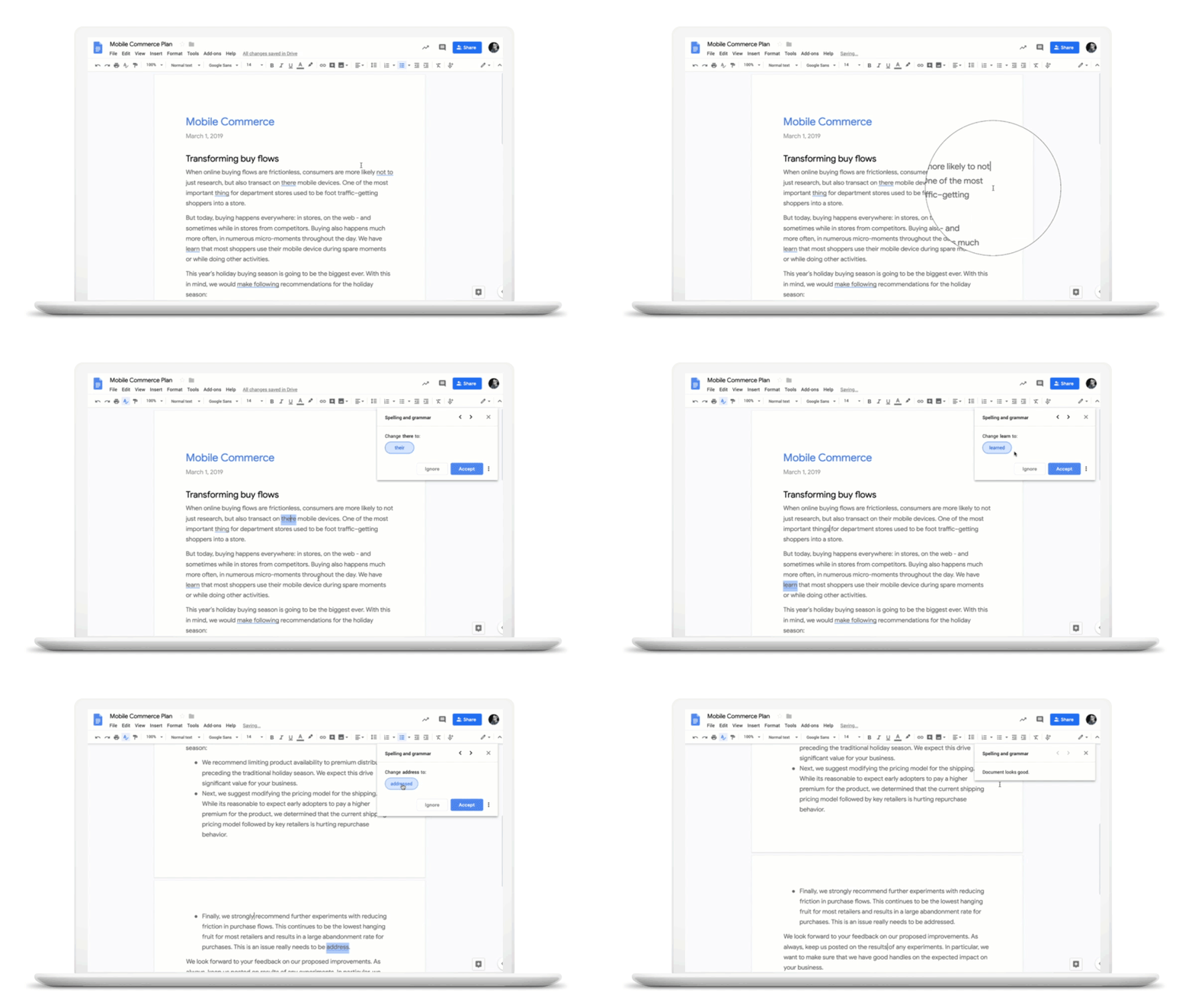
New features in Google Docs enhance existing spell check functions and highlight possible grammatical errors in the text. Google is also introducing a revamped interface for reviewing spelling and grammar suggestions that make it faster and easier to spot and correct errors in your text.

Some improvements are:

  • Grammar 
    • Possible grammar corrections will be underlined in blue. To see a suggested correction or dismiss the alert, right-click on it. 
    • You will also see possible grammar errors when running a spelling and grammar check through the Tools menu. 
  •  New language review interface
    • You can review all language suggestions for a document with the updated spelling and grammar check tool. Access it through the Tools menu or right-click on a suggestion and select Review more suggestions — you’ll see each suggestion and actions to correct any errors. 


See Google Cloud Product News to learn more about how Google is using machine learning to recognize errors and suggest corrections to improve your writing.

Google Docs, Sheets, and Slides offline mode

Note: The Google Docs Offline extension is required. You will be prompted to install it when enabling offline mode if it is missing.

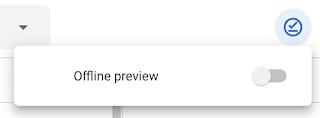
It’s now possible to create, edit, and comment on Docs, Sheets, and Slides files when your device is offline or has a slow internet connection. Any changes made while offline will sync in Drive once connected again. You can also preview which files are available offline with a new offline preview mode.

Enable offline access in Drive settings:

  • In Google Drive, select Settings from the Settings (gear icon) drop-down list. In the general section, select Sync Google Docs, Sheets, Slides, and Drawings files to this computer.
  • Once offline access is enabled, a checkmark icon will appear next to Settings and Support (question mark). Click this icon to find the offline preview toggle. 

Make files available offline:

  • Google Drive automatically makes a certain number of files available offline based on how recently you accessed them. 
  • While connected, mark a file available offline:
    • In offline preview mode.
    • In Drive, right-click on any file and toggle Available offline.

This feature has begun to roll out in U-M Google and will gradually become fully visible. 
 

New G Suite Learning Center

Google has completely redesigned its G Suite Learning Center to include more customer-friendly features, including 300+ how-to’s and guides.

Some of these new features include:

Note: The new G Suite Learning Center can now be found at support.google.com/a/users, but you can still use the old web address (gsuite.google.com/learning-center).


Interested in our latest updates about Google G Suite at U-M? Check out the Google Service Updates page.
 

Office files are now easier to edit in Google Drive!

Google has recently added the ability to edit, comment, and collaborate on Microsoft Office files using Google Docs, Sheets, and Slides. This feature brings the real-time collaboration tools of G Suite to Office files and eliminates the need to convert file types.

To access this feature:

  • In Google Drive, double-click your Office file. This will open a preview of the file.
  • At the top, select Open with. In the dropdown, select the file type you are trying to open (i.e., Google Docs, Sheets, or Slides). From here, you can edit, share, view version history, collaborate in real-time with others, and more.

All changes you make will be saved to the original Office file.

GIF of the new Google Microsoft Office editing

The following Office file types are supported:

  • Word files: .doc, .docx, .dot
  • Excel files: .xls, .xlsx, .xlsm, .xlt​
  • Powerpoint files: .ppt, .pptx, .pps, .pot

Note: If you edit Word, Excel, or PowerPoint documents older than Office 2007, files will be saved to a newer format when editing using this feature.

According to Google, full rollout began on May 30th and is expected to take up to 3 days for feature visibility.


Interested in our latest updates about Google G Suite at U-M? Check out the Google Service Updates page.

U-M Google May Monthly Summary

The monthly U-M Google Summaries inform campus of Google releases for Core Apps. We communicate important information on Core Apps throughout the month. Core and Non-Core Apps are listed on the G Suite website.

New Updates:

Last year, Google launched the Activity dashboard to help users see who’s viewing a particular document and viewer trends. These updates add more content to the dashboard, making it a centralized hub where owners and editors can see how other collaborators are engaging with their content.

These features include:

  • Sharing history

Sharing history provides you with a brief summary of how your file is being shared with others across the University of Michigan and elsewhere. You can now easily find who shared access with who and what level of editing access they’ve been granted.

Google activity dashboard screencap - sharing history

  • Comment trend

Comment trend will help you to visualize the conversations in a file. It will show the number of comments, suggestions, and replies created per day. Additionally, a graph will display the number of new comment threads, replies, and unresolved comments over the lifetime of the file.

Google activity dashboard screencap - comment trend

Google has made it easier for Google Sites editors to share a selection of images in new Sites by creating an image carousel.

To insert an image carousel to your Site:

  • In the right sidebar, click Insert > Image carousel
  • Select images to upload or select from already uploaded images.
    • Drag images to reorder as desired.
    • Hover over the image to delete or add alt text.
  • To set carousel settings, click the gear icon to the top right and select from the following:
    • Auto start: images in the carousel will automatically cycle.
    • Show dots: displays progress indicators for the carousel.

gif of new Google Sites image carousel

Google has made it easier to create and edit events on your Android device.

You’ll see several changes when creating/editing a meeting on Android such as:

  • Maintain visual access to calendar grid: You can now collapse or expand the creation/edit view, so you can go back and forth between this screen and the Calendar. This allows you to interact directly with the Calendar by tapping on the desired time slot, drag & dropping vertically to another time in the same day, or horizontally to another day.
  • See guest availability without leaving the create/edit view: You can now see the availability of guests directly in the Calendar, as their calendars will load as you add them to the event. Google Calendar may also suggest a title for the meeting. After adding guests, organizers can see schedules of their guests by selecting View Schedules or by dragging down the Creation View.

gif of new meeting creation flow for Google Calendar on Android

Google’s Calendar and Keep apps will now support Dark mode on Android. (This feature does not apply to the iOS apps at this time).

Dark mode is a popular feature that creates a better viewing experience in low-light conditions by reducing brightness.

To enable this feature:

  • In Calendar
    • Enable Dark mode by going to Settings > General > Theme.
  • In Keep
    • Dark mode by going to Settings > Enable Dark Mode.

screenshot of new android dark mode for google calendar  screencap of new Google Keep dark mode on Android

Previously Communicated:


Note: Keep in mind that even when Non-Core Apps are found in a Core App (like Add-ons in Gmail and Google Drive), they are not covered by the G Suite for Education agreement.


Interested in our latest updates about Google G Suite at U-M? Check out the Google Service Updates page.