U-M Google Updates

Reminder: Google Classic Site Creation Ending

In one month, May 3, 2019, you will no longer be able to create classic Google Sites in U-M Google. For the time being, existing classic Sites will remain available for updates. This step is in preparation for the eventual retirement of classic Sites. We urge you to convert any remaining classic Sites to the new Sites format. Beginning May 3, you will only be able to create new Sites in U-M Google.  

New Google Sites are stored in Drive, so you can create them like any other Google file type. From Drive, click +New > More > Google Sites. Classic Sites remain available at sites.google.com by clicking Back to Classic Sites.

U-M Google March Summary

The monthly U-M Google Summaries inform campus of Google releases for Core Apps. We communicate important information on Core Apps throughout the month. Core and Non-Core Apps are listed on the G Suite website.

Core Apps

Insert a Table of Contents in Google Sites

Editors can easily insert a table of contents into a Google Sites page — headings and subheadings will automatically update as content is added to the page, making maintenance easy. Site viewers can quickly navigate through sections of a page by clicking the desired heading and automatically jumping to that section within the same window.

By default, the table of contents will indent based on the hierarchy structure of headings, however, editors have the option to change the styling and remove indents. To remove indents, simply click on your table of contents and select Flatten. To re-indent, select Indent.

To add a Table of Contents to a page, at the right, click Insert > Table of Contents.
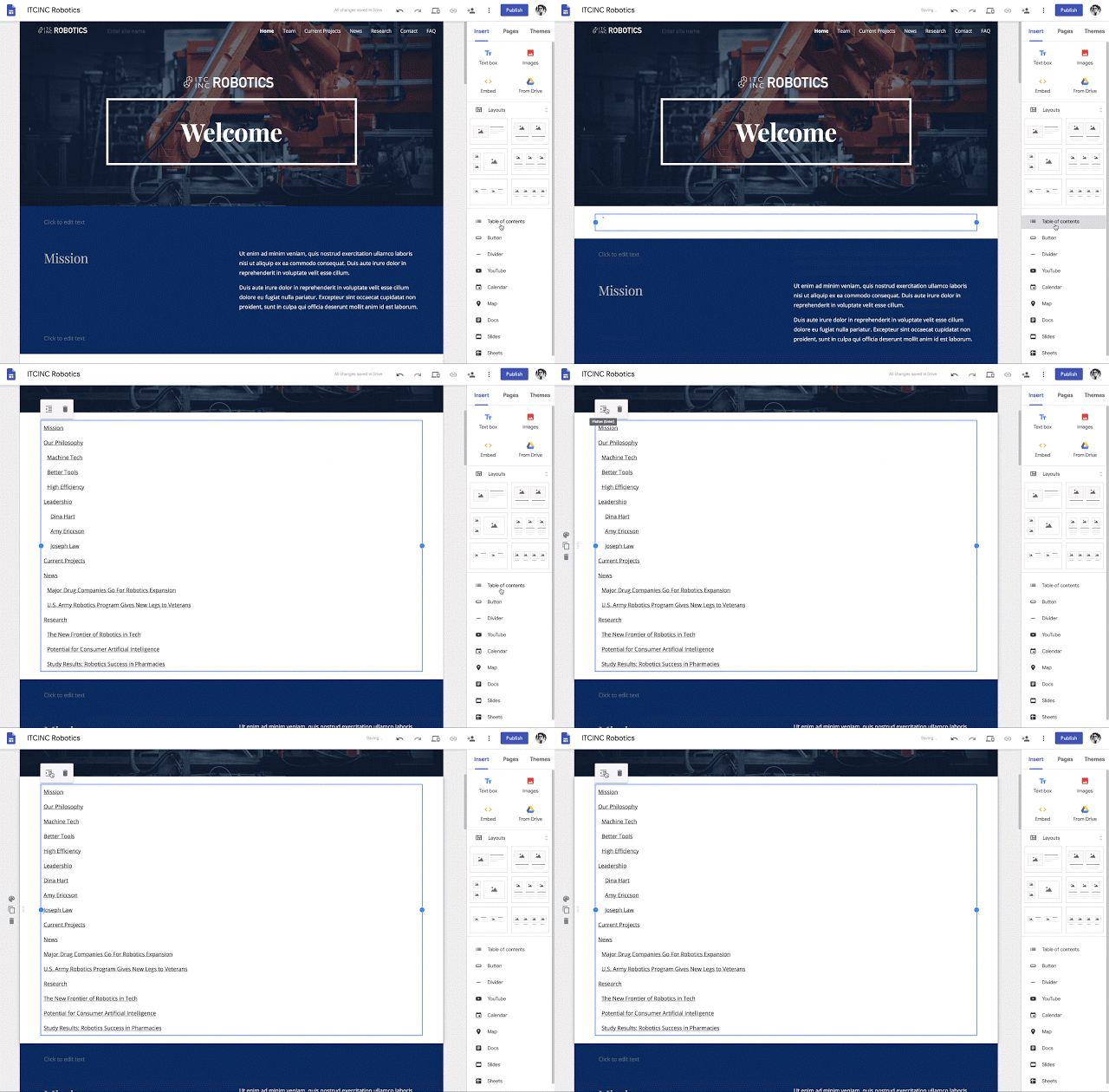
google sites table of contents

Work smarter with the new Priority page in Drive

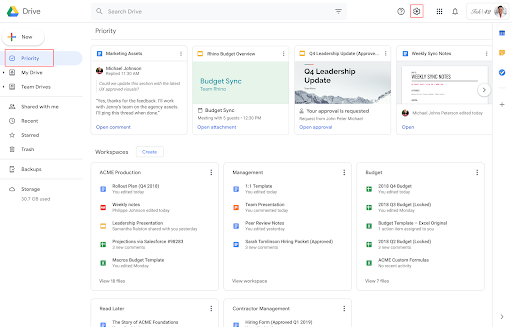
With the new Priority page, the most relevant files will be shown to you, allowing you to take action on them, as well as sort them into workspaces. You can access the Priority page from the left-hand navigation panel in Drive. Some features you’ll see on the Priority page include:

  • Priority
    Here you’ll see the documents Google thinks are most relevant to you. On each suggested document, you can also take actions in line, without navigating to the doc in question, like replying to a comment or reviewing recent edits
  • Workspaces
    ​​Here you can create your own personalized Workspaces collecting any files you have access to, including content stored in your My Drive and various Team Drives. Right-click on any file and select Add to Workspace to dynamically group files as you work.

If you would like to make Priority your default home page, you can do so in Settings, which is accessible via the gear icon in the upper right-hand corner.

Note: According to Google, the Priority page began rollout on April 1 and may take longer than 15 days for feature visibility

google drive priority page screenshot

Simultaneously present and be seen with Hangouts Meet

Now, when you present your screen in a Hangouts Meet meeting, your camera’s video feed will remain visible. This allows other meeting participants to continue to see you while you present.

Set start times and import reminders in Tasks

Google has added three highly-requested features to Tasks.

You can now:

  • Set a date and time for your tasks and receive notifications
  • Create repeating tasks
  • Import reminders into Tasks

For further steps on how to use these changes, visit Google’s product announcement.

View Calendar event creators to easily swap meeting rooms

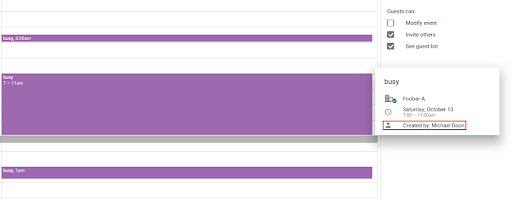
You can now see the creator of a meeting when looking at a “busy” block of time on a resource or room’s schedule in the “Find a time” grid view. Simply hover over the block to see the event creator’s name (even if the event is Private).

Note: The information such as the description and title of the event will still be hidden to ensure no sensitive information is shared.
Previously Communicated

Note: Keep in mind that even when Non-Core Apps are found in a Core App (like Add-ons in Gmail and Google Drive), they are not covered by the G Suite for Education agreement.

Interested in our latest updates about Google G Suite at U-M? Check out the Google Service Updates page.

Caution: Only use Google apps with U-M Google

The Collaboration Services team has discovered that using third-party apps to connect to a U-M Google account can lead to unexpected results. 

Google-Created Apps and Applications

Apps and applications created by Google provide the most seamless experience when using Google services, particularly with mobile devices. Google-created apps and applications are also supported by Google, whereas third-party apps are not. We strongly recommend that only apps and applications created and supported by Google be used to connect to U-M Google accounts for these reasons. A web browser may also be used.

Third-Party Apps and Applications

Third-party apps and applications are created by a group or company other than Google. Google does not support the use of third-party apps or incidents that might result by using them. Using apps not provided by Google is at your own risk and could lead to university data loss. We have seen issues related to the use of third-party applications when used with Google services.

Some reported issues include

  • Email and calendar events permanently deleted 
  • Inaccurate calendar notifications sent to event invitees 

These types of issues have occurred using an iPhone or iPad and Apple’s native mail and calendar apps. However, unexpected behavior is not limited to iPhones and iPads. Third-party desktop applications such as Apple Mail and Calendar or Microsoft Outlook may also cause unexpected behavior.

Be aware of what apps you use with your U-M Google account. Google provides and supports apps for Gmail, Calendar, Drive, and more in the App Store and Google Play. Using only the apps provided by Google ensures that we can get support from Google when issues arise.

New accessibility settings for Docs, Sheets, and Slides!

In Google Docs, Sheets, and Slides, it is now easier to find the accessibility features like screen reader support, braille support, and screen magnifier support.

Although these accessibility features were already available, they required additional steps to access the accessibility menu. This change makes these settings more readily available by placing them in the Tools menu.

Access the Accessibility menu by selecting Tools, then Accessibility settings...

Google accessibility settings new access from Tools menu

Google accessibility settings dropdown access  Google accessibility settings popup menu selection

If Turn on screen reader support is selected, an Accessibility menu will be displayed at the top of Docs, Sheets, and Slides for easy access.

Google accessibility new header placement


Interested in our latest updates about Google G Suite at U-M? Check out the Google Service Updates page.
Recurring Calendar meetings migrate to Hangouts Meet

In 2018, Google announced they would begin slowly releasing their new video conferencing service, Hangouts Meet. As part of moving video calls away from Classic Hangouts and over to Hangouts Meet, Google will begin migrating video conferencing links for recurring Calendar events from Classic Hangouts to Hangouts Meet.

According to Google, this migration is scheduled to begin on Monday, March 25 and could take 15 days or more to reach all accounts at U-M.

This change will take place gradually as users join affected meetings. They will see a migration banner notifying them that “Future occurrences of this meeting will use the new Hangouts Meet”. After the end of the call, all participants will get updated event information with the new meeting details. Single instance (non-recurring) Calendar events will remain unchanged.

Google Hangouts Meet migration from Hangouts classic screengrab with the new "migration" alert banner

For more information on the migration, visit Google’s product announcement page. Additionally, see how Classic Hangouts compares to Hangouts Meet on Google’s Help Center.


Interested in our latest updates about Google G Suite at U-M? Check out the Google Service Updates page.