Google has released three new features in Drive to make content easier to review and edit.
It’s now easier to compare two Google docs. This feature shows the differences between the docs as “Suggested Edits” in a new document, making it easier to see changes between two docs over time. For instance, faculty can use this tool to compare essays and track revisions, saving time when grading. Staff can use this tool during contract negotiations to see what terms have changed throughout the negotiation process and to compare the final version of the doc to the initial version.
To compare Docs:
- Open any Google Doc — this will become your ‘base’ document.
- Select Compare Documents from the Tools menu.
- In the dialogue, click Choose document to select the second Google Doc to compare against.
- In Attribute differences to field, enter the name of the person to be labeled as the author of the suggested edits in the comparison output file.
- Finally, to see the changes, select Compare.

A new document will be generated that shows all existing suggested edits from both docs as accepted. The differences between both documents are suggested edits labeled with the name defined in the Attribute differences to field. Doc owners and those with edit access can use this feature to compare documents.
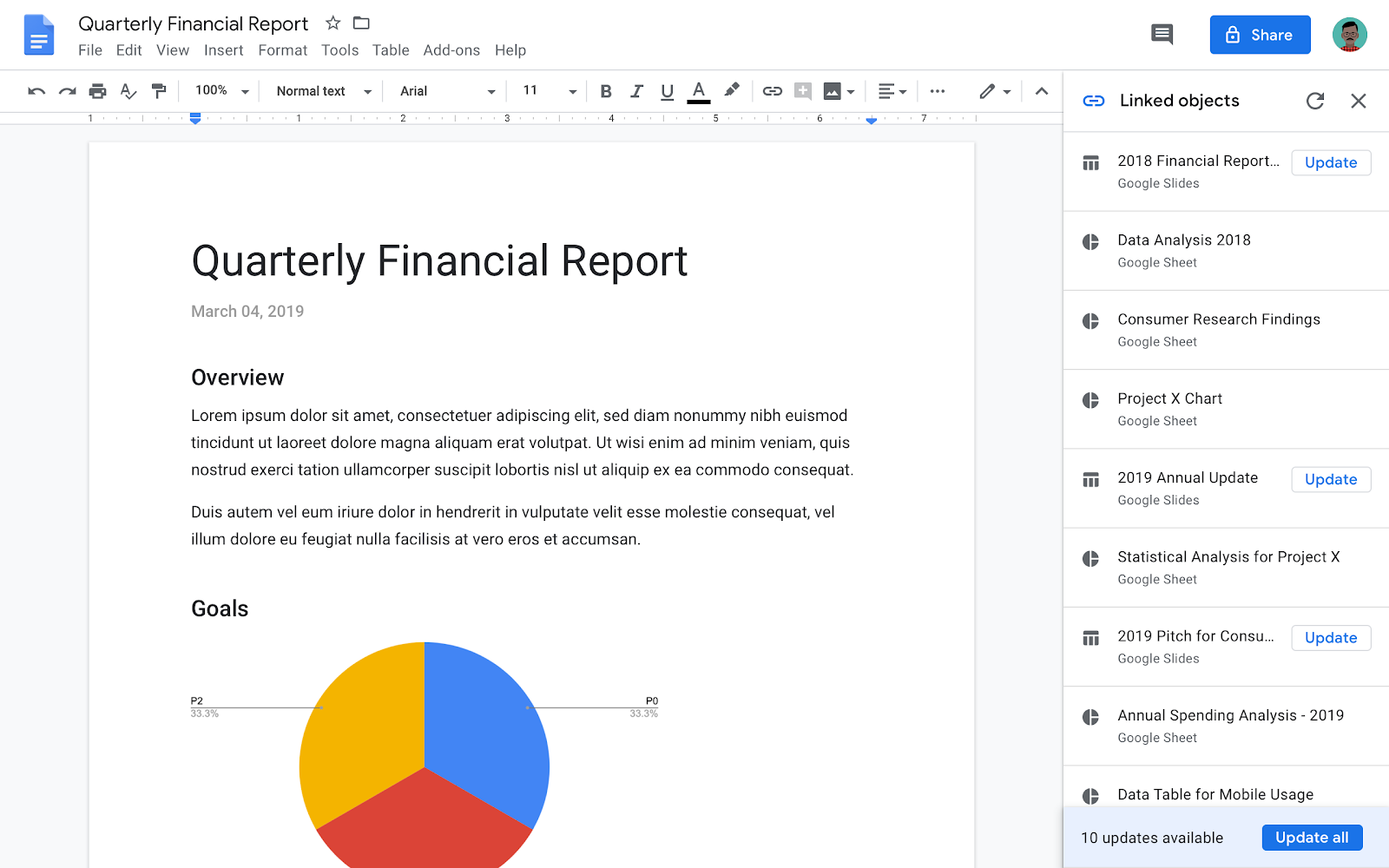
Google added a new “Linked objects” sidebar to show all linked content in a document, such as embedded charts, tables, slides, and drawings. The Linked objects sidebar gives the ability to quickly access all linked content in the Doc or Slides to see if anything is outdated and, if so, update all the content with a single click.
To update the data in multiple charts or tables:
- In Docs or Slides, at the top select Linked objects from the Tools menu.
- A sidebar will open on the right, then, at the bottom, select Update all.
Note: Select Update next to each specific object to update them individually.
If you don’t see Update or Update All, your charts, tables, slides, or drawings may not be linked directly in the Doc or Slides. To learn more about how to link charts, tables, or slides, see Link a chart, table, or slide to Google Docs or Slides.
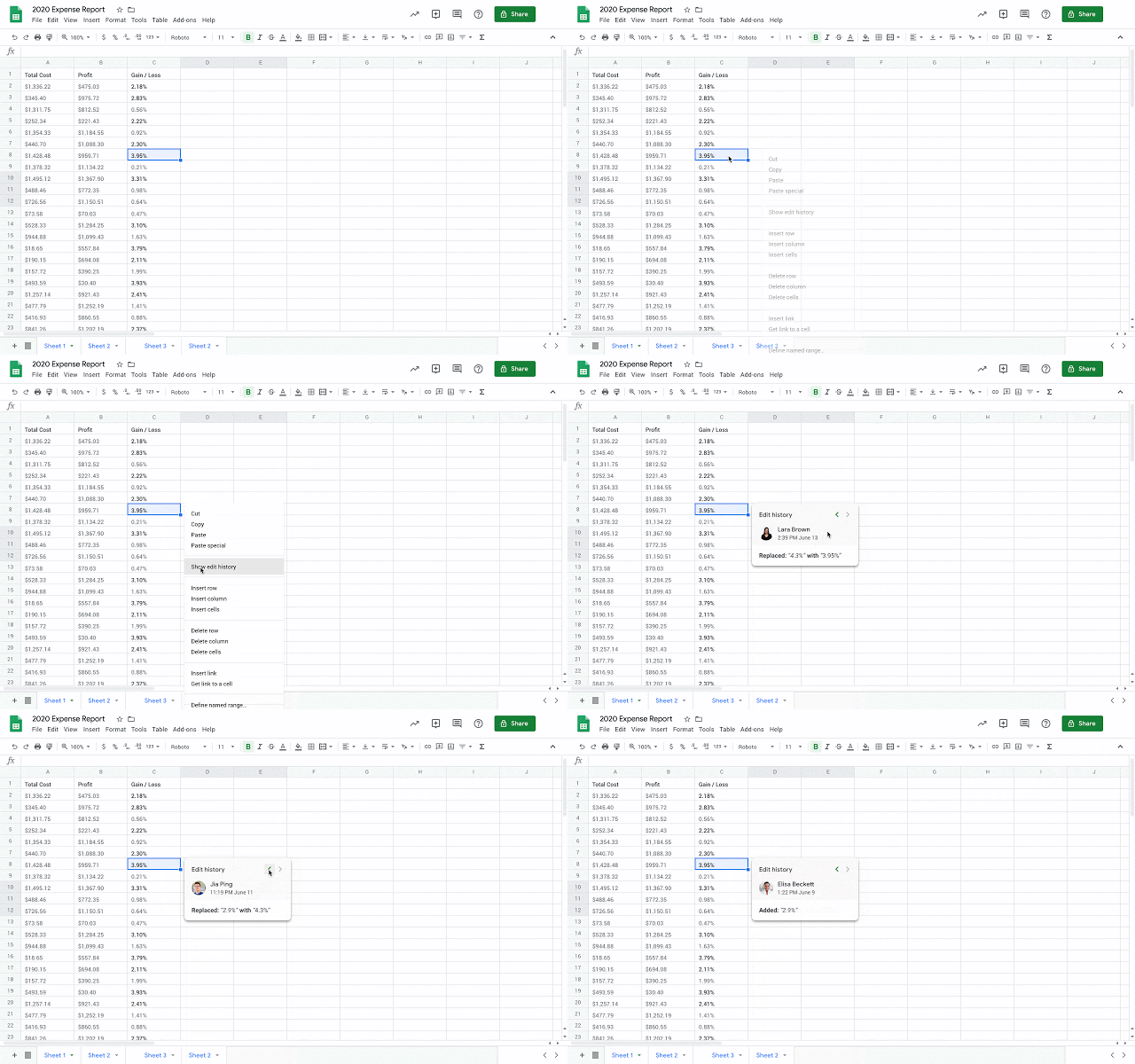
“Show edit history” in Sheets shows the edit history of a cell, including who made the last edit, when that edit was made, and the cell’s previous content value.
Tracking edits made by collaborators help to keep information accurate and to show who made specific changes. This is helpful when there are several collaborators working on a Sheet. Previously, Version History could be used to manually look through past versions of a sheet to determine who changed a cell and when.
To start using Show edit history, right-click on any cell and select Show edit history. A dialogue box will appear that shows:
- who last made a direct edit in the cell
- a timestamp of the edit
- the previous and current content value of the cell
- arrow keys in the top right corner which toggle back and forth between edits
The following changes are considered previous edits to a cell:
- Adding, editing, or removing content — like changing the value of a cell from “3” to “5”
- Changing a formula — like changing “=A1+B1” to “=A1+C5”
- Adding, editing, or removing a link from a cell
Some changes may not show up in the edit history. Some examples are:
- Added or deleted rows and columns
- Changes to the cell’s format
- Changes made by formulas
These new features are now available in U-M Google.
--
Interested in our latest updates about Google G Suite at U-M? Check out the Google Service Updates page.