U-M Google Updates

Hangouts Chat & Meet: new names, Meet features extended

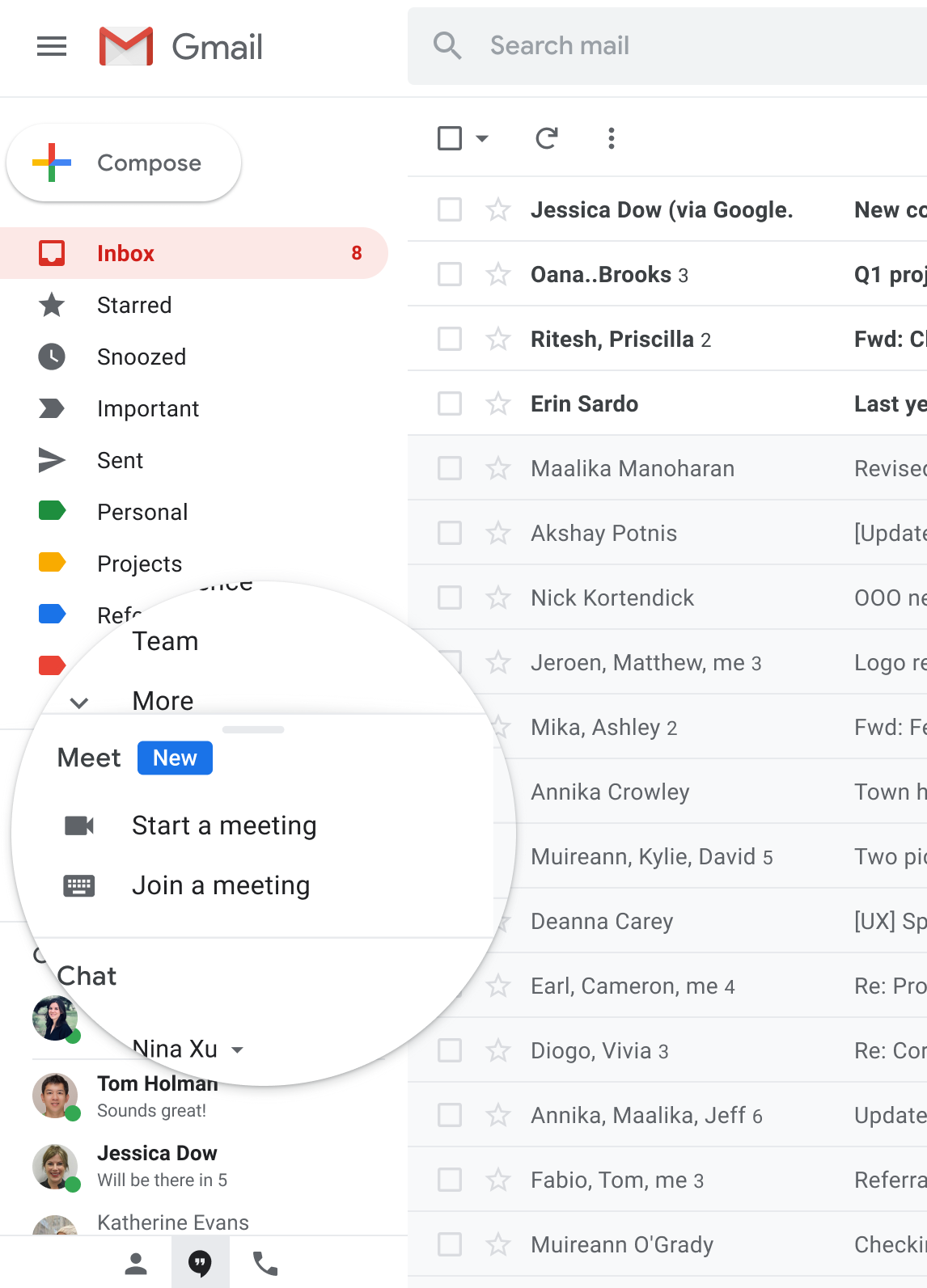
Google has announced a name change to Google Hangouts Chat and Hangouts Meet. Google has dropped the “Hangouts” from each product - “Google Hangouts Chat” will be known as “Google Chat” and “Google Hangouts Meet” will be known as “Google Meet”. You will begin to notice these name changes across U-M Google as this change continues to roll out.

In addition to these name changes, Google has extended the availability of their premium Google Meet features until September 30, 2020, at no cost to the university. As a reminder, these features include:

Visit the U-M Google service site to learn more about Google Chat and Google Meet at U-M.

Reminder: Best practices for sharing safely in U-M Box and Google

When you share files or folders from Google Drive or Box, you can control the level of permissions granted to others. As a reminder, the U-M Collaboration Services team recommends using caution when you choose permissions for your files and folders to ensure the privacy and security of university data. This is especially true when collaborating with people outside of U-M. It is your responsibility to appropriately share data with only those who should have access to it.

Tips for sharing in Google Drive:

  • Only share your files with those who need it. If the list of users grows too large, we recommend using an MCommunity group to help manage permissions. To learn more about using MCommunity with Google, visit the ITS Documentation Site.
  • Do not use link sharing unless necessary. This opens file access to a much broader audience, with the default being that anyone at U-M with the link can view it. If link sharing is used, make sure appropriate permissions to the file are in place, particularly with external collaborators.
  • External collaborators should either use or create a Google account, as it is the most secure way to collaborate with them. If they are unable or unwilling to use their Google account, the “Send the link (no sign-in required)” option can be used, but the shared link should be removed once the collaborator is done with the file.

Tips for sharing in Box:

  • If you store or share sensitive data, you must use a shared Box account that has been set up for sensitive data and put that data only in the shared account folders set up specifically for that purpose. For more information, see ITS Safe Computing: Use U-M Box Securely With Sensitive Data.
  • Use caution when sharing with collaborators. Because all roles, except Uploader, have the ability to view/add comments by default, only give file access to those who need it. A collaborator’s access should be removed when they are done with the file.
  • Only use shared links when the permissions are set to “Invited people only” to ensure that the file is not available to anyone who doesn’t need it. To learn more about securing shared links, visit Box’s Support Center.
  • External collaborators must use or create a Box account, as it is the most secure way to collaborate with them and the only way for them to access the content.

To learn more about other sharing best practices, visit our ITS documentation pages:

Two new features in U-M Google

Google has announced two new features for the U-M Google domain:

Sort and filter cells by text or fill color in Google Sheets

Soon you will be able to sort and filter cells in Sheets by text or fill (background) color. To use this feature, select Data from the toolbar, and then select Create a filter. Finally, at the top of the range, click the Filter icon, select Sort by color or Filter by color and then choose the type (text or fill) and color you want. Matching cells will be displayed at the top of the range. To learn more about sorting and filtering data in Sheets, visit Google’s Help Center.

Create and use multiple signatures in Gmail

Soon you will have the ability to create and use multiple email signatures in Gmail. This feature gives you the flexibility to use different signatures for different situations. To create multiple signatures in Gmail, click the Settings (gear icon) > select Settings > select General. Then, scroll down to “Signature” and select “Create New” to enter a new signature. Finally, to choose one of your signatures, open the signature menu in the compose action toolbar of an email. To learn more about multiple signatures in Gmail, visit Google’s Help Center.

According to Google, the Sheets feature should now be available and the Gmail feature should begin showing up in on April 22 in U-M Google. The Gmail feature could take 15 days or longer to become fully visible.

Reminder: Only use Google apps with U-M Google

This is a reminder that using third-party apps to connect to a U-M Google account can lead to unexpected results. 

Google-Created Apps and Applications

Apps and applications created by Google provide the most seamless experience when using Google services, particularly with mobile devices. Google-created apps and applications are also supported by Google, whereas third-party apps are not. We strongly recommend that only apps and applications created and supported by Google be used to connect to U-M Google accounts for these reasons. A web browser may also be used.

Third-Party Apps and Applications

Third-party apps and applications are created by a group or company other than Google. Google does not support the use of third-party apps or incidents that might result from using them. Using apps not provided by Google is at your own risk and could lead to university data loss. We have seen issues related to the use of third-party applications when used with Google services.

Some reported issues include:

  • Email and calendar events permanently deleted.
  • Inaccurate calendar notifications sent to event invitees.

These types of issues have occurred using an iPhone or iPad and Apple’s native mail and calendar apps. However, unexpected behavior is not limited to iPhones and iPads. Third-party desktop applications such as Apple Mail and Calendar or Microsoft Outlook may also cause unexpected behavior.

Be aware of the apps you use with your U-M Google account. Google provides and supports apps for Gmail, Calendar, Drive, and more in the Apple App Store and Google Play Store. Using only the apps provided by Google ensures that we can get support from Google when issues arise. 

New out of office notices in Gmail

Last year, Google announced the ability to see when someone is out of office in Gmail, specifically when composing a new email or Hangouts Chat. Now, they’re expanding that functionality to more places in Gmail on the web, like when you’re hovering over someone’s name in your inbox or in the “To” or “From” line in an email.

Screenshot of the new contact info showing out of office notices in Gmail

This feature gives visibility to your time out of office in more places across G Suite, making it clear to senders the appropriate time to message you.

These notices will automatically appear when anyone whose calendar you have access to has an out of office event scheduled. Use the Google Help Center to learn more about disabling the sharing of availability information to other G Suite apps

Important: This feature stems from your Google Calendar out of office settings, not the vacation responder in Gmail. As a reminder, only use MCommunity for your out of office notifications and not Gmail’s vacation responder. MCommunity has been specifically designed to work within the U-M computing environment. Using Gmail’s native feature has been known to cause issues with recipients of out of office messages. For more information on how to set your away message in MCommunity, see ITS’s documentation page.

According to Google, this feature is available now in the U-M domain.