U-M Google Updates

Create shortcuts to any file/folder in Google Drive

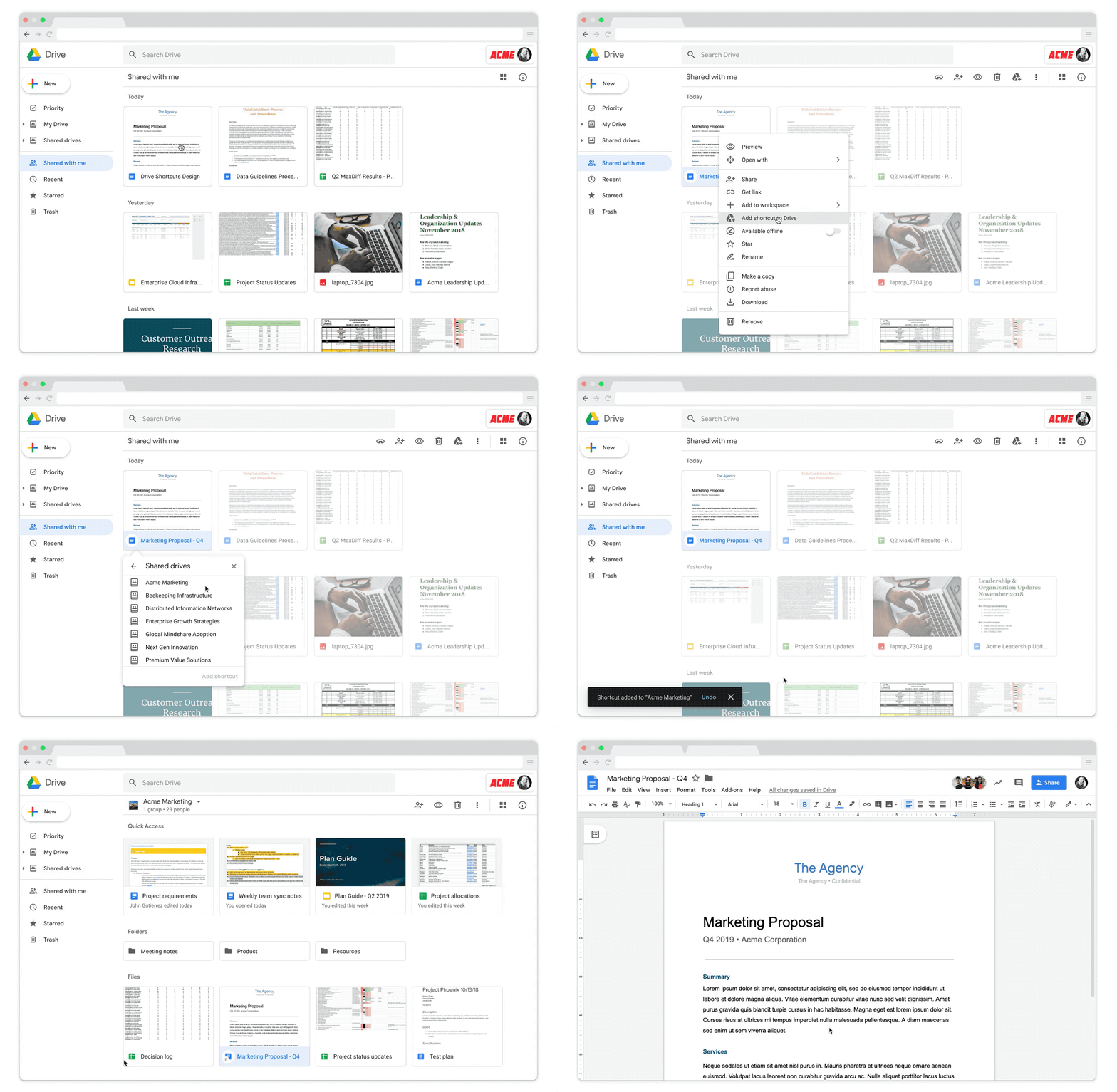
Shortcuts in Google Drive make it easier to organize content and point collaborators to relevant information and files across various drives. Shortcuts are pointers to content that can be stored in another folder or drive, a shared drive, or an individual user's “My Drive.”

GIF showing how to create a new shortcut in Google Drive

Shortcut visibility and sharing permissions 

Shortcuts are visible to anyone who has access to the folder or drive containing the shortcut. However, even if someone can see the shortcut, they can only open it if they have the appropriate access and permissions to the original file/folder.

Simplifying the appearance of files/folders in multiple locations 

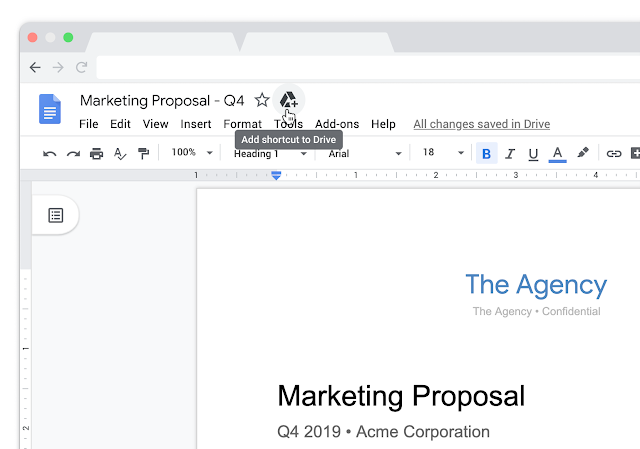
In order to create a consistent experience for managing and viewing reference files across Google Drive, Google has changed the “Add to My Drive” icon option to “Add shortcut to Drive”.

Screenshot of the new button for adding shortcuts in Google Drive from within a file

Changes to Drive’s folder structure and sharing model

Starting September 30, 2020, it will no longer be possible to place a file in multiple folders in My Drive. From then on, every file will live in a single location. In addition, all files already living in multiple locations in My Drive will gradually be changed to shortcuts. There is no action needed on your part nor should you expect to run into issues during Google’s migration.

Visit the Google Drive Help Center for more information on how to use Google Drive shortcuts.

According to Google, this feature began showing up in the web version of U-M Google Drive on April 15 and could take 15 days or longer to become fully visible. The feature should already be available for use in the Google Drive iOS/Android mobile app, Google Drive File Stream, and Google Backup and Sync.
Start or join a Google Meet from Gmail

Google has announced they will integrate Google Meet into Gmail, making it easier to create a session and stay connected right from your inbox.

Screenshot of Gmail with an emphasis around the new Google Meet integration

When you select Start a meeting, a new window opens with a secure, unique Google Meet URL. When you select Join a meeting, you will be prompted to enter a Google Meet meeting code or meeting nickname to quickly join another session. To learn more about Google Meet, visit U-M Google’s service page and Getting Started with Google Meet.

This feature is currently only available in Gmail on the web but is coming soon to the Gmail mobile app.

According to Google, this feature should begin showing up in U-M Google on April 30 and could take 15 days or longer to become fully visible.
Hangouts Chat & Meet: new names, Meet features extended

Google has announced a name change to Google Hangouts Chat and Hangouts Meet. Google has dropped the “Hangouts” from each product - “Google Hangouts Chat” will be known as “Google Chat” and “Google Hangouts Meet” will be known as “Google Meet”. You will begin to notice these name changes across U-M Google as this change continues to roll out.

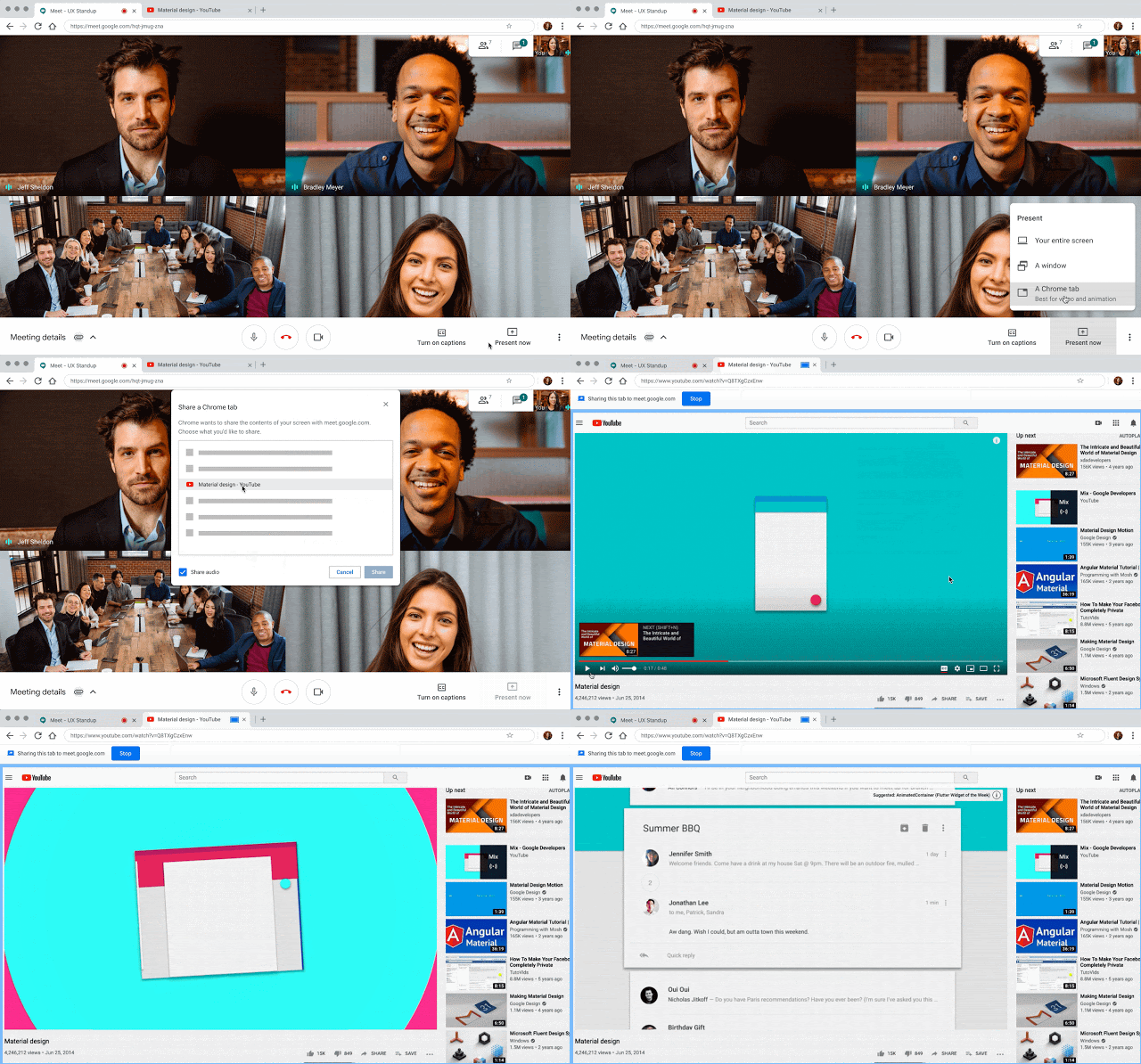
In addition to these name changes, Google has extended the availability of their premium Google Meet features until September 30, 2020, at no cost to the university. As a reminder, these features include:

Visit the U-M Google service site to learn more about Google Chat and Google Meet at U-M.

Reminder: Best practices for sharing safely in U-M Box and Google

When you share files or folders from Google Drive or Box, you can control the level of permissions granted to others. As a reminder, the U-M Collaboration Services team recommends using caution when you choose permissions for your files and folders to ensure the privacy and security of university data. This is especially true when collaborating with people outside of U-M. It is your responsibility to appropriately share data with only those who should have access to it.

Tips for sharing in Google Drive:

  • Only share your files with those who need it. If the list of users grows too large, we recommend using an MCommunity group to help manage permissions. To learn more about using MCommunity with Google, visit the ITS Documentation Site.
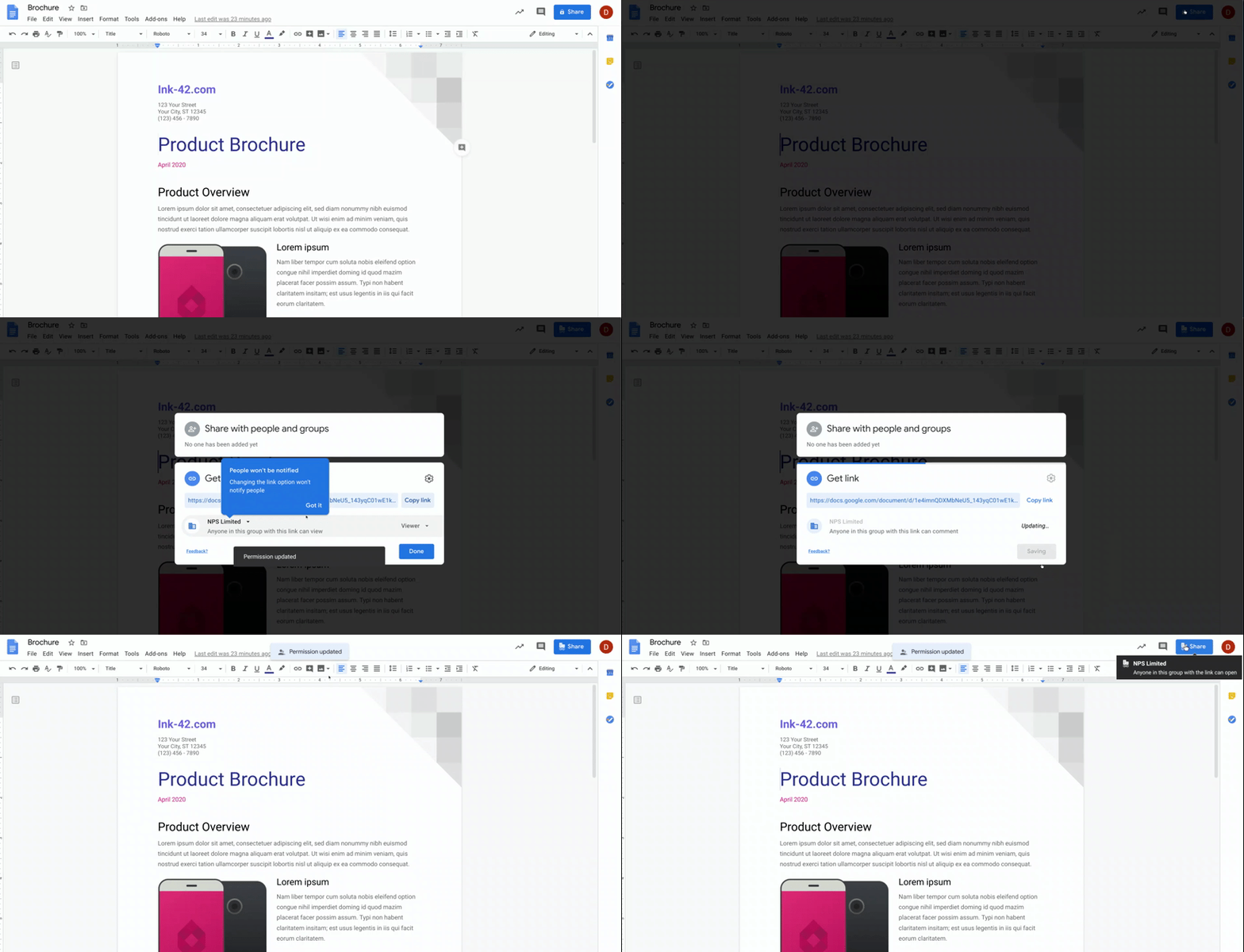
  • Do not use link sharing unless necessary. This opens file access to a much broader audience, with the default being that anyone at U-M with the link can view it. If link sharing is used, make sure appropriate permissions to the file are in place, particularly with external collaborators.
  • External collaborators should either use or create a Google account, as it is the most secure way to collaborate with them. If they are unable or unwilling to use their Google account, the “Send the link (no sign-in required)” option can be used, but the shared link should be removed once the collaborator is done with the file.

Tips for sharing in Box:

  • If you store or share sensitive data, you must use a shared Box account that has been set up for sensitive data and put that data only in the shared account folders set up specifically for that purpose. For more information, see ITS Safe Computing: Use U-M Box Securely With Sensitive Data.
  • Use caution when sharing with collaborators. Because all roles, except Uploader, have the ability to view/add comments by default, only give file access to those who need it. A collaborator’s access should be removed when they are done with the file.
  • Only use shared links when the permissions are set to “Invited people only” to ensure that the file is not available to anyone who doesn’t need it. To learn more about securing shared links, visit Box’s Support Center.
  • External collaborators must use or create a Box account, as it is the most secure way to collaborate with them and the only way for them to access the content.

To learn more about other sharing best practices, visit our ITS documentation pages:

Two new features in U-M Google

Google has announced two new features for the U-M Google domain:

Sort and filter cells by text or fill color in Google Sheets

Soon you will be able to sort and filter cells in Sheets by text or fill (background) color. To use this feature, select Data from the toolbar, and then select Create a filter. Finally, at the top of the range, click the Filter icon, select Sort by color or Filter by color and then choose the type (text or fill) and color you want. Matching cells will be displayed at the top of the range. To learn more about sorting and filtering data in Sheets, visit Google’s Help Center.

Create and use multiple signatures in Gmail

Soon you will have the ability to create and use multiple email signatures in Gmail. This feature gives you the flexibility to use different signatures for different situations. To create multiple signatures in Gmail, click the Settings (gear icon) > select Settings > select General. Then, scroll down to “Signature” and select “Create New” to enter a new signature. Finally, to choose one of your signatures, open the signature menu in the compose action toolbar of an email. To learn more about multiple signatures in Gmail, visit Google’s Help Center.

According to Google, the Sheets feature should now be available and the Gmail feature should begin showing up in on April 22 in U-M Google. The Gmail feature could take 15 days or longer to become fully visible.