U-M Google Updates

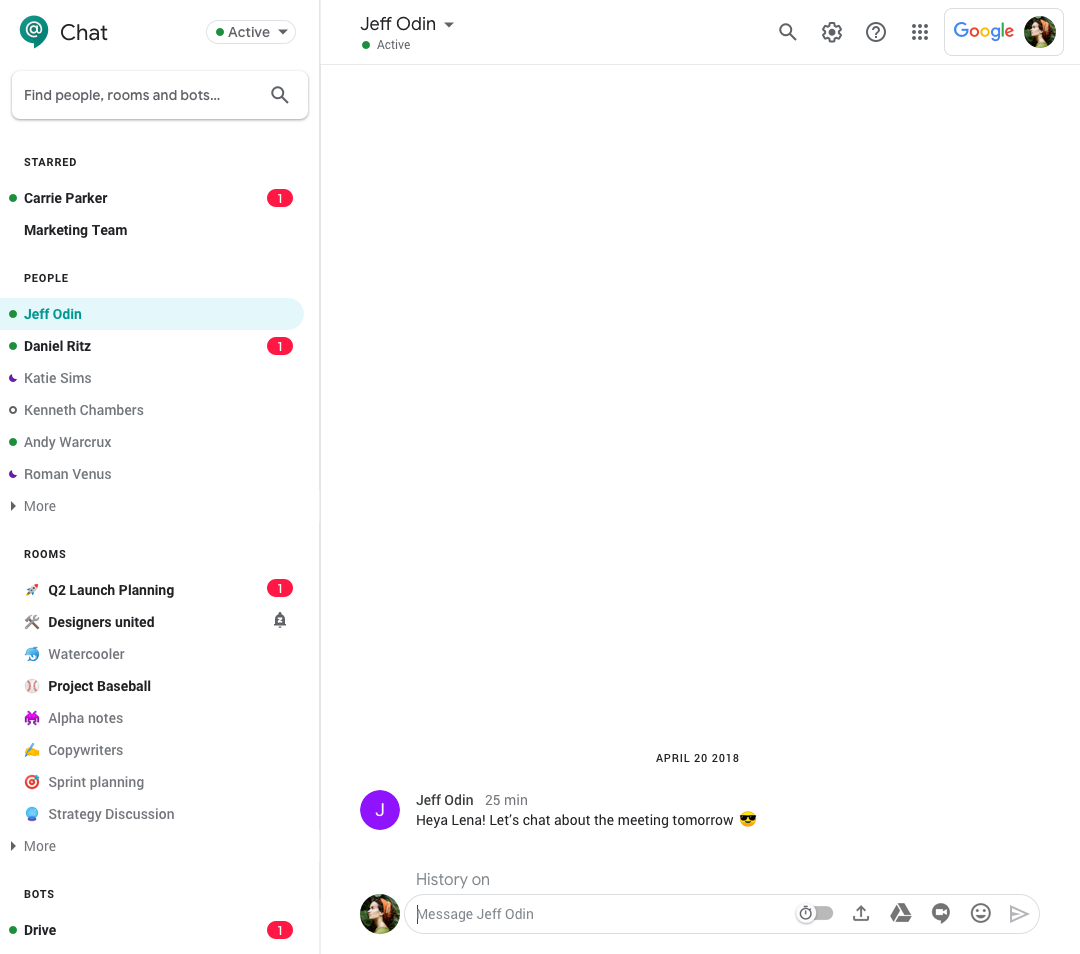
Important Google Hangouts update related to working remotely

Due to the possibility of the university community moving to remote work, the U-M Google team has opted to turn off the need for an invitation in classic Google Hangouts. This will make the service easier to use.

In the past, when an individual whom you’ve never chatted with via Google Hangouts wanted to send you a chat message, you would receive a notification (“Let’s chat on Hangouts!”) inviting you to accept. You would need to accept that invitation for the chat to occur.

With this change, it will be easier to connect with others using classic Google Hangouts to chat. While chat messages will now appear automatically, you will still need to accept video calls. Additionally, you will still have the option to block future messages and video calls from individuals, if desired.

According to Google, you should begin to see this change over the next 24 hours.

For more information on using classic Google Hangouts, visit the U-M Google Hangouts page.


U-M Google February Monthly Summary

The monthly U-M Google Summaries inform the university community of Google releases for Core Apps as well as the Non-Core Apps (those that are not part of the G Suite for Education agreement). We communicate important information on Core Apps throughout the month. Core and Non-Core Apps are listed on the G Suite website.

Core Apps:

This add-on allows you to connect audience members to your Google Slides presentation via their mobile phones. You can learn more about the people in the room, engage with interactive exercises, and invite questions or feedback. To learn more and download the application, visit Create with Google or Google’s FAQ.

You can now use Hangouts Meet, including screen sharing functionality, with Safari version 13 or higher.

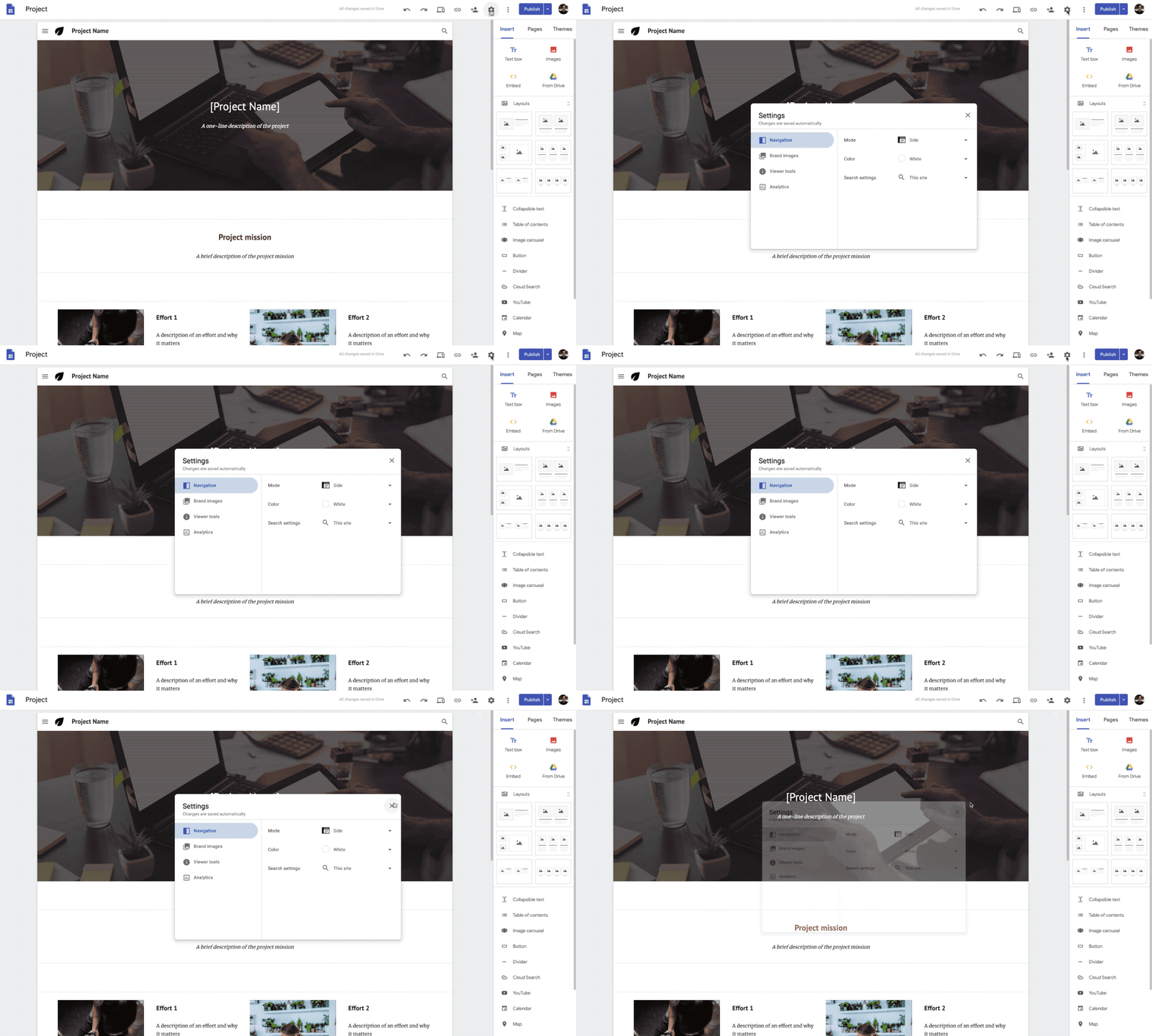
Google has consolidated the location of several settings in new Google Sites into one place, making it easier for editors to access and configure different options for their sites. For example, you can now add a favicon to your site by going to Settings > Brand images. Additionally, editors now have the option to hide anchor links from viewers on a published site. To learn more about using anchor links in new Google Sites, visit Google’s Help Center.

GIF of Google Sites' new settings menu

When composing or replying to an email, you can now upload attachments from the Files app on your iPhone or iPad in the Gmail iOS app. Click the attachment icon and scroll to the “Attachments” section. Then select the folder icon to select an attachment from the Files app.

Previously Communicated:

Updates to Google's Terms of Service

Over the last week, you may have received an email from Google or seen a blue bar with a notice regarding changes to their Terms of Service while browsing Google online. According to Google, these changes will take effect on March 31, 2020, and will not impact the way you use your U-M Google account.

What’s changing?

  • Improved readability: Google has attempted to make its Terms of Service easier to understand by adding links to useful information and providing definitions where applicable.
  • Better communication: Google has explained when they will make changes to their services, such as adding/removing a feature and when they will restrict/terminate a user’s access to their account. Additionally, they plan to do more to notify you when a change negatively impacts your experience with their services.
  • Adding Google Chrome, Google Chrome OS, and Google Drive to the Terms: Google’s updated Terms of Service now cover Google Chrome, Google Chrome OS, and Google Drive, which also have service-specific terms and policies to help you understand what’s unique to those services.
  • No changes to Google’s Privacy Policy: Google will not make any changes to their Privacy Policy or changes to the way they treat your information. As a reminder, you can always visit your U-M Google Account page to review your privacy settings and manage how your data is used.

What do I need to do?

No action is required on your part. 

To learn more about the changes to Google’s Terms of Service, visit Google’s summary of key changes or FAQ.

Changes to “multiple inboxes” feature in Gmail

Google will be making changes in Gmail to their “multiple inboxes” feature. The multiple inboxes feature is helpful for people who have multiple email accounts or who want to prioritize certain daily tasks or individuals. Multiple inboxes help you separate emails, like important tasks or those from specific people, and make them visible alongside your main inbox in Gmail.

Screenshot of the multiple inboxes feature in Gmail

Google will be making the following changes to the multiple inboxes feature:

  • Support for independent scrolling of each inbox
  • A unified action toolbar instead of separate toolbars for each inbox
  • New location in Settings (from “Advanced” to “Inbox”)
  • Adjustable width and collapsible right-side configurations
  • Removal of support for three-pane layouts with the preview pane (renamed “reading pane”)

If you currently have multiple inboxes in an unsupported configuration, you will see a notification in Gmail informing you of this upcoming change. The notification will appear in the lower right corner of your Inbox in Gmail. Once these changes begin to roll out to the U-M Google domain, the preview pane will turn OFF if you use multiple inboxes. If you want to continue using preview pane (i.e., reading pane), you will need to use an inbox type other than “multiple inboxes”. You can change this setting and inbox type by following Google’s steps in their G Suite Learning Center.

Screenshot of the preview pane change notification in Gmail

According to Google, this feature should begin showing up in U-M Google on March 5, 2020 and could take 15 days or longer to become fully visible.

To learn more about the upcoming changes to multiple inboxes, visit Google’s G Suite blog post. To learn more about setting up and using multiple inboxes in Gmail, visit Google’s G Suite Learning Center.

A Friendly Reminder: Check Your SPAM Label Periodically

When was the last time you checked your spam label in Gmail? Once in a while, a legitimate email can be marked as spam instead of appearing in your Inbox. We recommend you check your spam label periodically for legitimate emails that may appear there by mistake. If you do find a message that has been accidentally marked as spam, you can select it and click Not Spam in the top toolbar to help ensure that future messages from this sender are not flagged as spam. Additionally, adding colleagues to your Google Contacts can help with mail delivery.