U-M Google Updates

Revamped home for all your G Suite apps

Did you know that you can see a list of all the core and approved U-M Google apps in the G Suite Dashboard? After a recent redesign from Google, this page is now easier to navigate, with a search bar that allows you to quickly find the apps you’re looking for.

If you prefer to navigate to your apps via this Dashboard, you can bookmark it for quick access in the future. Visit the G Suite Help Center for more information.

Screenshot of the new U-M Google G Suite App Dashboard

According to Google, this feature began showing up in U-M Google on July 9 and could take 15 days or longer to become fully visible.

Import questions from other Google Forms

Google has announced they will be adding the ability to import questions from your existing Google Forms and Forms shared with you into a new Form. Previously, it was only possible to do this manually which often took a long time.

  • First, open a Form and from the action toolbar on the right, select the Import Questions icon.

Screenshot of new Import Questions button within Google Forms

  • Then, select the Form with the questions you want to import.
  • From the right-hand sidebar menu, you can either: 
    • Import all questions by choosing Select All, and then click Import Questions 
    • Select specific questions to import and then click Import Questions

According to Google, this feature began showing up in U-M Google on July 9 and could take up to 15 days or longer to become fully visible.

--
Interested in our latest updates about Google G Suite at U-M? Check out the Google Service Updates page.
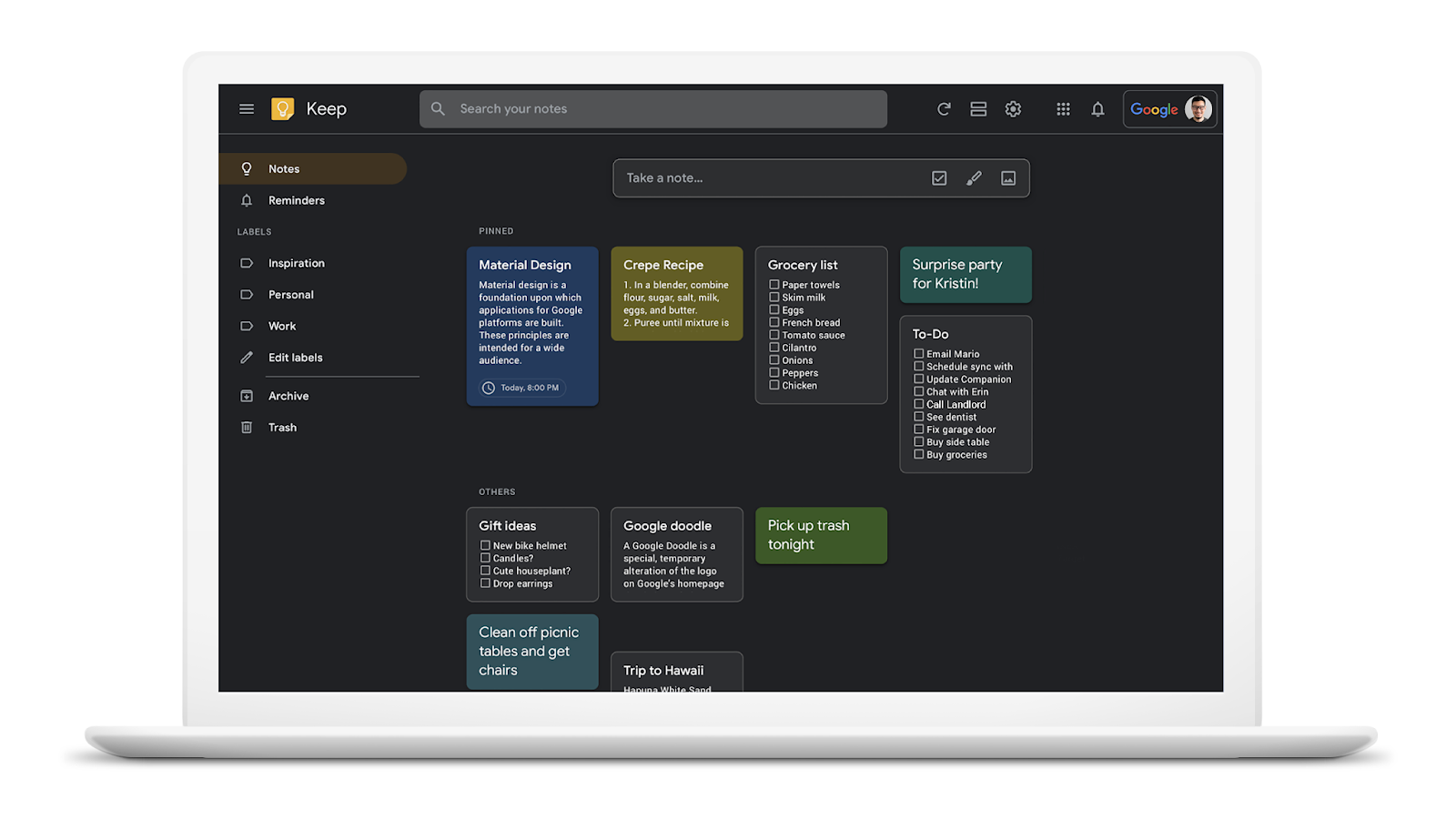
Three new features in Google Drive

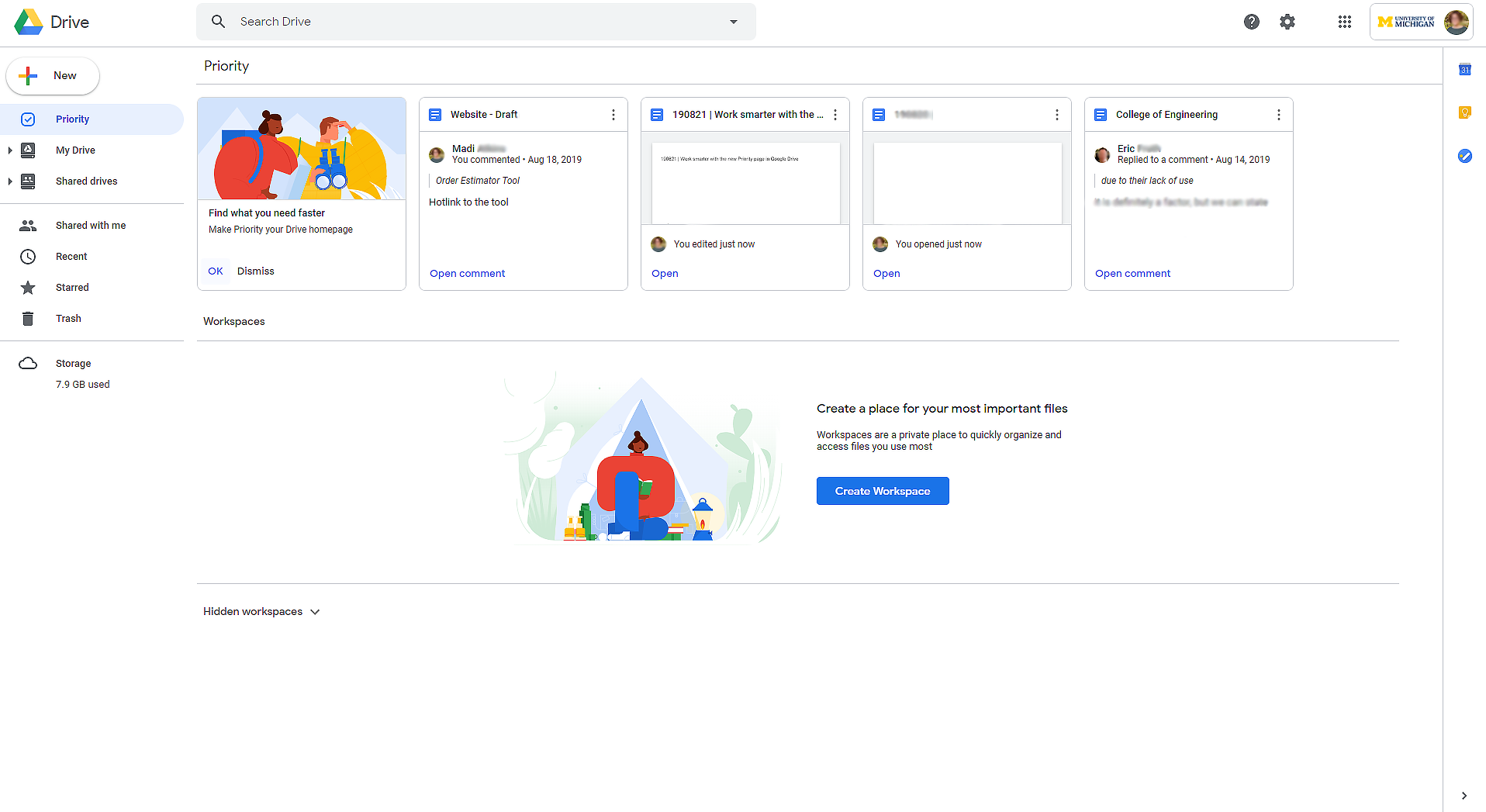
Google has released three new features in Drive to make content easier to review and edit.

It’s now easier to compare two Google docs. This feature shows the differences between the docs as “Suggested Edits” in a new document, making it easier to see changes between two docs over time. For instance, faculty can use this tool to compare essays and track revisions, saving time when grading. Staff can use this tool during contract negotiations to see what terms have changed throughout the negotiation process and to compare the final version of the doc to the initial version.

To compare Docs: 

  1. Open any Google Doc — this will become your ‘base’ document. 
  2. Select Compare Documents from the Tools menu. 
  3. In the dialogue, click Choose document to select the second Google Doc to compare against. 
  4. In Attribute differences to field, enter the name of the person to be labeled as the author of the suggested edits in the comparison output file. 
  5. Finally, to see the changes, select Compare.

GIF showing how to use the new Google Drive Compare Documents feature

A new document will be generated that shows all existing suggested edits from both docs as accepted. The differences between both documents are suggested edits labeled with the name defined in the Attribute differences to field. Doc owners and those with edit access can use this feature to compare documents.


Google added a new “Linked objects” sidebar to show all linked content in a document, such as embedded charts, tables, slides, and drawings. The Linked objects sidebar gives the ability to quickly access all linked content in the Doc or Slides to see if anything is outdated and, if so, update all the content with a single click.

Screenshot of the new sidebar for updating all linked content in Google Docs

To update the data in multiple charts or tables:

  • In Docs or Slides, at the top select Linked objects from the Tools menu.  
  • A sidebar will open on the right, then, at the bottom, select Update all

Note: Select Update next to each specific object to update them individually. 

If you don’t see Update or Update All, your charts, tables, slides, or drawings may not be linked directly in the Doc or Slides. To learn more about how to link charts, tables, or slides, see Link a chart, table, or slide to Google Docs or Slides.


Show edit history” in Sheets shows the edit history of a cell, including who made the last edit, when that edit was made, and the cell’s previous content value.

GIF showing how to view the edit history of a cell in Google Sheets

Tracking edits made by collaborators help to keep information accurate and to show who made specific changes. This is helpful when there are several collaborators working on a Sheet. Previously, Version History could be used to manually look through past versions of a sheet to determine who changed a cell and when.

To start using Show edit history, right-click on any cell and select Show edit history. A dialogue box will appear that shows: 

  • who last made a direct edit in the cell 
  • a timestamp of the edit 
  • the previous and current content value of the cell 
  • arrow keys in the top right corner which toggle back and forth between edits 

The following changes are considered previous edits to a cell:

  • Adding, editing, or removing content — like changing the value of a cell from “3” to “5”
  • Changing a formula — like changing “=A1+B1” to “=A1+C5” 
  • Adding, editing, or removing a link from a cell 

Some changes may not show up in the edit history. Some examples are:

  • Added or deleted rows and columns 
  • Changes to the cell’s format 
  • Changes made by formulas 

These new features are now available in U-M Google.

--

Interested in our latest updates about Google G Suite at U-M? Check out the Google Service Updates page.

Receive Notice of Collaboration Services Disruptions

Recently, disruptions have occurred to the collaboration services on campus. Most recently, a Google Calendar outage. As these are cloud services, most disruptions are not in our control, but we have heard feedback that being notified of them would be helpful. In response to this feedback, we created a self-joinable MCommunity group, Collaboration Services Notifications

Anytime we become aware of a disruption to the collaboration services on campus, we will post a notice to the ITS Service Status page, sometimes even before our service providers announce them. When a notice is posted or updated about a collaboration service, an email will be sent to the new MCommunity group. If you would like to receive these email notifications, please join the new MCommunity group. 

Note: All ITS Service Status posts and updates already send notifications to the Outage Notify (including FLN) and Outage Notify - ITS Only MCommunity groups. If you are in one of those groups, you do not need to join this new one to receive notifications on the collaboration services.
 

Receive Notice of Collaboration Services Disruptions

Recently, disruptions have occurred to the collaboration services on campus. Most recently, a Google Calendar outage. As these are cloud services, most disruptions are not in our control, but we have heard feedback that being notified of them would be helpful. In response to this feedback, we created a self-joinable MCommunity group, Collaboration Services Notifications

Anytime we become aware of a disruption to the collaboration services on campus, we will post a notice to the ITS Service Status page, sometimes even before our service providers announce them. When a notice is posted or updated about a collaboration service, an email will be sent to the new MCommunity group. If you would like to receive these email notifications, please join the new MCommunity group. 

Note: All ITS Service Status posts and updates already send notifications to the Outage Notify (including FLN) and Outage Notify - ITS Only MCommunity groups. If you are in one of those groups, you do not need to join this new one to receive notifications on the collaboration services.