U-M Google Updates

U-M Google September Monthly Summary

The monthly U-M Google Summaries inform the university community of Google releases for Core Apps as well as the Non-Core Apps (those that are not part of the G Suite for Education agreement). We communicate important information on Core Apps throughout the month. Core and Non-Core Apps are listed on the G Suite website.

Core Apps:

Instead of going to the Tools menu each time you want to view your word count information, you can now select Tools > Word count > Display word count while typing to continuously display it in the lower-left corner of your doc. If you click on the word count box, you can also view more information, like the page count and character count. To see the word count of a specific section of the text, simply highlight that section in your Doc.

Google has added two new features in Google Slides present mode to help you better control and customize your presentations:

  • Keyboard shortcuts to switch to a blank screen

Using new keyboard shortcuts, you’ll now be able to change to an all-white or black screen while presenting. This can be helpful when you want to pause a presentation to answer a question or further a discussion without any material on screen. While presenting, press B to turn your screen black or W to turn your screen white. You can resume presenting by using any other keyboard button or mouse action. To see more keyboard shortcuts for Google Slides, see Google’s Doc Editors Help Center.

  • Looping and auto-advance time options for presentations

New options allow you to set auto-advance time in present mode and presentation looping. You can access these options by clicking Settings (gear icon) on the in-presentation navigation bar. Your settings will be applied once you hit play and begin your presentation. With these settings, you can easily set your presentation to loop, which is useful when presenting at a conference or for displaying information on a kiosk.

Google has redesigned the Jamboard apps for iOS and Android to improve usability, performance, and reliability for Jamboard users. These changes create a more seamless and consistent experience, bringing familiar functionalities from other Google Editors (i.e., Docs, Slides, Sheets) to Jamboard. Additionally, Google is removing several functions to further streamline the user experience. For example, you’ll be able to take actions such as starring, make a copy of a jam, or copy a link to a jam. Google is also adding the standard G Suite link sharing abilities to make sharing easier. For more details on what features were added and which ones are leaving, see Google’s September 2019 update

Auto-generated live captions help make meetings more accessible by reducing barriers to holding meetings between users of different hearing abilities, regardless of whether they are participating remotely or in person. To turn on live captions, tap the closed captions button on the top right of the Meet app when you are in a meeting. When you turn on captions, they will be visible on that particular device. In order for other participants in the meeting to see captions, they’ll have to turn it on for their devices as well. Currently, live captions are only available in English. Additionally, captions will not appear in a recording of a meeting.

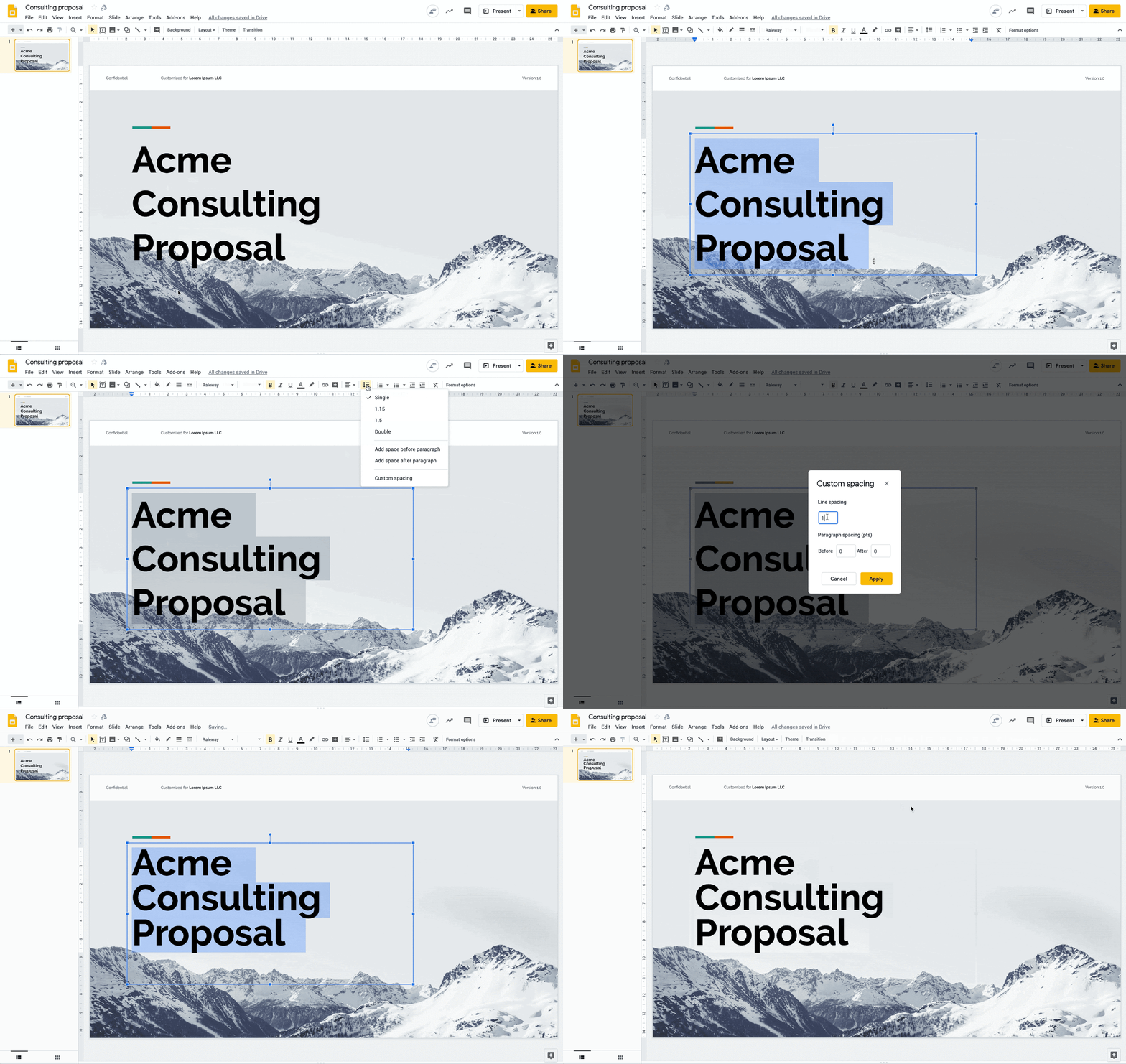
Google has announced you soon will be able to set custom line spacing to be less than one in Google Docs and Google Slides. This allows for more detailed control of line spacing so you can better control the appearance of your fonts to help meet brand guidelines and more. Additionally, this will help preserve formatting when importing and exporting files in legacy formats. To customize your line spacing, select Format, then Line Spacing, and finally select Custom Spacing

GIF showing how to use the new line spacing support in Google Slides

According to Google, this feature should begin showing up in U-M Google on October 7th and could take up to 3 days to become fully visible.

Google is enhancing the Gmail experience on Android and iOS devices by introducing dark theme (mode) support. This feature will automatically respect the system settings in Android 10 and iOS 13. Dark theme can also be enabled within the respective Gmail app settings.

Previously Communicated:

Note: Keep in mind that even when Non-Core Apps are found in a Core App (like Add-ons in Gmail and Google Drive), they are not covered by the G Suite for Education agreement.

 

Google Fusion Tables to Shut Down in December


Google launched Fusion Tables almost nine years ago as a research project in Google Labs, later evolving into an experimental product. For a long time, it was one of the few free tools for easily visualizing large datasets, especially on a map. Since then, Google has developed several alternatives, providing deeper experiences in more specialized domains.

To continue focusing on these areas, Google will shut down Fusion Tables and the Fusion Tables API on December 3, 2019. Embedded Fusion Tables visualizations — maps, charts, tables, and cards — will also stop working that day. Maps using the Fusion Tables Layer in the Maps JavaScript API v3.37 began to see errors in August 2019.

Next Steps:

  • Learn about alternative tools
    Several new Google tools have been developed over the years, and you can visit the Help Center to learn which ones fit your use case.
  • Download your data
    Filter by “type:table” to pull up a list of your tables in Google Drive. Download data from an individual table by following these instructions. If you have a lot of tables, download all your data in one step via Google Takeout.

Google Hangouts Chat on Hold

In February, Google announced plans to transition from classic Hangouts to Hangouts Chat. Hangouts Chat is a workstream collaboration tool that allows for team-based discussion, bots, and more. Google provided a timeline of changes and initially stated they would start retiring classic Hangouts in October 2019. However, there have been delays as Google listened to critical customer feedback that more time and improvements are needed to ensure the best transition possible. As a result, Google is officially postponing the transition date (i.e., phase 4 in this timeline) to no sooner than June 2020.

While Hangouts Chat is generally available from Google, it is not currently enabled in U-M Google. We continue to use Classic Hangouts as there are several key features missing from Hangouts Chat, including:

  • Integration with Gmail
  • Chatting with users outside of U-M Google
  • Indication that messages have been seen
  • Improved mobile applications

According to Google, these will be included in Hangouts Chat before it begins to retire classic Hangouts in 2020.

We continue to monitor progress and regularly engage with Google about this. If key features and improvements are included in Hangouts Chat earlier than June 2020, ITS will re-evaluate enabling it in U-M Google.

REMINDER: Dynamic email in Gmail tomorrow!

As previously communicated, we will be turning ON dynamic email in Gmail tomorrow for the U-M Google domain. For more information on what dynamic email is, check out last week’s communication.

As a reminder, you can turn dynamic email OFF for your individual account by following these steps:

  • At the top right of your Gmail, click the gear icon and then Settings.
  • Next to Dynamic email, uncheck the box next to Enable dynamic email.
  • At the bottom of the page, click Save Changes.
Note: Located next to Images in the Settings menu (and above Dynamic email), the Always display external images setting must also be enabled for dynamic emails to be displayed. If you currently have this setting disabled, it will be re-enabled when dynamic email is switched on but can be disabled again if you choose to turn off dynamic email for your account.

Improved Working Hours in Google Calendar

Google has announced updates to the feature in Google Calendar that helps you let colleagues know when it’s best to work with you: Working Hours.

Note: If you have not already turned on Working Hours, you will be prompted to do so when the feature is rolled out. You will see a dialog box with an estimate of your working hours, which you can confirm via Got it or change. You can disable the feature by selecting Settings in this dialog.

If you’d like to disable Working Hours, you can do so in Google Calendar by following these steps:

  • From your calendar, click the gear icon and select Settings from the drop-down list.
  • Click Working hours under General in the left sidebar to find the option to disable.

The updates to this feature include:

  • Working Hours now show in grid view. When you schedule a meeting with other Calendar users, their working hours will be shown in the calendar grid. 
  • New warning note for event creators. If you try to schedule an event outside the working hours of one or more guests, you’ll now see a notification. 
  • Working Hours are ON by default. Working Hours will now be turned on for all users by default. You can turn it off at any point in Calendar’s settings.

According to Google, this feature should begin showing up in U-M Google on September 16th and could take up to 3 days or longer to become fully visible.