U-M Google Updates

U-M Google October Monthly Summary

The monthly U-M Google Summaries inform the university community of Google releases for Core Apps as well as the Non-Core Apps (those that are not part of the G Suite for Education agreement). We communicate important information on Core Apps throughout the month. Core and Non-Core Apps are listed on the G Suite website.

Core Apps:

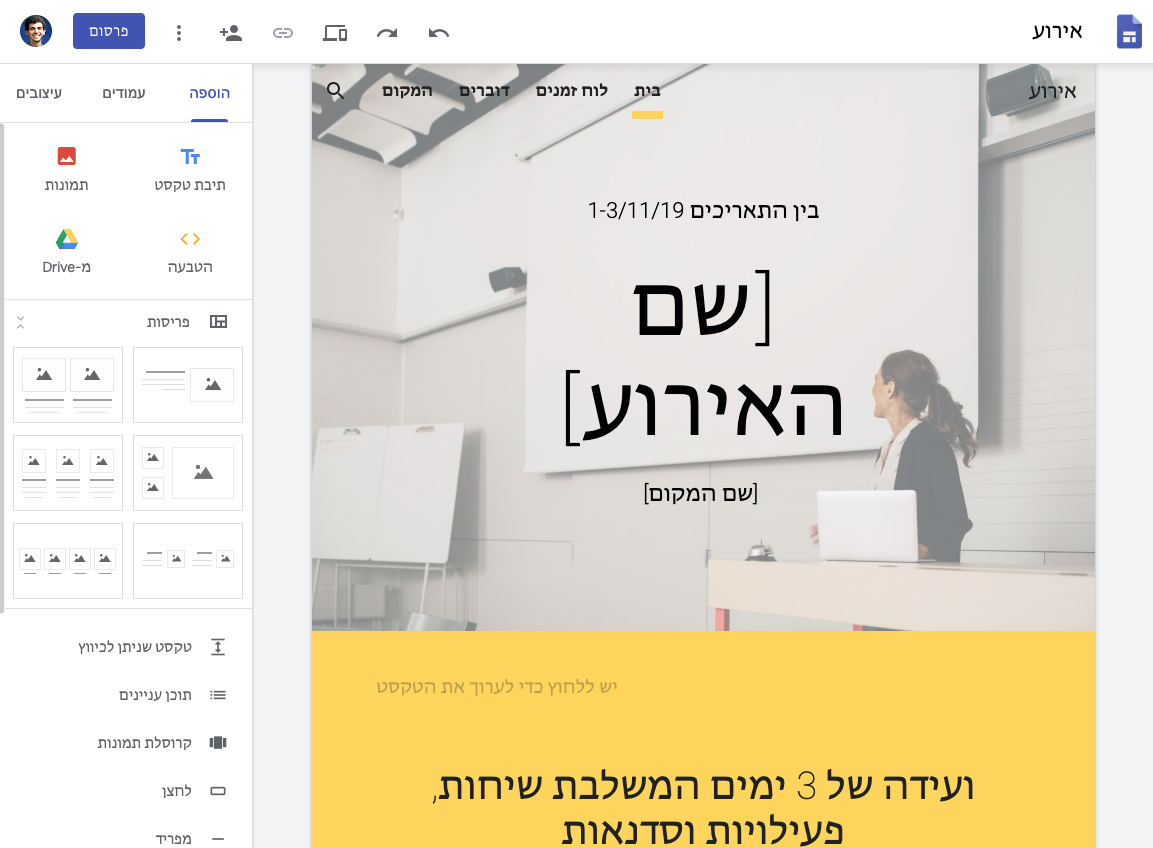
  • A new look for the Google Docs, Sheets, and Slides Android apps
    Google Docs, Sheets, and Slides now have a new look on Android devices. While there are no functionality changes, users will notice visual improvements, including a restyled document list, highly-legible typefaces, consistent controls, and updated iconography. These changes are a continued part of Google’s larger Material redesign of their services.
  • Customize text size and position for captions in Google Slides
    You can now personalize caption text size and position while presenting in Google Slides. These features can help make captions easier to read or you could make your text smaller to maximize the number of words on the screen at once.
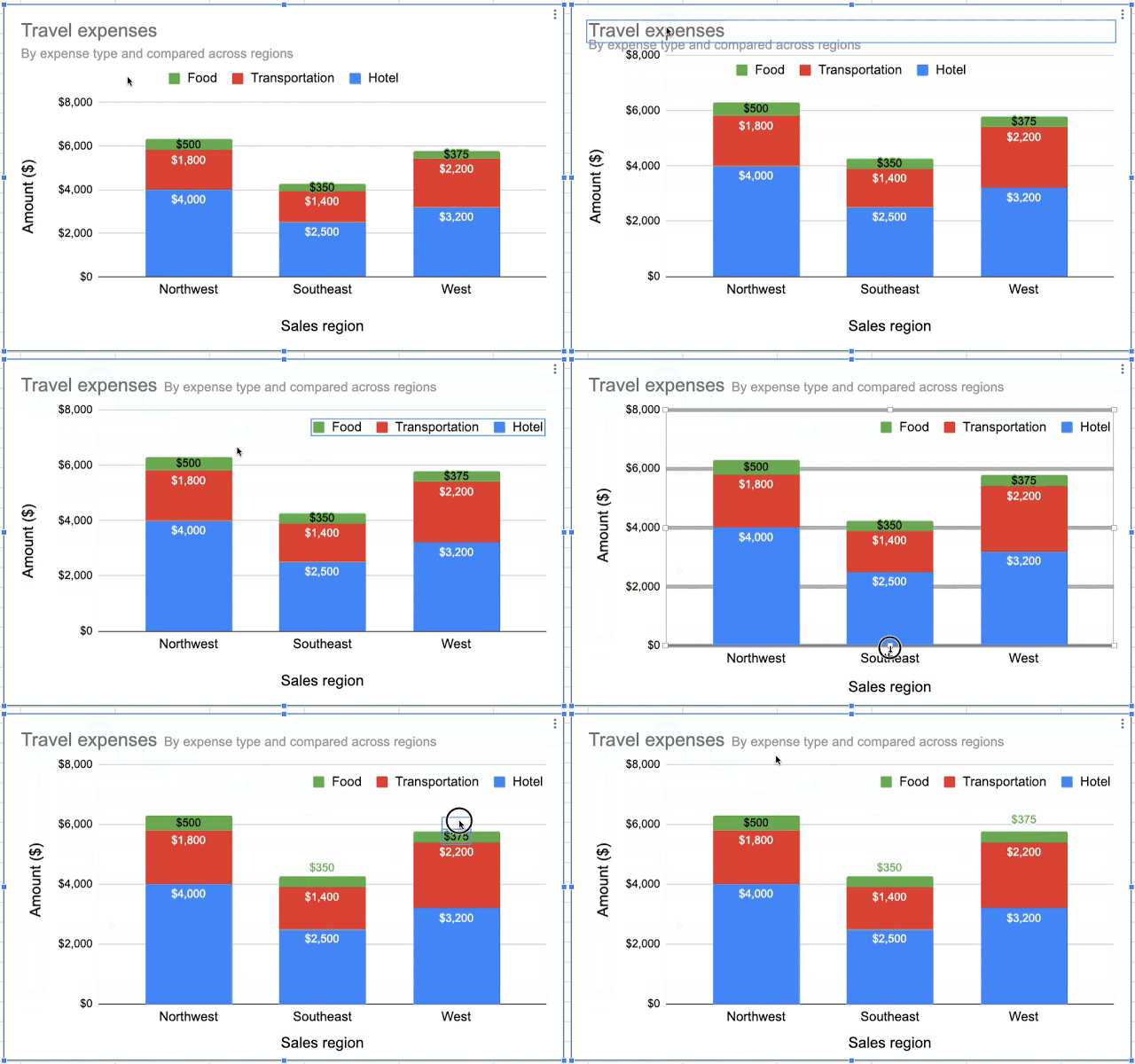
  • Directly click on chart elements to move and delete them in Google Sheets
    Google has added new features that give you more options to easily customize your charts in Google Sheets. Now you can click directly on data labels, chart titles, or legends and drag to reposition them. You can also easily delete these elements using the delete or backspace keys.

GIF showing how to change chart elements in Google Sheets

  • Set profile picture for Gmail and all Google apps
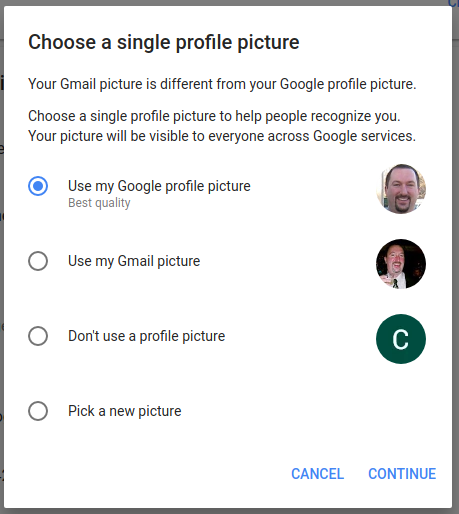
    When you go to change your profile picture in Gmail you’ll be redirected to the About me section of your Google profile settings to set it. Currently, profile pictures set in Gmail are only displayed in Gmail. This means your profile picture in Gmail may be different than your Google account profile photo, which can make it difficult to know which picture will be displayed where. This change simplifies things by allowing you to set a single profile picture in one place and then displaying that single photo across all Google apps. If your Gmail and profile photos are currently different, you’ll see a pop-up when you visit your About me settings which will prompt you to select one of the images or choose an entirely new photo.

Screenshot of new Google profile picture setting

  • Material Design for Hangouts Meet on the web
    Hangouts Meet will be getting a new look on the web interface. While there are no functionality changes, users will notice visual improvements, including updated fonts and highly-legible typefaces, consistent controls, and updated iconography and colors. These changes are a continued part of Google’s larger Material redesign of their services.
  • Instantly create new docs, events, spreadsheets and more from your browser
    You can now quickly create new files directly from your browser with “.new” domains for several Google services. For example, you can type “Cal.new” into your browser to create a new Google Calendar event. The .new domains are Docs, Sheets, Slides, Forms, Sites, Cal, and Keep. 
  • Gmail “Canned Responses” are now called “Templates”
    Google has recently renamed the “Canned Responses” feature in Gmail to “Templates” to more accurately describe the functionality of what this feature does. Now when you go to use a previously created Canned Response, you will notice the name changed to Templates. For more information on Gmail’s Templates, visit Google’s help center.

Increase in Google Account Verification Prompts

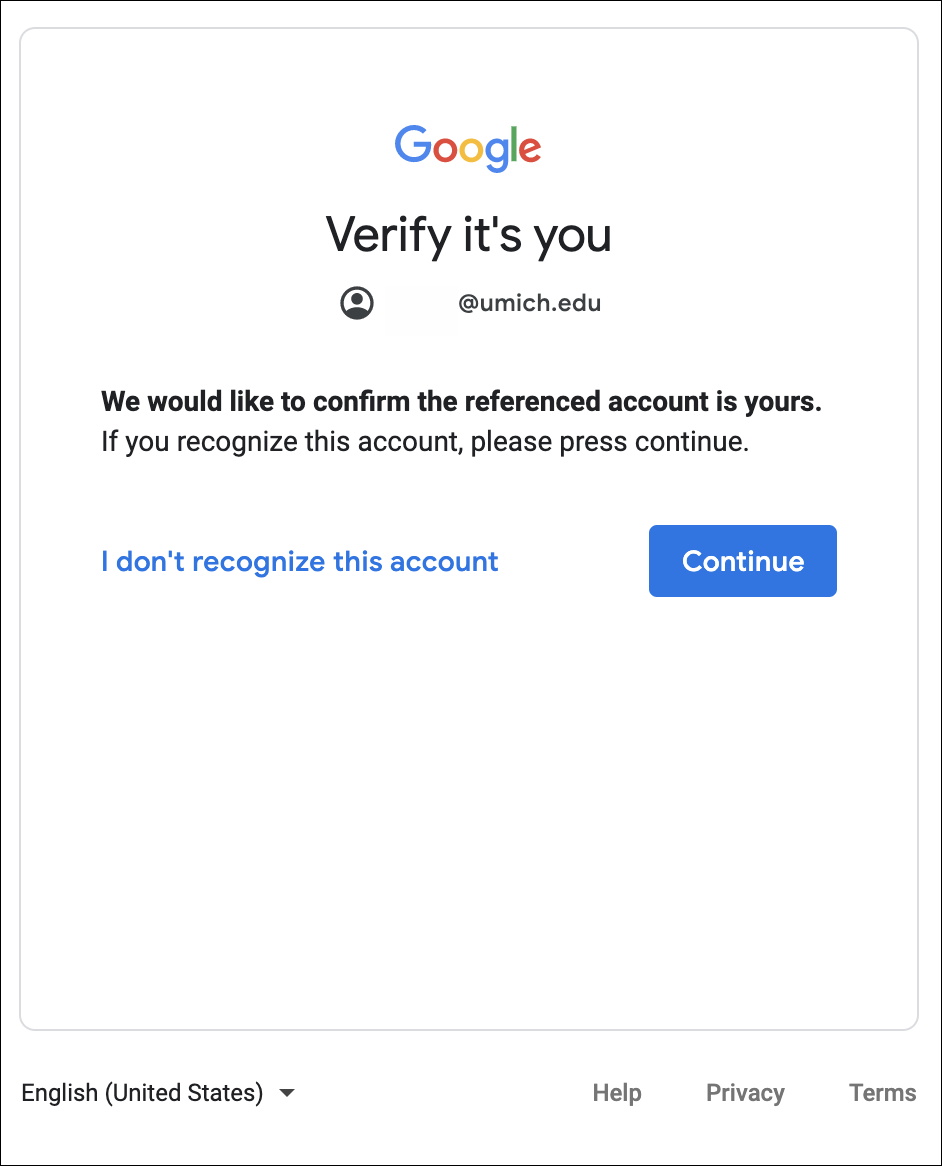
Back in May 2018, Google introduced a more secure sign-in flow on Chrome. Google updated this flow on October 18 so that the “Verify it’s you” prompt appears more frequently. Although it is an extra step to access your U-M Google account, Google made this change to increase the security of your account. This was done for all G Suite domains, not just ours. In response, we developed documentation on Logging into Google at U-M and put a link to it on the Getting Started page of the U-M Google website. Here is a screenshot of the verification prompt:

If your uniqname@umich.edu email address is listed, then it is safe to click Continue. If another email address is listed, do not click Continue and contact the ITS Service Center.

A Friendly Reminder: Check Your SPAM Label Periodically

When was the last time you checked your spam label in Gmail? Once in a while, a legitimate email can be marked as spam instead of appearing in the Inbox. We recommend you check your spam label periodically for legitimate emails that may appear there by mistake. If you do find a message that has been accidentally marked as spam, you can select it and click Not Spam in the top toolbar to help ensure that future messages from this sender are not flagged as spam. Additionally, adding colleagues to your Google Contacts can help with mail delivery.

Form Notifications now available in U-M Google!

The Form Notifications add-on is now available on the G Suite Marketplace.

This add-on allows you to automate email notifications for:

  • Form respondents - send an automated follow-up email to any user who completes your form.
  • Form owners and editors -  receive an email notification once your form has received a set number of responses.

To install the add-on:

  • Navigate to the G Suite Marketplace installation page for Form Notifications
  • Click the blue Install button and then select Continue in the Get ready to install dialog box
  • In the popup, select your U-M Google account and then click the blue Allow button

This add-on has been turned on by our administrators and should be available now to download from the G Suite Marketplace.

Note: Add-ons/apps within the G Suite Marketplace are currently disabled for the University of Michigan domain, with a few exceptions, like Form Notifications. ITS is currently developing a formal process for requesting and evaluating add-ons/apps for U-M Google.


Improved spelling and grammar correction in Gmail

Google is introducing new spelling and grammar correction capabilities for Gmail to help you compose emails more quickly. As you type your message, Gmail will use artificial intelligence to make smarter spell-check suggestions while also detecting potential grammar issues. For some common spelling mistakes, Google has also added “as-you-type” autocorrection for improved accuracy. To undo an autocorrection, simply click the grey, underlined word or backspace and click Undo

GIF of the new autocorrection feature in Gmail

According to Google, this feature should begin showing up in U-M Google on October 14 and could take up to 15 days or longer to become fully visible.

Once the feature is enabled on your U-M Google account, you can disable one or more of the correction features:

  1. From Gmail, click the gear icon and then Settings.
  2. Under General, you can turn the following tools on/off by checking/unchecking the appropriate boxes next to:
    • Grammar
    • Spelling​
    • Autocorrect