U-M Google Updates

Coming Soon: Google Workspace

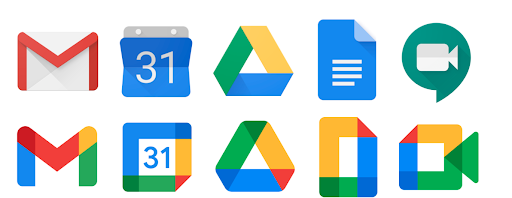
Google has announced they will be rebranding G Suite to Google Workspace. Google Workspace will keep all of the apps that you use from G Suite, and will better integrate them with a new look and feel of the icons and interfaces.

Google Workspace logo

Old G Suite logos on top of new Google Workspace logos

According to Google, G Suite for Education domains will begin the full transition around January 2021. However, you may start to see Workspace branding in Google support documentation and in the apps themselves, including the mobile apps. So, be on the lookout for new user interfaces, naming, icons, and connections between Gmail, Meet, Calendar, Drive, and more.

To learn more about Google Workspace, see Google’s:

As we receive more information from Google regarding this change, we will communicate it to the university community in a timely manner.

Collaborate with users in Drive and Sites who don’t have a Google account

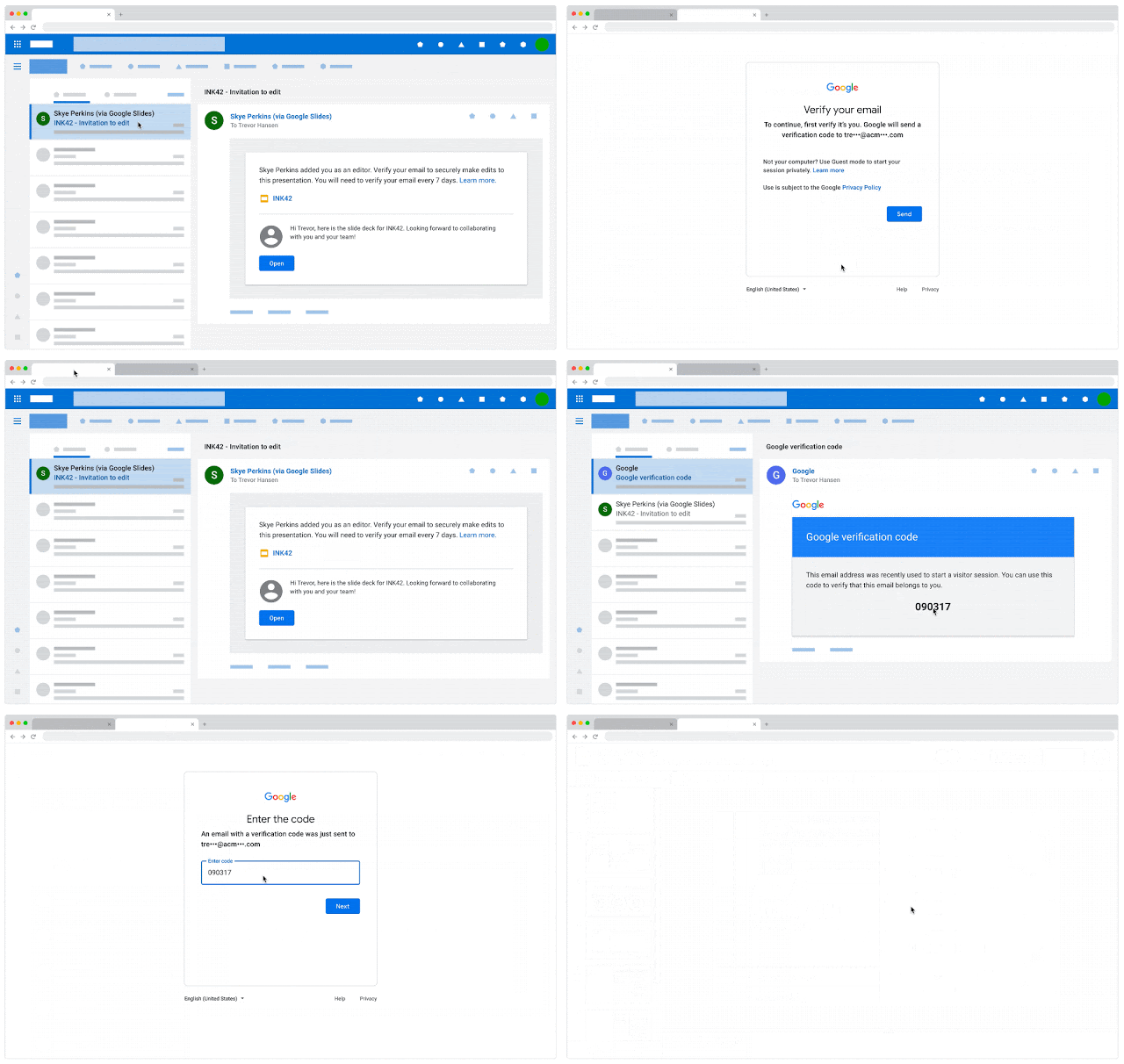
Google has announced visitor sharing: a new, secure way to share and collaborate in Google Drive with people who do not have a Google account. With this, you can share items with non-Google accounts, enabling them to view, comment on, or edit content in Google Drive and Sites using a secure PIN code. File owners can view detailed activity on their files and revoke access from the Drive sharing dialog at any time.

Note: Visitors can edit, comment on, or view your files for seven days after they verify their email address. After seven days, they will need to reverify using the original shared link in their email invite.

GIF: In browser, basic, unidentifiable email client design shows someone received an email with a PIN code. They then take that code and enter it into a Google verification page to access the Google Doc.

You can share the following types of files in My Drive and shared drives with non-Google users:

  • Google Docs, Sheets, Slides, and Sites
  • Images
  • PDFs
  • Microsoft Office 365 files
  • Videos
  • Folders
Note: You will be asked to confirm you want to share with a non-Google account after clicking Send.

Visitors cannot do the following actions:

  • Upload or create content.
  • Access the root folder of a shared drive.
  • Be added to a Google Group.
  • Edit Sites, but they can be Published Viewers of a Site.

If a visitor would like to upgrade from a visitor session to a Google account with the same email address, they will need to first delete their visitor session and then create a Google account. Visitors can see Google’s Delete your visitor session for more information.

To learn more about visitor sharing, see Google’s Share documents with visitors.
To learn more about Google Drive sharing at U-M, see Best Practices for Sharing in Google Drive.

According to Google, this feature should be available now in U-M Google.

Create and manage citations in Google Docs

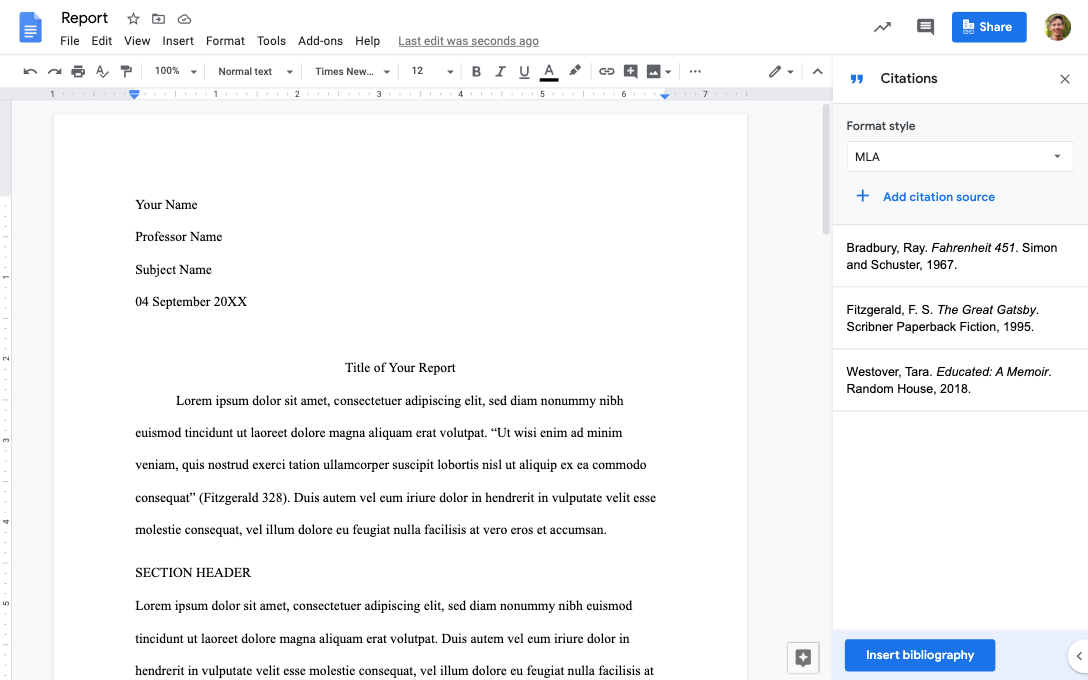
Google has announced a feature that will help you add, manage, and format academic citations in Google Docs. You can easily insert in-text citations and create a bibliography in the MLA, APA, or Chicago (author-date) styles. Source types supported include books, book sections, websites, journal articles, and newspaper articles.

Google Doc showing an essay with the title "Report"; on the right side, there is the Citations menu where you can select a Format style and Add citation sources

To access the citations features, click Tools, and select Citations from the drop-down menu.

To learn more about using citations in Google Docs, see Google’s Add citations and a bibliography.

According to Google, this feature began showing up in U-M Google on October 15, 2020 and should take 3 days or longer to become fully visible.

New features and education updates in Google Meet

Google has announced several new features in Google Meet. These features are intended to increase participant engagement, provide hosts with additional moderator controls, and add more ways to customize your Meet experience.

  • Block participants from knocking again

Google has made two changes to “knocking” (i.e., requesting to join a Google Meet session):

  • If a meeting moderator rejects a knock twice from the same participant, the participant will be blocked from knocking again. This means the moderator won’t see any other knocks from that user for the existing meeting duration.
  • If the moderator removes a participant, that participant will be unable to:
    • Rejoin the existing meeting (even if they are on the calendar invite).
    • Knock to request rejoining the existing meeting.
Note: If you mistakenly remove a participant, you can still add that participant to the meeting by manually inviting them.

Previously, when disruptive participants were removed from a meeting, they could continue disrupting the meeting by either re-joining or continuously knocking.

  • Additional host safety controls

Google has added new host (i.e., meeting creators and calendar owners) meeting controls to manage better who can share their screen and send chat messages within the Google Meet session. To learn more about how to manage these settings, see Google’s Start a video meeting for education.

Google Meet session with 6 people; on the left-side, showing participant list and "Host controls" settings menu.


  • More Google Meet participant controls for education meetings

Google has added new host (i.e., meeting creators and calendar owners) meeting controls to manage better who can join your Google Meet sessions. To control access, you can toggle the "Quick access" setting on or off. When it is on:

  • Participants in the U-M domain can join the meeting without knocking. 
  • Phone-in participants can join the meeting without knocking.
  • Participants can dial out from within the meeting.

To learn more, see Google’s Start a video meeting for education.

  • Blur your background

You can now blur the background of your video in Google Meet. When it’s turned on, Meet will intelligently separate you from the background, blurring your surroundings while keeping you in focus. Learn more about how to blur your background in Meet.

GIF, opening text is "Background blur in Google Meet". Proceeds to show the backgrounds of 4 people blurring.


  • See up to 49 people in Tiled view

You can now see up to 49 people simultaneously in the Auto and Tiled layout options in Google Meet. In addition, you can now see yourself as a tile on the call. When you hover over your thumbnail in the top right corner, you’ll now see the option to add or remove yourself from the grid.

This feature is only available in Meet on the web. By default, the maximum number of tiles you’ll see in Auto layouts is 9, and in Tiled layouts is 16. You will need to adjust these numbers, as needed, in every meeting.

To learn more about Google Meet, check out these resources:

U-M Google September Monthly Summary

The monthly U-M Google Summaries inform the university community of Google releases. We communicate important information throughout the month.

Updates:

Earlier this year, Google announced shortcuts in Google Drive. Now, they have announced three updates to shortcuts:

  • Expanding use of shortcuts: Removing some specific actions which still created multiple locations for files. 
  • A migration update: Finalizing the migration of existing files in multiple locations to shortcuts will begin in 2021. (No action required.)
  • Improving file management and reducing “unorganized” files: Ensuring files that have their last location removed are now placed in the owner’s My Drive folder.
  • Quickly add a contact into a Gmail message on Android

You can now automatically add a contact (i.e., recipient) to the “To” line of an email by typing "+" or “@” in the body of the email and then choosing the contact's/recipient’s name from the list that appears within Gmail on Android. (This feature was previously only available on the web.)

You can now see when your Google Chat direct messages have been seen. This will only apply in active chat windows for one-on-one conversations on Android, iOS, and the web. In these messages, you'll see the avatar of the person you're chatting with to the right of the last message they've seen. Read receipts won’t be visible in group messages or rooms.

You can now edit and collaborate on Microsoft Office files in Google Drive on Android. (This feature was previously only available on the web.) For more information, see Google’s Work with Office files using Office editing.

Google will now adjust line spacing in Google Docs based on the font used. Previously, line spacing was based only on the font size and line spacing you chose. This update will only apply to new documents created, existing documents will not be affected.

Google is updating the user interface (UI) of the Google Meet mobile apps for Android and iOS. The new mobile UI will have the same look and feel as that of the Meet in Gmail feature. In addition to the revamped design, you’ll now see a New Meeting button. When you tap the button, you’ll see three options:

Google has announced Sheets Smart Cleanup, which are two features that help to prepare and analyze data in Google Sheets: 

  • Cleanup suggestions: This helps ensure your data is accurate by identifying and suggesting fixes for common data errors. To use, in Sheets, go to Data > Cleanup suggestions.
  • Column stats: This provides automated insights about the values within a column, so you can identify outliers and quickly see what your data looks like. To use, in Sheets, go to Data > Column stats.

See Google’s Use Sheets Smart Cleanup to prepare your data for analysis for more information. 

You can now use Dark theme with Google Docs, Sheets, and Slides on iOS devices. Dark theme is already available for Android users. See Google’s Use Dark theme in Google Docs, Sheets & Slides for more information.

Previously Communicated: