U-M Google Updates

U-M Google December Monthly Summary

The monthly U-M Google Summaries inform the university community of Google releases. We communicate important information throughout the month.

Updates:

Google has made improvements to the process of converting PDFs to Google Docs.

  • Image imports: Import the image itself and text wrapping related to images. 
  • Text styles and formatting: Import underline and strikethrough, background color, and more fonts.
  • Layout conversion: Added support for multi-column layouts, custom page sizes, tables with borders, and improved content ordering.

For more information on converting PDFs to Google Docs, see the Google Help Center.

Google has updated the user interface for comments and action items in the Google Drive, Docs, Sheets, and Slides apps for iOS. These improvements include a clearer interface, shortcuts to navigate comments, and a quick access button to reply, “@” mention someone, and assign action items.

You can now adjust text size, color, font, spacing, and more while typing in a new Google Sites text box. For more information on changing how your site looks, see the Google Help Center.

Similar to the current web and Android experiences, Google has brought Office editing to iOS. You can now edit Microsoft Office files within the Google Drive app on iOS.

Google now “sticks” (i.e., saves) settings you turn on or off during a meeting for any future meetings that use the same meeting code. Previously, all settings would return to their default state whenever a meeting was restarted. This change will apply to quick access, screen sharing, and sending chat messages settings. (Settings are saved for each meeting code, not per user.)

Now, Android and iOS users with the latest versions of the Google Drive app will be able to: 

Google has added the ability to open Microsoft Office files in Docs, Sheets, or Slides with one click from Gmail. When you send or receive an email with an Office file attached, you’ll see an edit icon that will open the file directly in Docs, Sheets, or Slides while preserving the original file format.
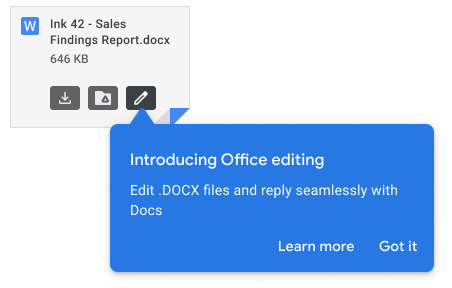
Screenshot of a Microsoft Word Doc attached to an email in Gmail with a blue pop-up notification introducing Office editing.

Additionally, you can now reply to the email from within the file itself. Once the file is opened, you’ll have new options to respond to the email thread from the File menu in Docs, Sheets, or Slides. Previously, you would have to save a file to Drive before using Google’s Office editing features.
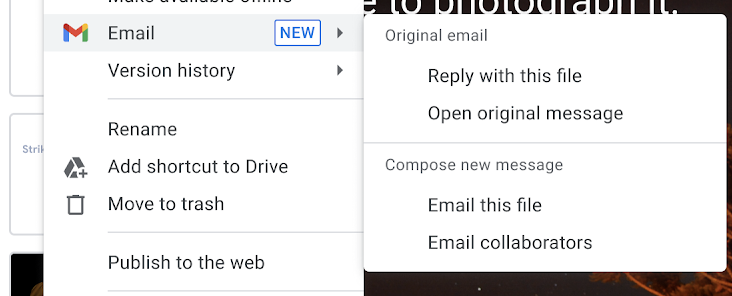
Screenshot of drop-down File menu when editing a Microsoft Word document in Google Drive, highlight over Email.

For documents created in Google Docs, soon you will be able to change the page orientation on a per-section basis. You’ll also be able to edit, import, and export Microsoft Word documents that contain both portrait and landscape-oriented pages.
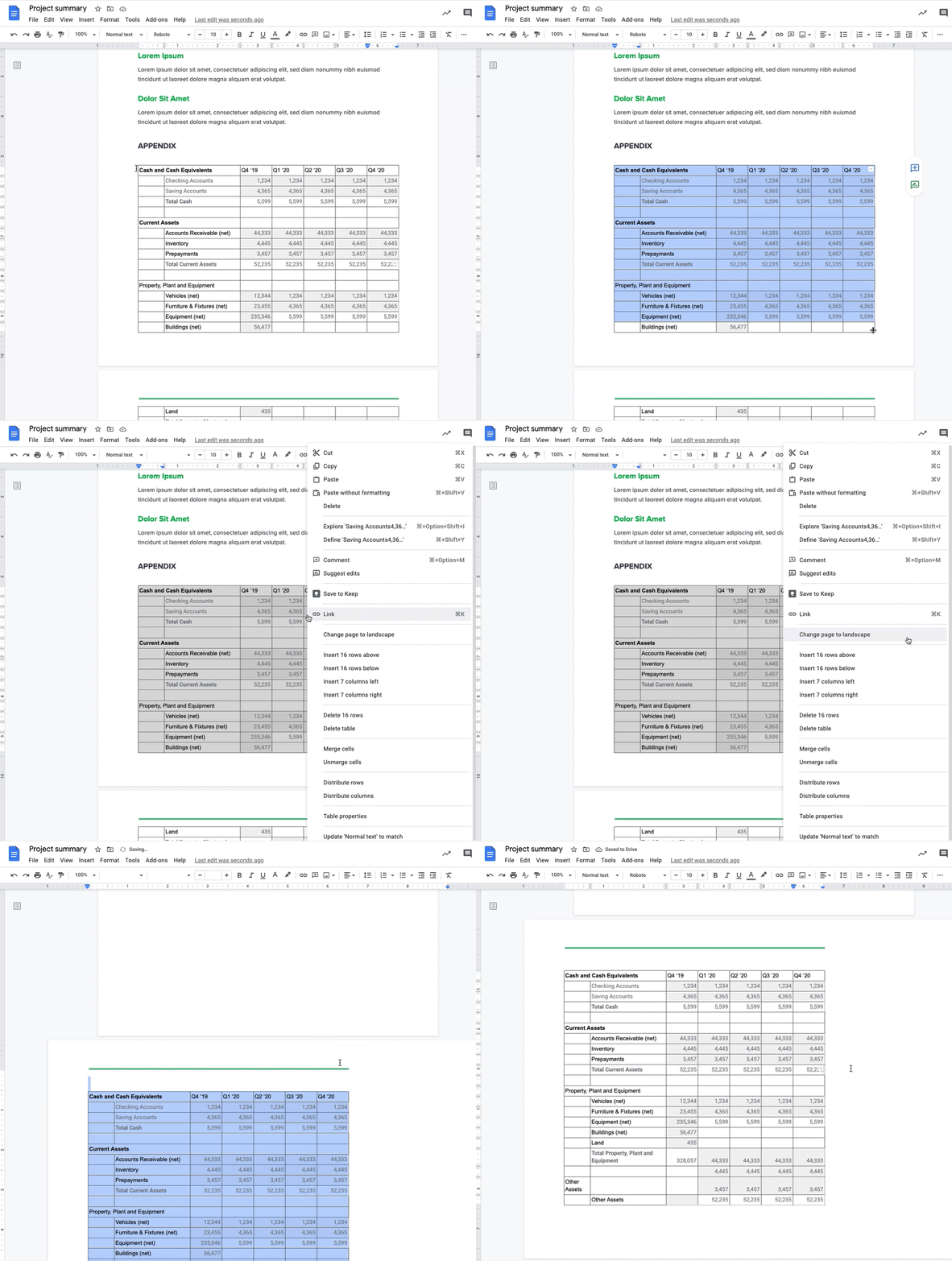
GIF of a Google Doc, showing someone highlight a chart on a page and changing the page orientation.

Google has expanded their language support for live captions in Google Meet to include French, German, Portuguese, and Spanish (Spain and Latin America). They were previously only available in English.

Previously Communicated:

U-M Google November Monthly Summary

The monthly U-M Google Summaries inform the university community of Google releases. We communicate important information throughout the month.

Updates:

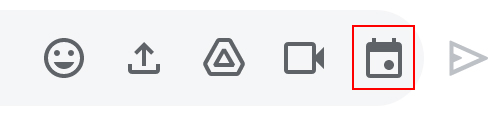
You can now schedule meetings in Google Calendar directly from Google Chat conversations. You’ll see a new icon in the conversation’s compose bar. On mobile, the draft event will open in the Calendar app. On the web, the draft event will open in the left side panel.

Taskbar in Google Chat with a red box around the new Google Calendar icon.

You can now pin a direct message or a room to the top of your list view in Chat in Gmail. You can access pinned conversations from the left or right-hand sidebar. To learn more about pinned conversations, see Google’s Help Center article.

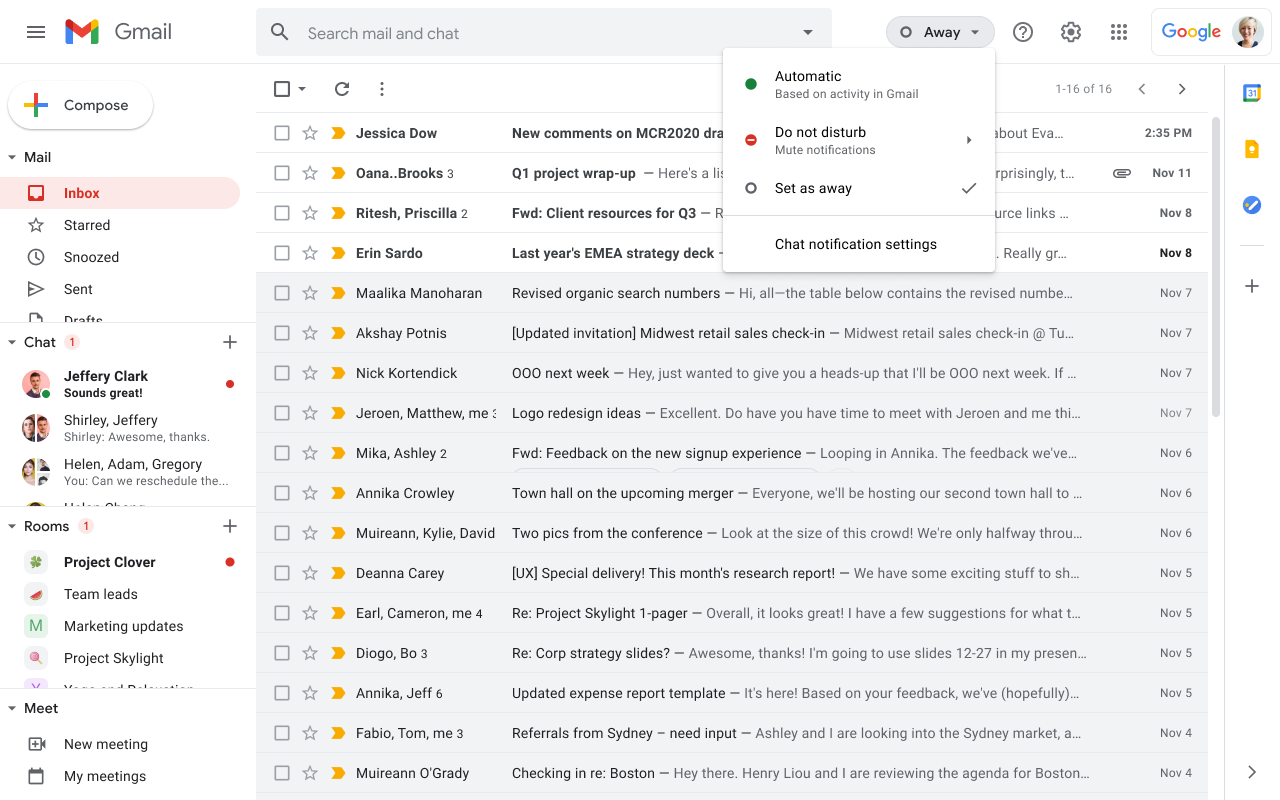
You can now set yourself as “away” in Chat in Gmail, showing you as offline to others, even when you’re active. This ability is available on both the web and mobile apps.

Gmail on the web, status drop-down is selected in top right corner, with "Set as away" selected from that list.

You can now accept all pending “knocks” (i.e., requests to join) in bulk in Google Meet to limit interruptions during the video call. Note that only the meeting host can see or approve requests to join a meeting.

Participants can now raise their hand in Google Meet. To raise your hand in Meet, click the “Raise Hand” button in the meeting’s bottom bar. Once the button is pressed, it will change to a “Lower Hand'' button, which can be clicked to lower your hand. To learn more about hand-raising in Google Meet, see Google’s Help Center article.

Google has changed the default editing mode for Microsoft Office files in Google Drive on the web. Now, when you double-click on an Office file, it will open directly in Office editing mode in Google Docs. Previously, double-clicking would open a preview of the document, from which you could choose whether to open in Office editing mode or download the file. (If desired, you can still use the preview mode by right-clicking the file and selecting Preview or by pressing ‘P’ on the keyboard while double-clicking the file.)

Previously Communicated:

The new Google Chat desktop app

Earlier this year, Google launched a new Google Chat standalone app. The app is a Progressive Web Application (PWA), which provides the ability to use Chat on any desktop device with the Google Chrome web browser.

Once installed, the app integrates with your device’s operating system to function like a built-in app (similar to the previous Electron-based Chat desktop app). The new app interface is the same, and all of your previous Chat history is preserved and accessible. To learn how to install the new app, see Google’s Install the Chat standalone app documentation article.
 
The new Chat app works on Windows, macOS, Chrome OS, and Linux devices. You must have Google Chrome version 73 or higher installed on your device to run the new app. (Enter chrome://version in your Chrome browser to find the version.) Additionally, the app is kept up to date with Chrome, so there is no need to update the app separately as you would with other built-in apps.

Important: If you previously installed the old Google Chat desktop app, you will need to uninstall it. Google has announced that they plan to shut down the previous Chat app in January 2021. Its replacement is the new Chat Progressive Web App built into the Google Chrome browser, as mentioned above. For more information on how to uninstall the previous app on a macOS or Windows machine, see Google’s Update the Electron-based Google Chat app to the Progressive Web App documentation article.

Important items to note:

  • Chrome doesn’t have to be your default browser to use the app.
  • The Chrome browser needs to be open to use the app.
  • After the previous Chat app is disabled in January 2021, it will remain inactive (and unusable) on your device until you uninstall it.
  • You can continue to access Google Chat via:
    • The built-in interface within Gmail on the web.
    • The Google Chat website (chat.google.com).
    • The Google Chat mobile apps for iOS and Android.

To learn more about Google Chat at U-M, visit:

Updates to group conversations in Google Chat and classic Hangouts

According to Google, starting December 3, 2020, there will be two updates to group conversations in Google Chat:

  • Add and change members: You’ll be able to add and change members of new group conversations you create after December 3.
  • Compatibility with classic Hangouts: Group conversations and their history in classic Hangouts will begin to appear in Google Chat over the coming weeks. New group conversations and unthreaded rooms in Chat will also begin to appear in classic Hangouts.

Add and change members

Any new group conversations created in Google Chat after December 3 will allow you to add or change new members in the group. When a new member is added to a conversation, all members will see a message posted in the chat announcing the new member. It is important to note that the new member will be able to see the entire conversation history upon joining, even messages sent before they were invited.

Note: You will not be able to add or change members in group conversations created in Google Chat before December 3. You will have to create an updated conversation with the same people using the “Start a new chat” option in the settings menu of the conversation.

Screenshot of Google Chat in-chat settings menu with a red arrow pointing to "Start a new chat"

Compatibility with classic Hangouts

Group conversations and their message history in classic Hangouts will begin to appear in Google Chat over the coming weeks. In addition, updated group conversations and unthreaded rooms from Chat will begin to appear in Hangouts. (Threaded rooms in Chat will not appear in Hangouts.)

Note: We are currently investigating how various features work regarding the new interoperability between classic Hangouts and Google Chat. For example, it is unknown how group conversations with external users will transfer over from Hangouts to Chat. As we know more, we will continue to update the university community and our U-M Google resources as needed.

According to Google, these updates should begin showing up in U-M Google on December 3, 2020, and could take 15 days or longer to become fully visible.

FINAL REMINDER: Google Cloud Print Ending Dec. 31

You may disregard this message if you do not use Google Cloud Print and its features.

This is the final reminder that beginning January 1, 2021, devices across all operating systems will not be able to print using Google Cloud Print. This includes the “Save to Google Drive” option when printing a document in Chrome. (Google recommends installing the “Save to Google Drive” Chrome extension to replace this feature.)

Find an alternative print solution and migrate your print services by the end of 2020. One alternative, MPrint, is U-M's printing service that allows university community members to print from their computer or mobile device to many printers on campus.

Note: Due to COVID-19, many printers are unavailable across the university. To find a list of available printers, see the Shared Computing Site Directory - COVID-19 Temp Operations spreadsheet.