
While MiWorkspace Full and MiWorkspace Core include many of the same features, there are some key differences, particularly in terms of desktop support.
- MiWorkspace Full provides a completely managed experience, including network storage, hardware lifecycle management, and dedicated on-site support from Neighborhood IT staff.
- MiWorkspace Core provides the same foundational platform — security, software, and mobility — managed centrally by ITS, while your unit's own IT staff handles day-to-day desktop support.
The easiest way to determine if your unit uses MiWorkspace Full or Core is to open the MiWorkspace Helper app.
Determine if you are MiWorkspace Full or Core
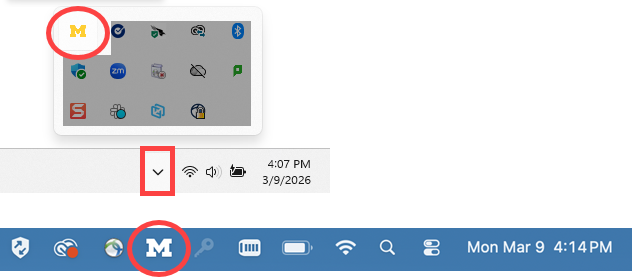
Open the MiWorkspace Helper app by clicking the block M in your Windows task bar or Mac menu bar (pictured below, Windows - top, Mac - bottom).
The menu of resources and support options available in the MiWorkspace Helper app differ based on your unit and whether you are part of a MiWorkspace Full or MiWorkspace Core unit.
MiWorkspace Full
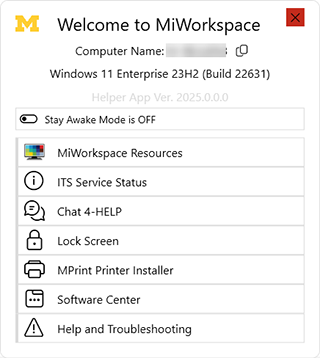
MiWorkspace Full customers see “Welcome to MiWorkspace” at the top of the helper app.
MiWorkspace Core
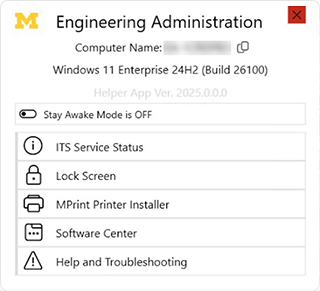
MiWorkspace Core customers see a header at the top of the helper app that generally references their school/college/unit (i.e., it does not say “Welcome to MiWorkspace”).
Use the Block M Icon for Helpful Resources
The block M icon located in the menu bar or taskbar of your device has convenient links to university and MiWorkspace-specific resources:
- Computer Name
- Operating System Version
- Troubleshooting (Windows) — Basic diagnostic tools
- Stay Awake – Presentation mode to stop your device from sleeping for four hours
- Reconnect Network Drives
- Lock Screen
- MiWorkspace Resources – Quick link to this website for resources and information about the service
- ITS Service Status Page – Information on outages, upgrades, and planned changes
- Chat 4HELP – Chat with an ITS Service Center representative (MiWorkspace Full customers only)
- MPrint Printer Installer
- Software Center (Windows) / Managed Software Center (Mac) – Download and install new software and updates.