U-M Google Updates

U-M Google May Monthly Summary

The monthly U-M Google summaries inform the university community of Google releases. We communicate important information throughout the month.

Updates:

Google has added more customization options in Sheets for chart line and fill styling. You can now modify: 

  • Color
  • Opacity
  • Line dash styles
  • Line thickness

For column-shaped charts, you can now add and style borders. 

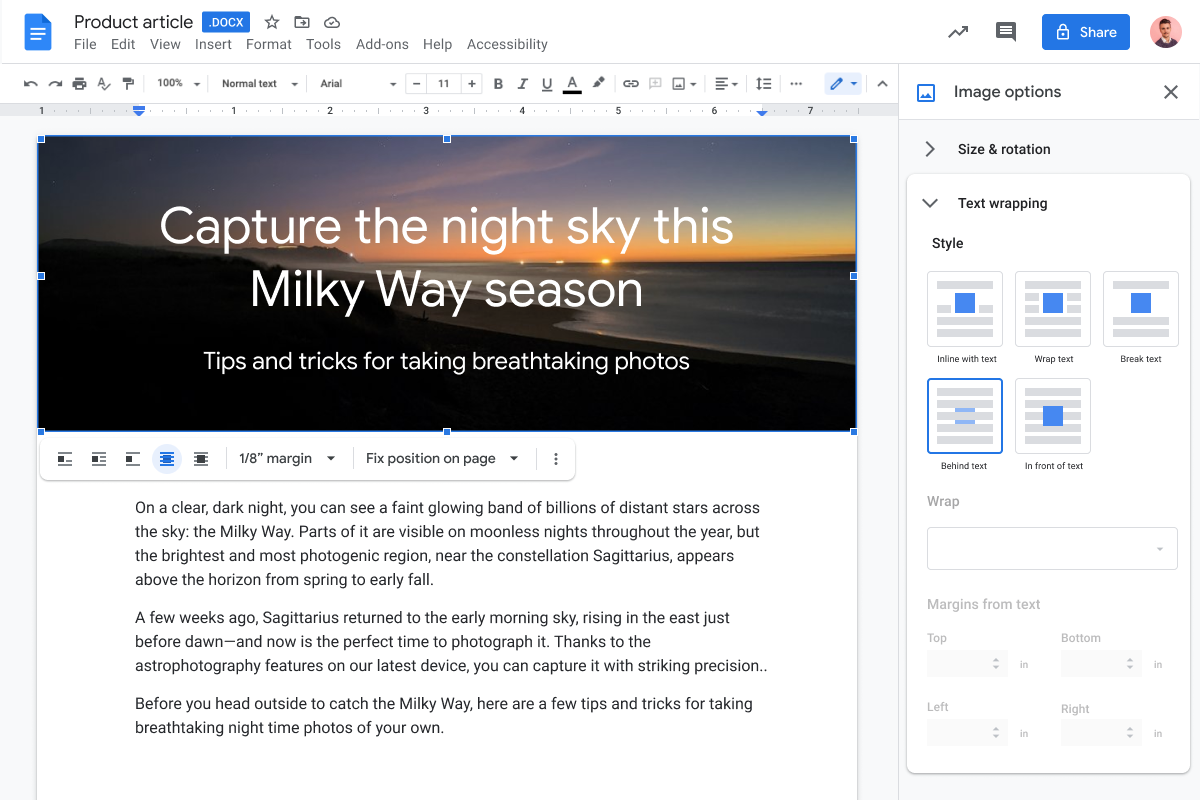
You can now position an image in front of or behind text in Google Docs. Additionally, this formatting will be preserved when importing or exporting documents from Microsoft Word. These formatting options can be found within the image options sidebar and in the image toolbar when clicking directly on an image.

Google has added a new option which allows you to choose which holidays to display. Previously, Google showed all holidays for the regions you selected, including official public and unofficial holidays. Now, you can choose if you want to see: 

  • Public holidays and other holidays. 
  • Public holidays only.

Visit the Google Help Center to learn more about managing holidays in Google Calendar.

Previously Communicated:

New meeting code expiration windows in Google Meet

Currently, Google allows you to schedule Google Meet sessions across U-M Google, such as Calendar, Gmail, Chat, and more. This means your unique meeting code and its expiration are based on where you created your meeting.

Most meeting codes will expire 365 days after the last use, but there are instances where the meeting code will expire instantly once the meeting ends. Refer below for a breakdown of meeting code expirations based on where it’s created. 

Google Calendar: Meeting codes expire when the following two conditions are met:

  1. The meeting code has not been used for 365 days, and
  2. The meeting code isn’t associated with any future calendar events.

Gmail, Meet, and Chat: Meeting codes expire 365 days after last use.

Jamboard, Google Classroom, and nicknamed Meet sessions: Meeting codes expire instantly once all users leave and the meeting ends.

Other Third-Party Applications: Meeting codes expire 365 days after last use. If someone uses the code within the 365-day window, Google adds another 365 days to the code’s expiration date.

According to Google, the new meeting code expirations took effect on May 19, 2021, and could take 15 days or longer to become fully visible in the U-M Google.

U-M Google April Monthly Summary

The monthly U-M Google summaries inform the university community of Google releases. We communicate important information throughout the month.

Updates:

Google has added four new types of citations in Google Docs. 

Google has made it easier to add information to your personal tasks in Google Tasks from the quick access panel without having to open the “Details” dialog box.

You can now see a preview of Google Maps locations from the quick access panel in Google Calendar.
    A GIF going into Google Calendar, creating a new event, adding a location to the event. On the right a panel opens that shows details of the location while still in Google Calendar.

Google Meet sessions have new safety controls on Android to help you manage who can share their screen and who can send chat messages within the meeting. These controls were previously available on the web.

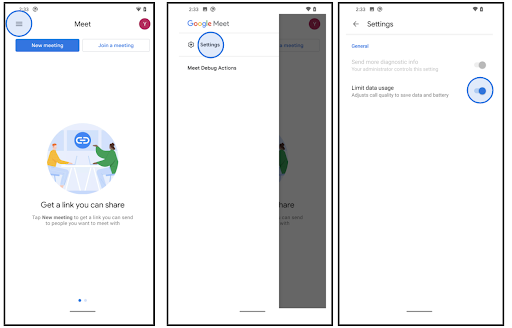
Google has integrated a data saver setting into Google Meet for iOS and Android devices. When enabled, this will:

  • Limit data use.
  • Conserve battery power.
  • Lower the demand on your phone’s CPU.

Screenshot of a Android device, Going into Google Meet panel via top left button, entering settings and enabled Limit Data Usage

Previously Communicated:

New look and feel coming to U-M Google Meet

Google has announced a refreshed Google Meet desktop experience with updates to video feeds, the viewing and presenting experience, and the bottom bar.

Video tiles

  • Your self-view now appears in the bottom right of the grid view.
  • Hover over your self-view tile to choose between a tile in the grid view or a floating picture. You can also resize, reposition, and hide it.
  • When someone speaks, their tile is outlined in blue.
  • When there are more participants than can be shown on the grid, a tile is added to show you who’s on the call.

Viewing and presenting experience

  • You can now see what you are presenting and other participants at the same time while in Google Meet.
  • Unpin the content you or others share to see more participants..
  • Participant names are always visible regardless of meeting size.

Bottom bar

  • Meeting dial-in codes, attachments, the participants list, chat, and other controls are at the bottom right.
  • Controls are consolidated in one place with descriptions upon hover.
  • The “Leave call” button is on the right, away from the microphone and camera buttons.

Refer to Get to know the new Google Meet interface for more information on these changes.

Important: If you currently use any Chrome extensions that interact with Google Meet (including the Grid View extension), your experience could be impacted. Uninstalling these extensions could resolve any issues that may occur.

According to Google, this feature should have begun to show up in U-M Google on May 13, 2021, and could take 15 days or longer to become fully visible. You can expect to see a banner at the top of your screen before joining a Google Meet session when the new interface has arrived in U-M Google.

Additional Resources

Reminder: Convert your classic Google Sites to new Sites

Google ended classic Google Sites creation on May 15, 2021. Moving forward, new Google websites can only be created in new Google Sites. This change also applies to copying existing sites, creating sites using the Sites API, or any other form of site creation in classic Sites.

For further details on Google’s proposed timeline for classic Google Sites retirement, refer to Classic Google Sites Retirement Timeline.

We highly encourage you to begin converting your classic Google Sites to new Google Sites as soon as possible. The longer you wait to make the transition, the greater the possibility for data loss in 2022.

If you currently own a classic Google Site, refer to Convert Your Classic Google Sites to New Sites for more information on how to convert your classic Google Sites to new Google Sites.

Additional resources: