To learn about new Zoom features, refer to the Zoom release notes. You can also check which version of the Zoom app you are using and, if applicable, update to the newest version.
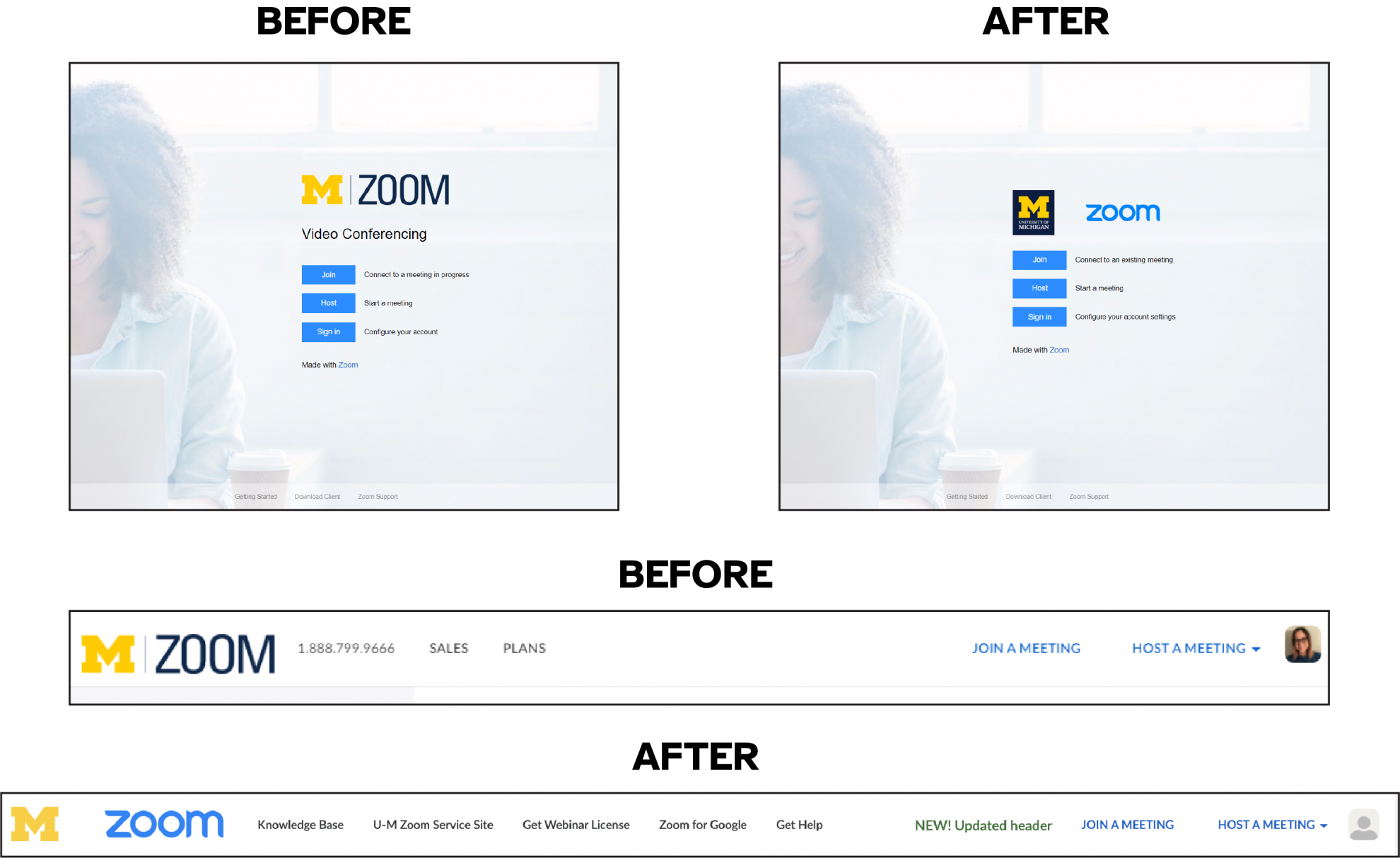
As a reminder, Zoom will implement the new web experience (at zoom.umich.edu) in one week, on August 26, 2026. In the meantime, there is a Try new experience toggle (with a “New look and feel for Zoom Web!” callout) in the top-right corner when visiting Zoom on the web. Toggling it on will update the web interface to the new experience. You can continue to switch between the old and new interfaces until August 26, when the new interface becomes permanent, according to Zoom.
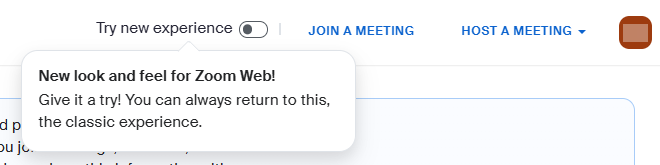
Key changes to the web interface include:
- Redesigned homepage: A cleaner layout similar to the desktop app Home tab.
- Upon navigating to zoom.umich.edu and signing in, you will now land on the new homepage instead of your account settings.
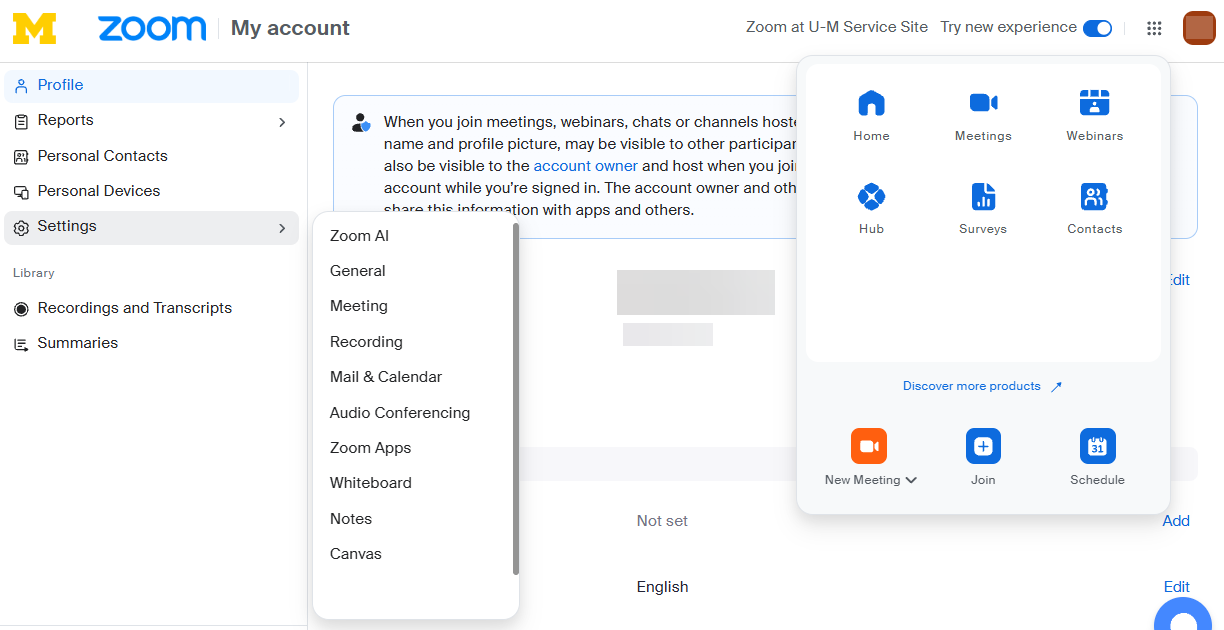
- Updated settings navigation: Your account settings are found by clicking your icon in the top-right corner, selecting My account, then clicking Settings in the left navigation. Instead of using tabs along the top to navigate between sections within settings, you will now click the section from the left navigation.
- You can navigate to a specific setting section by hovering over Settings and selecting the specific section (such as Meeting or Recording) from the drop-down.
- Beyond these updates, the layout of your settings and the settings available to you remain unchanged.
- “Surveys” section has moved: You can find your surveys, polls, and quizzes under the new waffle menu in the top-right corner beside your icon.
- New product navigation: A waffle menu in the top right replaces the old left navigation panel for switching between products.
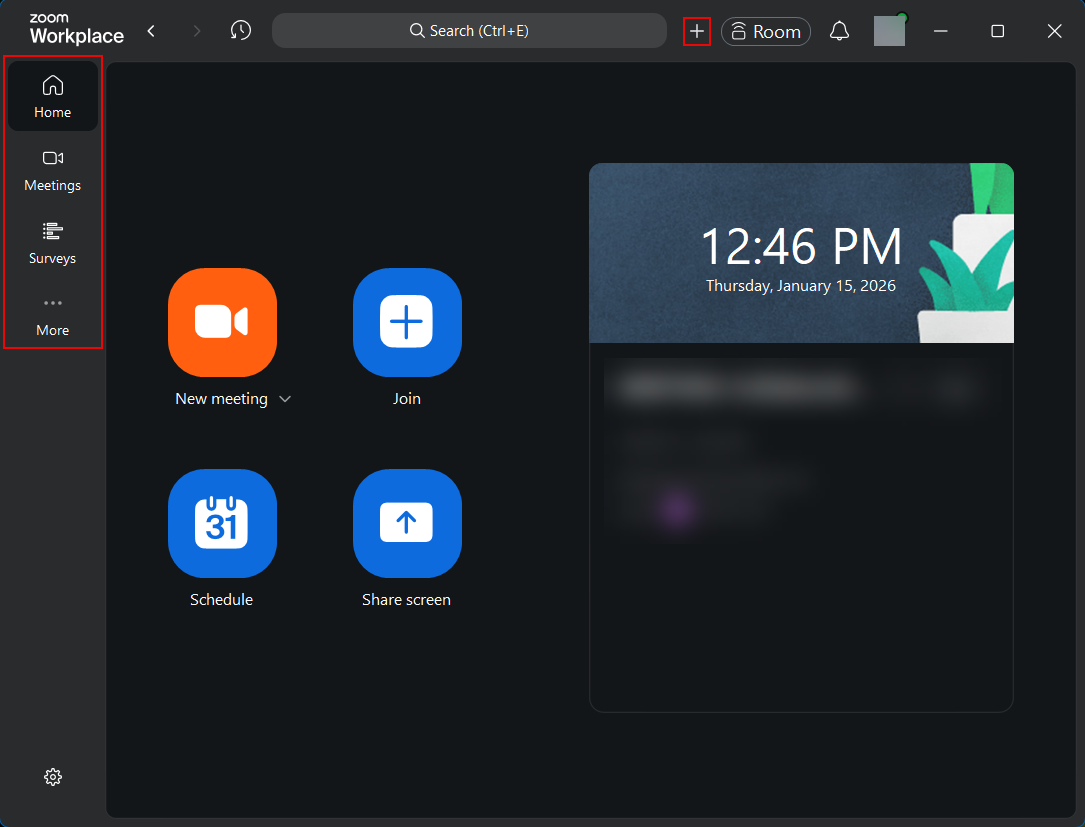
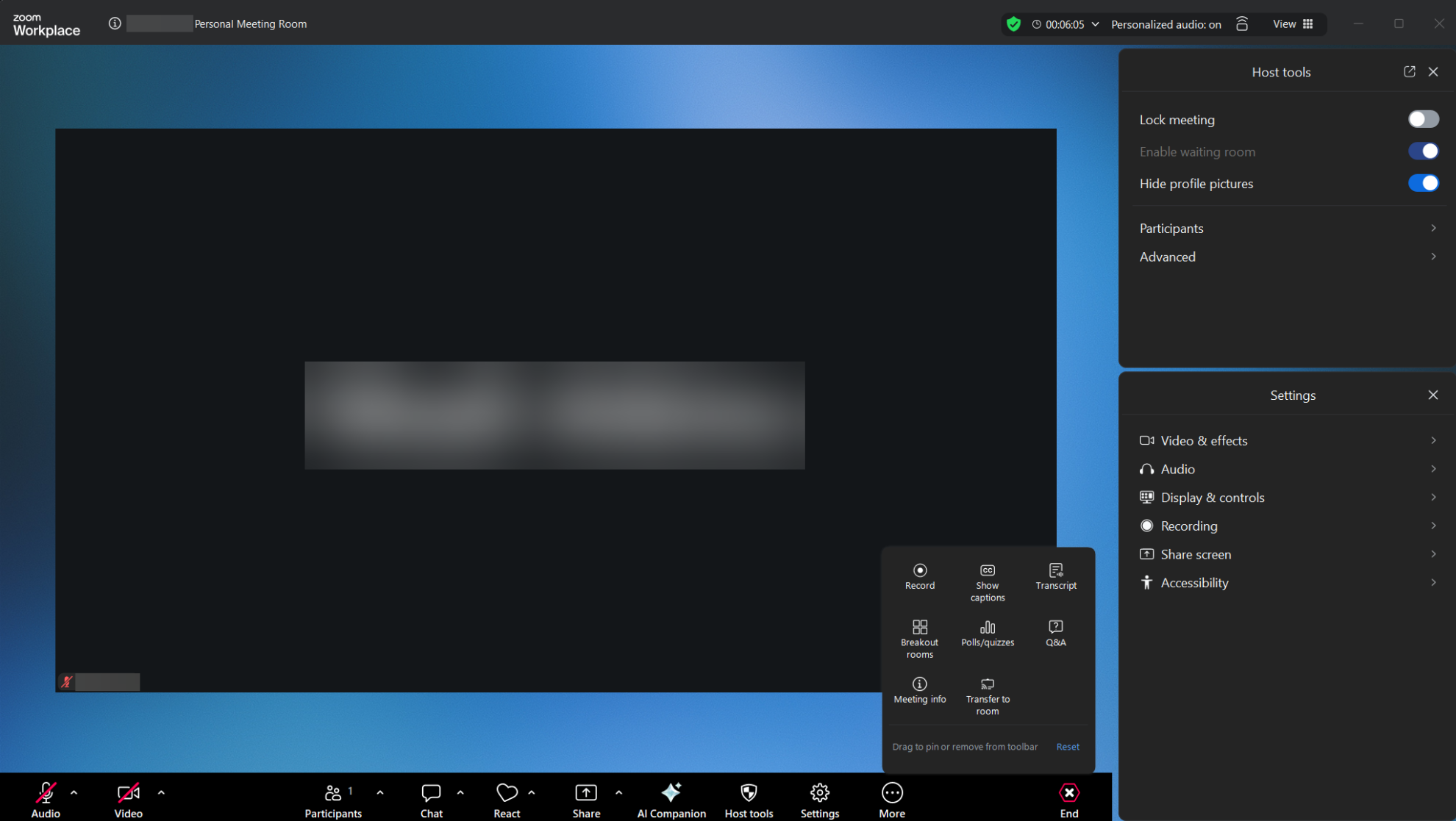
 ) in the meeting window (located in the bottom toolbar).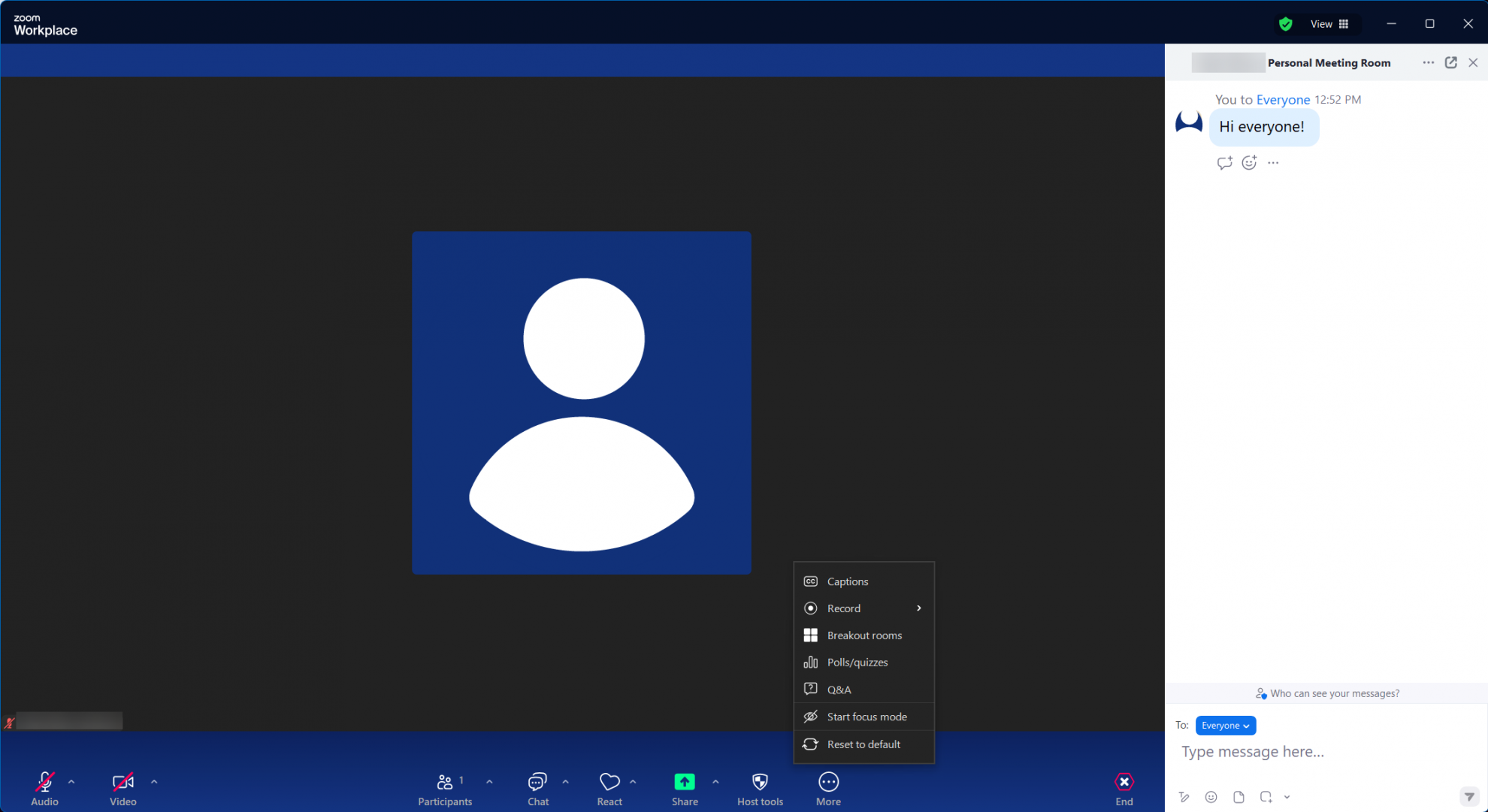
 . You can turn these reactions off in your Zoom desktop app settings under General > Reactions > Check/uncheck the “Animate these emojis” box.