U-M Dropbox Updates

Upcoming changes to U-M Dropbox sharing on the web

March 30, 2021

On April 5, 2021, Dropbox will begin to roll out changes to the sharing and permissions dialogue box for U-M Dropbox on the web. It is important to note that you will continue to use the same sharing and permissions settings you previously had available to you.

Old experience
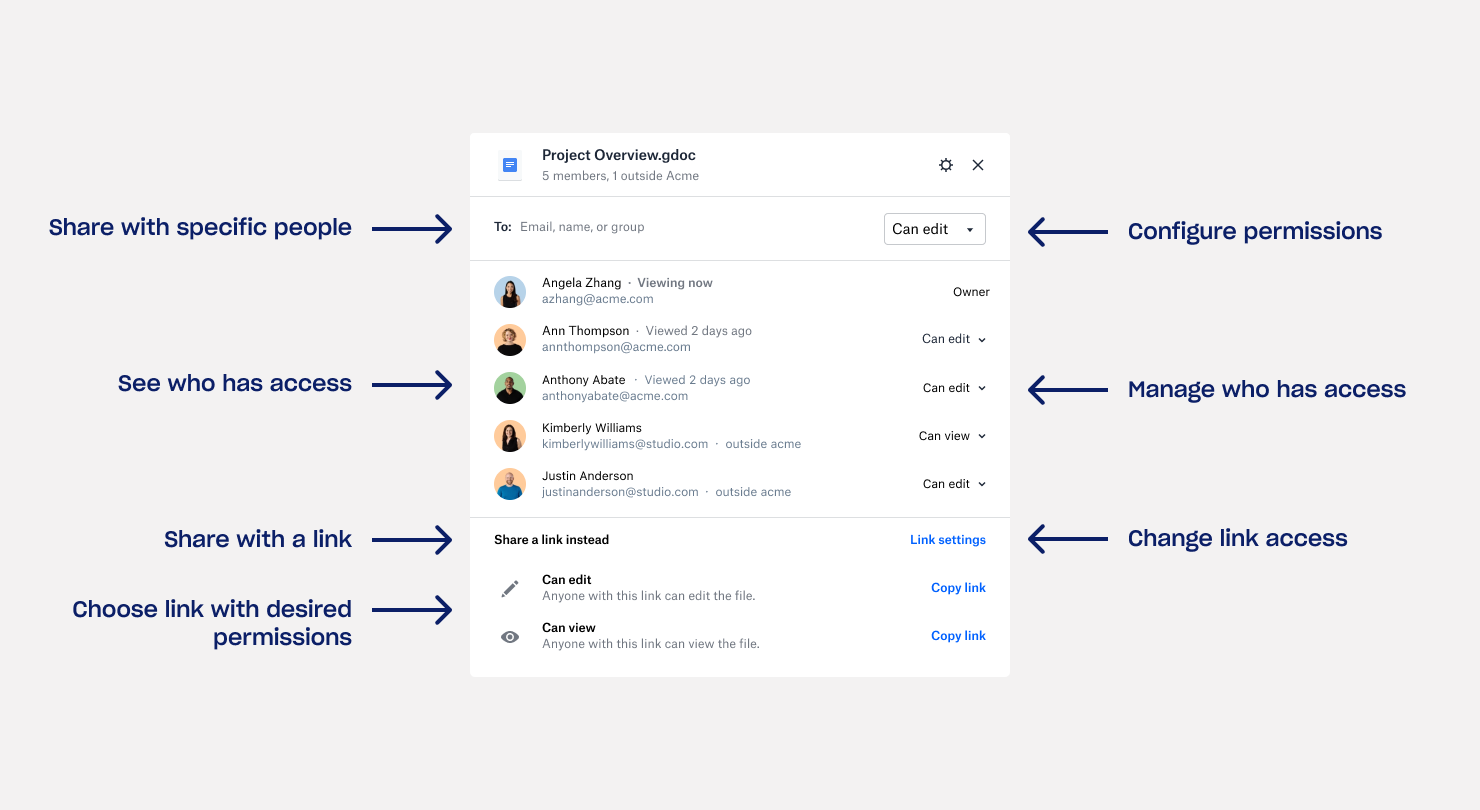
Graphic with screenshot of an example sharing dialog box view in Dropbox. There are text with arrows points to certain areas of the box. Starting left, moving down: "Share with specific people", "See who has access", "Share with a link", "Choose link with desired permissions". Starting on the right, moving down: "Configure permissions", "Manage who has access", "Change link access".

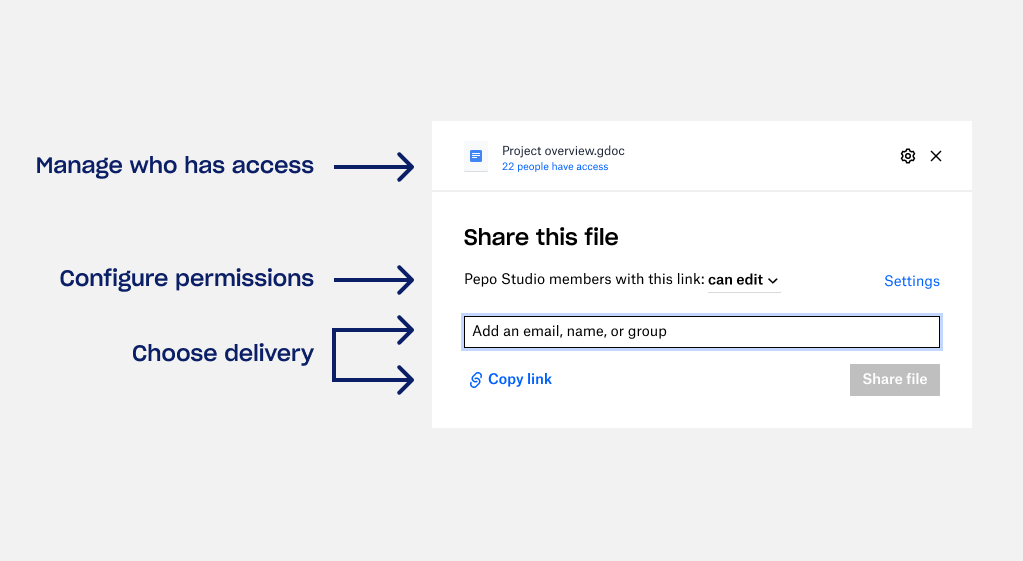
New experience

Graphic with screenshot of an example of the new sharing dialog box view in Dropbox. There are text with arrows points to certain areas of the box. Starting left, moving down: "Manage who has access", "Configure permissions", "Choose delivery" (which has two arrows)

To learn more about sharing and permissions in U-M Dropbox, see the Dropbox Help Center.

According to Dropbox, this feature should begin showing up in U-M Dropbox on April 5, 2021, and could take 1 to 2 days or longer to become fully visible.

Reminder: Store your sensitive data appropriately

November 20, 2020

As you may know, some types of sensitive data, including Protected Health Information (PHI), can be stored in/used with U-M Box and U-M Dropbox. You are responsible for using Box and Dropbox appropriately with sensitive university data and taking all necessary precautions.

U-M Box

Within U-M Box, permitted sensitive data should be stored in a folder owned by a Shared Account. See Shared Accounts in U-M Box and U-M Google for more information on how to request and use a U-M Box Shared Account.

Additionally, please review Box: Folder Settings and Permissions to learn how to set up a shared U-M Box folder to store sensitive data. 

U-M Dropbox

Within U-M Dropbox, permitted sensitive data should be stored in a Team Folder. See Team Folders in U-M Dropbox for more information on how to request, share, and manage Team Folders.

Additionally, please review Dropbox’s Team folders: an overview for more general information on using Team Folders.