
U-M Dropbox Updates

Collaborate in real-time with Microsoft co-authoring in U-M Dropbox

June 10, 2025

Microsoft co-authoring for Dropbox allows you to edit in real time with collaborators on Microsoft 365 files stored in U-M Dropbox. This feature only existed previously using Microsoft 365 Online via U-M Dropbox on the web. However, this update brings with it the ability to edit in real time using your local Microsoft 365 and Dropbox desktop apps.

Co-authoring works across Windows, macOS, and on the web, even if each co-author is using a different operating system (OS) or browser. You can find the system requirements for desktop use below.

System Requirements

  • macOS users:
    • You should opt in to Dropbox on File Provider to access and use this feature seamlessly. (This requires macOS version 12.5 or later.)
    • If you (or any collaborators who are also on Mac computers) aren’t on File Provider, you’ll still be able to open files for co-authoring from within Word, Excel, and PowerPoint but won’t be able to begin a co-authoring session by opening it from your Finder without creating a new conflicted copy.
  • Windows users: You must be on Windows 10 or later to use Microsoft co-authoring.
  • Your Microsoft 365 apps must be on version 2311 or later and signed in to your U-M Microsoft 365 account for compatibility with co-authoring.
    • If you are a Michigan Medicine affiliate, you will use your HITS-managed (@med.umich.edu) Microsoft 365 account to connect via the desktop apps.

Getting Started

To use the co-authoring feature on your desktop, you must add Dropbox as a cloud storage location in Microsoft 365. You need to do this for each device on which you want to enable co-authoring.

  1. Open Microsoft Word, PowerPoint, or Excel on your desktop.
  2. Click Open in the left sidebar. 
  3. Click Add a Place (Windows) or Manage Storage Accounts (Mac).
  4. Select Dropbox for Teams.
  5. Enter your @umich.edu email address and click Continue with single sign-on.
  6. Log in with your uniqname and UMICH password via U-M Weblogin.

Refer to the Dropbox Help Center for detailed instructions with screenshots on setting up co-authoring on your computer. Dropbox also offers an interactive walkthrough experience.

Important Things to Note

  • The AutoSave toggle in the top left of the Microsoft 365 app should be turned on automatically the first time you start a co-authoring session. (For Mac users, this requires File Provider.) If you’re working on a new file, you may need to turn on this toggle yourself. Co-authoring sessions won’t work if the AutoSave toggle is turned off.
  • You can open files up to 500MB in the Microsoft 365 apps via Dropbox. However, if you open a file that’s larger than 500MB from File Explorer (Windows) or Finder (macOS), it’ll open in offline mode and prevent co-authoring.
  • Individuals who do not have co-authoring set up on their desktop won’t be able to open a co-authoring file locally to edit. They will be prompted to log in to Dropbox for Teams and, if they do not log in, will receive a “Can’t Open File” error.
  • You can collaborate externally with co-authoring, but individuals outside U-M Dropbox will need to use Microsoft 365 Online via Dropbox on the web. This requires a Dropbox account and direct access to the files being co-authored.
    • If they do not have a Dropbox account or don’t have access to co-authoring on the web, they can only open a “view-only” copy.

Refer to Dropbox: Collaboratively Edit Microsoft 365 Files (Co-Authoring) for additional information on co-authoring via macOS (with/without File Provider), Windows, and on the web.
New U-M Dropbox Team Folder creation form and management tool

February 24, 2025

The processes for creating and managing Dropbox Team Folders have changed. Instead of using a U-M Qualtrics form to request Team Folders, you will now use a creation form in the new ITS Dropbox Team Folder Manager tool.

Moving forward, the MCommunity group you use when creating and managing the folder must have two eligible owners (i.e., faculty or regular staff). Eligible group owners will also use the tool to change the folder’s departmental prefix, name, and associated MCommunity group and delete the folder when your team no longer needs it. These actions no longer require you to contact the ITS Service Center for assistance unless you encounter issues while doing so!

All Team Folders of which you are already an eligible group owner are viewable/manageable in the tool. (If your folder has no associated group with eligible owners, it will not appear in the tool.) Renewing them annually is not required at this time.

As a reminder, individuals must be members of the MCommunity group to view and access the Team Folder in Dropbox. However, only eligible group owners (regardless of whether they’re also members) can create and manage Team Folders via the tool.

Refer to Team Folders in U-M Dropbox for additional guidance on using the new tool to create and manage Dropbox Team Folders.

Organize files/folders using new "Quick Access" section in U-M Dropbox

December 12, 2024

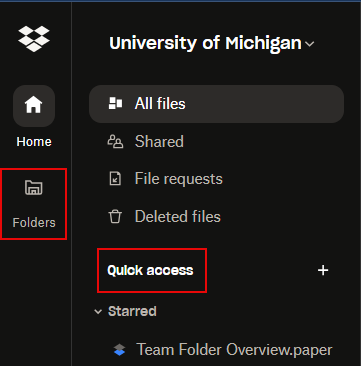
On December 11, 2024, Dropbox updated the left sidebar layout to include a new “Quick Access” section intended to help you organize your files/folders into custom sections while also bringing back the “Starred” section they removed last year.

Dropbox also changed the viewing experience for folders in the left sidebar. Your folder tree is now viewable under the new "Folders" section in the far left of the sidebar under “Home.”

Section of the new left sidebar in Dropbox showing the "Quick access" section with a red box around it, as well as the new "Folders" tab also highlighted by a red box to the far left.

Refer to Dropbox: Organize Files/Folders Using Quick Access for more information.

Final Reminder: Upcoming file system changes in U-M Dropbox

June 4, 2024

As a final reminder, Dropbox is making several changes to their file system, including how files/folders are structured.

Beginning June 11, 2024, Dropbox will make several changes:

  • Everyone will have a new personal folder denoted by their name (e.g., “Nancy Emcard”). The files/folders you own and files/folders shared with you are now stored in this folder. (This does not include Team Folders.)
  • When you share a subfolder in a Team Folder with someone who doesn’t have access to the Team Folder, the entire folder path to the subfolder you’ve shared will be visible to them.
    • This change will apply to all existing/previously shared subfolders, as well as any new subfolders you share moving forward.
    • Any other files or subfolders outside the folder path a collaborator is not explicitly shared on will remain hidden from their view. (This includes any content in the folder path.)
    • The newly revealed folder paths should not be visible to external collaborators outside of the U-M Dropbox domain. They will only be visible to collaborators who have accounts within U-M Dropbox.
    • We strongly recommend reviewing your Team Folder’s subfolder structures and sharing access before June 11 and updating as needed. This will ensure that confidential or sensitive subfolder names are not revealed to collaborators shared at that level.
  • If you were previously shared on a subfolder within a Team Folder you don't have access to, the name of that subfolder may change.
    • Before June 11, your subfolder name would not update to reflect any changes to the name made by members of the Team Folder. (It would remain the same name as when it was first shared with you.)
    • After June 11, when a member of the Team Folder changes the subfolder's name, it will also change the name for you.
  • When using the Dropbox desktop app, the name will change from “Dropbox (University of Michigan)” to “University of Michigan Dropbox” in your file directory.

On June 11, you may encounter a sync error in the Dropbox desktop app if:

  • You leave apps using files stored in Dropbox open on your desktop after midnight. Close all files and apps to allow Dropbox to resync.
  • You’re running an outdated version of the Dropbox desktop app. Ensure your app is updated to version 192 or later.

Refer to the ITS Knowledge Base for a detailed overview of every change to U-M Dropbox occurring on June 11. (There are additional details for each of the items listed above that are important to review.)

Upcoming file system changes in U-M Dropbox

May 7, 2024

Dropbox is making several changes to their file system, including how files/folders are structured.

Beginning June 11, 2024, Dropbox will make several changes:

  • Everyone will have a new personal folder denoted by their name (e.g., “Nancy Emcard”). The files/folders you own and files/folders shared with you are now stored in this folder. (This does not include Team Folders.)
  • When you share a subfolder in a Team Folder with someone who doesn’t have access to the Team Folder, the entire file path to the subfolder you’ve shared will be visible to them.
    • This change will apply to all existing/previously shared subfolders, as well as any new subfolders you share moving forward.
    • Any other files or subfolders a collaborator is not explicitly shared on will remain hidden from their view. (All content in that file path is hidden - subfolder names are not.)
    • We strongly recommend reviewing your Team Folder’s subfolder structures and sharing access before June 11 and updating as needed. This will ensure that confidential or sensitive subfolder names are not revealed to collaborators shared at that level.
  • If you were previously shared on a subfolder within a Team Folder you don't have access to, the name of that subfolder may change.
    • Before June 11, your subfolder name would not update to reflect any changes to the name made by members of the Team Folder. (It would remain the same name as when it was first shared with you.)
    • After June 11, when a member of the Team Folder changes the subfolder's name, it will also change the name for you.
  • When using the Dropbox desktop app, the name will change from “Dropbox (University of Michigan)” to “University of Michigan Dropbox” in your file directory.

On June 11, you may encounter a sync error in the Dropbox desktop app if:

  • You leave apps using files stored in Dropbox open on your desktop after midnight. Close all files and apps to allow Dropbox to resync.
  • You’re running an outdated version of the Dropbox desktop app. Ensure your app is updated to version 192 or later.

Refer to the ITS Knowledge Base for a detailed overview of every change to U-M Dropbox occurring on June 11. (There are additional details for each of the items listed above that are important to review.)