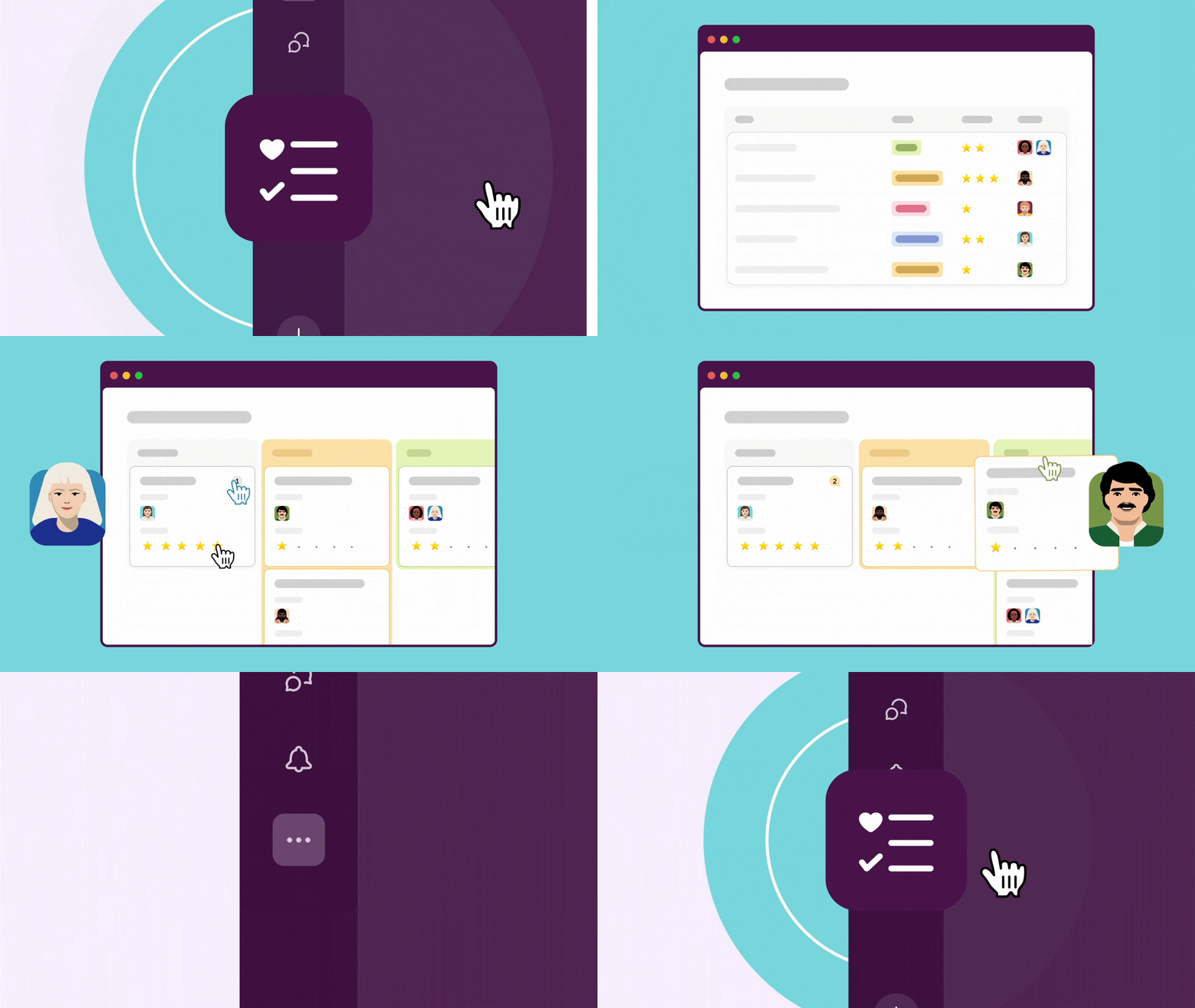
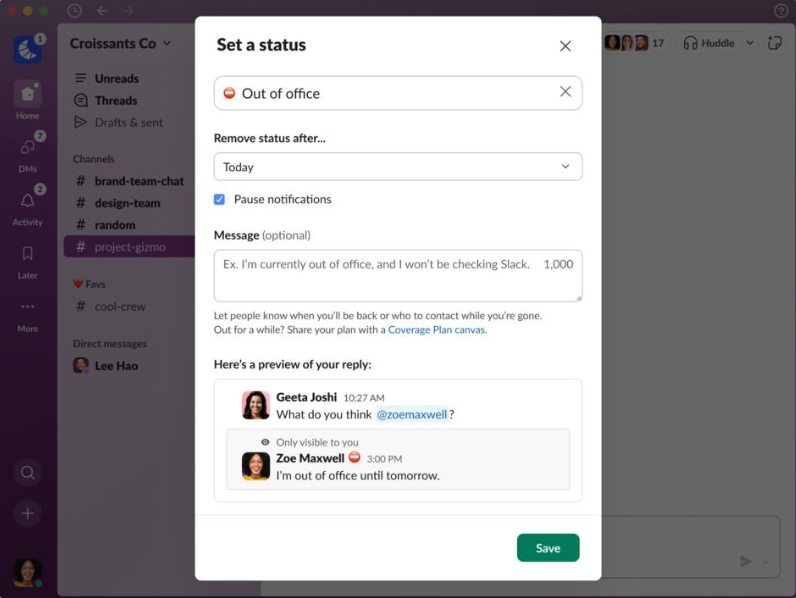
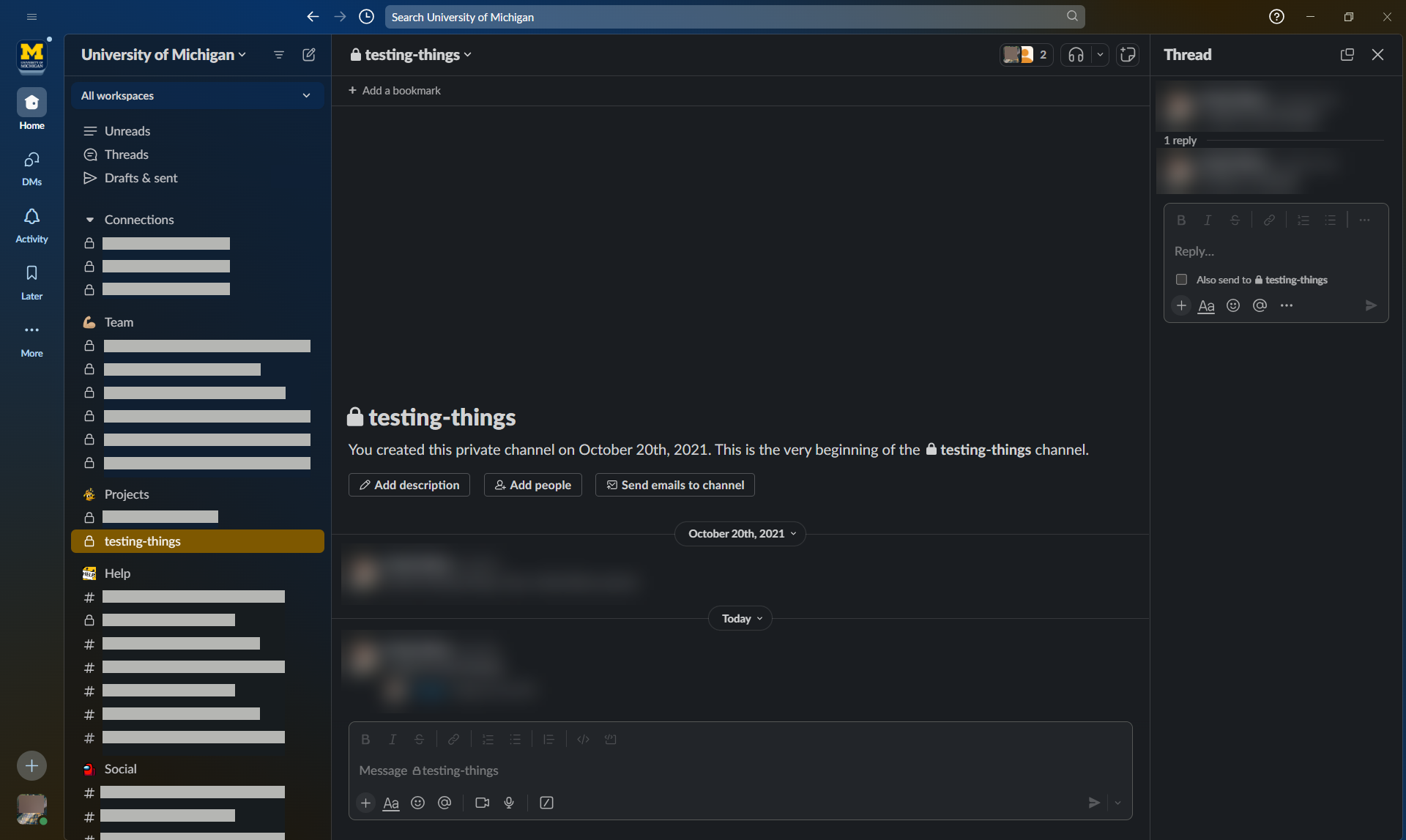
There's a lot of new stuff in Slack lately, and we haven’t had a U-M Slack summary in quite some time! To make this summary easier to digest, we’ve broken down feature updates from the last few months by function. (Note that some features may not be visible in U-M Slack yet and are coming soon.)
Updates
Interface & navigation
This section covers changes to how the apps look and how you move around them.
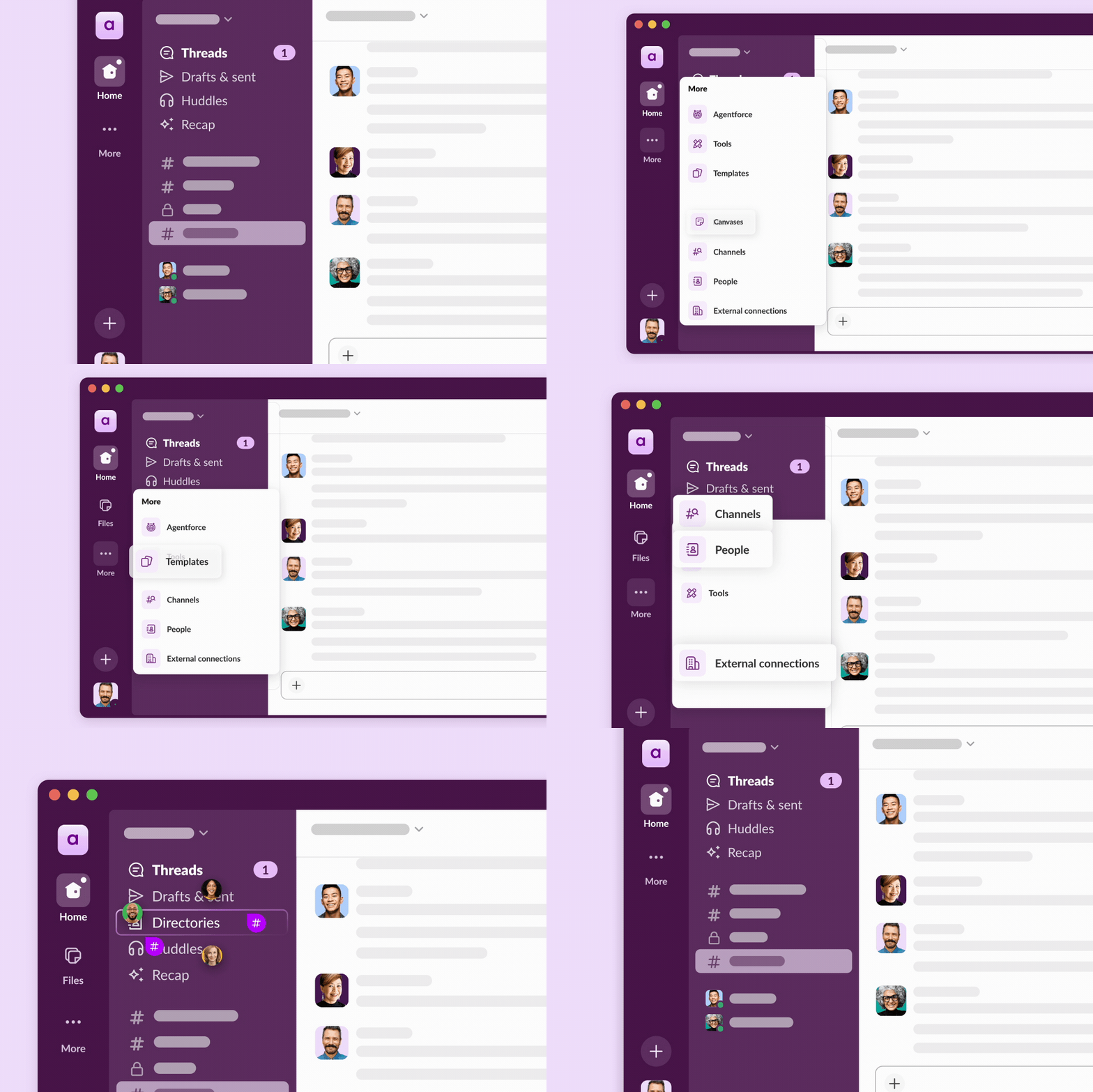
Consolidated tabs in the desktop app: You may have noticed that your left navigation tabs have changed. Canvases and lists can be found under the “Files” tab. Workflows, apps, and channel templates have moved under the renamed “Tools” tab (previously “Automations”). People, user groups, channels, and external connections have moved under a new “Directories” section at the top of your channel list.
- Desktop split view: Slack has reintroduced split view, allowing you to open channels, threads, or canvases side by side. (Nearly all views that can be opened in a new window can also be opened in split view.) This allows you to reference information in one pane while continuing to chat in another.
- Self-cleaning sidebar: Slack can recommend "sweeping" or muting channels that have been inactive for a while to keep your sidebar clutter-free. Click the gear icon next to “University of Michigan” at the top of your sidebar, then select either Hide muted conversations or Clean up your channel list. (You may have noticed in late 2025 that some channels went “missing” from your sidebar - that is due to the “Hide muted conversations” setting.)
- "Liquid Glass" redesign for iOS 26: For iOS mobile users, Slack has overhauled the interface to match Apple’s latest design language, featuring a new "glass" message composer and a relocated floating search at the bottom of the app.
- Shared custom sidebar sections: You can now share your custom sidebar sections with others, including the private channels within them, enabling them to quickly join channel groups. You can also share these sections via a link.
The new “Activity” hub: This update will replace the current Activity tab sidebar layout with a flexible page design that supports side-by-side views. All notification types will be consolidated into a single feed with customizable density options and triage tools, like filtering, sorting, and bulk actions. You’ll also now find direct messages (DMs), messages from channels set to “All new posts,” and reminders in Activity.

- Group DMs listed in user profiles: When viewing someone’s profile in the desktop app, you can quickly jump into recent one-to-one or group direct messages (DMs), or view the full list of shared DMs for easier reconnection. Previously, you could only view shared workspaces.
- Channel setup cards: New channel setup cards now appear at the top of a newly created channel. Cards include “Add people to channel,” “Add channel description,” “Send emails to channel,” and “Pick a template.”
Messaging & collaboration
This section focuses on conversation and real-time interaction features.
- Reminders to add alt text: You can update your preferences to automatically prompt you to add alt text whenever you upload an image.
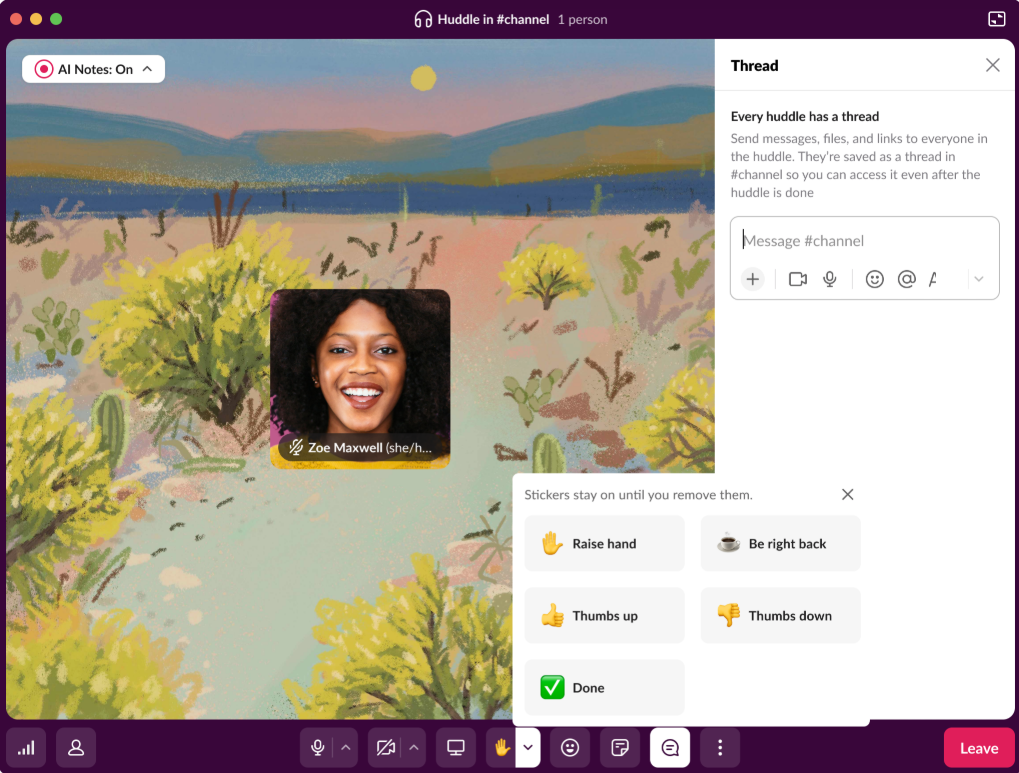
Redesigned huddles window and toolbar: Huddles now open in a window by default, so they don’t block the sidebar. If you close a huddle window, you’ll see the toolbar docked wherever you navigate in Slack.
- Underline text: You can finally underline text in the message composer using Cmd/Ctrl + U or by clicking the Underline icon.
- Download all attachments: You can now download all attachments in a message with one click. Previously, files had to be saved individually.
- Media transcription opt-in: Previously, audio and video files (including clips) were automatically transcribed upon upload. Now, transcriptions are turned off by default for all new media files, and you must click the Generate transcript button to start them.
Productivity & search
This section covers features that help you find and manage information and track tasks within Slack.
- Emoji reactions in canvases: You can add emoji reactions directly to text inside a canvas, similar to how you would react to a message.
- Find-in-channel search improvement: You can use Cmd/Ctrl + F or click the magnifying glass icon in the top-right corner of a channel or direct message to see matching results in the right-side panel without leaving the channel/DM.
- Updated notification preferences: Slack has overhauled their notification settings to make it easier to decide what you’re notified about in Slack. They have introduced simpler channel notification options, clearer push notification controls with better syncing across desktop and mobile devices, and improved global settings.
- Share canvases and lists from Slack on mobile: Previously, you couldn’t share canvases and lists from the mobile app to grant others permission to view and edit them.
- Nested branches for conditional workflows: Workflow Builder now supports up to five nested branches within each main branch. (Nesting branches below nested branches isn't supported at this time.)
Platform & performance
This section includes all the “behind-the-scenes” technical improvements.
- Screen reader verbosity settings: This update gives individuals control over which parts of a message are read aloud by a screen reader and in what order when reading messages in the web and desktop apps. This setting replaces the message format preference and can be found under the new “Screen reader” section of your Accessibility preferences.
- Updated file browser in Android mobile app: Expands the Android mobile file browser to support all file types, including third-party and media files. It also adds file-type filtering, improved empty states, and a unified experience that now matches the iOS mobile app.