
Updates
Calendar
Automatic addition of owned secondary calendars to your calendar list
As part of Google’s secondary calendar management changes, all secondary calendars you own will now consistently be displayed in your calendar list within your Calendar settings. You may have noticed that calendars you’d previously unsubscribed from have since been added back to your calendar list if Google assigned you as the owner. If you no longer wish to manage a specific calendar, you can either delete it or transfer ownership to someone else.
Chat
Schedule messages to be sent later
Similar to Slack’s schedule send feature, you can now schedule Chat messages to be sent later. When composing a message in a Chat conversation or space, click the down arrow to the left of the send (paper plane) icon and select a suggested date/time or custom time from the drop-down. You can schedule messages to send up to 120 days in the future. Learn more about scheduling messages in Chat.
Block messages from unknown senders
A new setting in Chat allows you to restrict who can invite you to 1:1 conversations and spaces. By default, this setting allows invitations from anyone, but you can also restrict incoming requests to known senders only for 1:1 conversations, spaces, or both.
If you restrict conversation invites, you can only be contacted by someone external to U-M if you’ve previously interacted with that individual or they’re in your contacts. Invitations that don’t meet this criteria will be sent to spam. This setting has no impact on messages between you and other individuals at U-M, regardless of whether you’ve had previous conversations with them. Learn more about restricting conversation invitations in Chat.
Control whether others can request to join a space
Another new setting in Chat allows space owners and managers to control whether others can request to join their space. Toggling the “Request to join” setting off prevents others from requesting to join your space if they receive a direct link to it.
You can now forward messages from external (non-UM) conversations to your internal (U-M) conversations. This includes 1:1 and group conversations and spaces. When you forward a message from a 1:1 or group conversation, a reminder about sensitive information will appear.
At this time, you can’t forward messages:
- From an internal conversation to an external conversation.
- From an external conversation to other external conversations.
Learn more about forwarding messages in Chat.
Drive
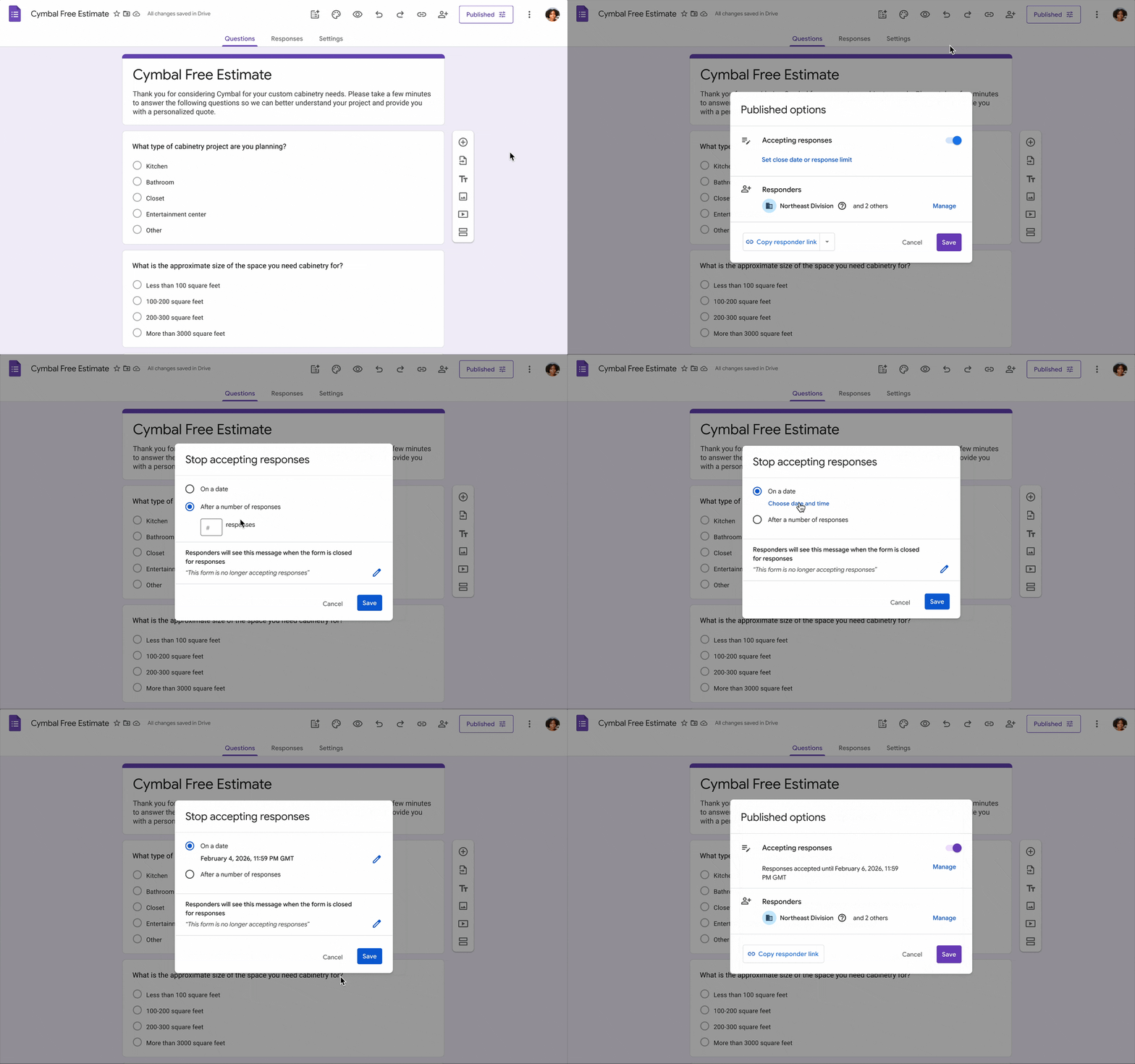
Set Forms to automatically stop accepting responses based on date/time or response count
Form owners and editors can now set a specific date/time to close the form, or a response count that will automatically trigger it to close. Previously, form creators had to manually stop a form from accepting new responses. This feature is off by default when creating forms and can be enabled by form creators after publishing a form. Learn more about automatically closing a Form for new responses.
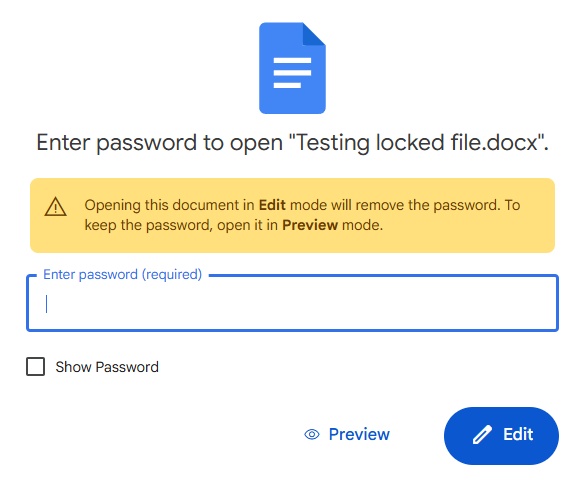
Edit password-protected Microsoft files in Drive
You can now edit password-protected Microsoft files within Docs, Sheets, and Slides on the web. When opening a password-protected file, you have two options: preview or edit. Opening the file in Edit mode requires you to enter the file’s password to access it. This removes the password from the file for all collaborators, so they won’t need to enter the password each time they open the file in Drive. Opening the file in Preview mode keeps the password on it and must be entered again the next time you open it. Learn more about editing password-protected Microsoft files in Drive.
Save PDFs opened in Chrome to Drive
When signed into and using the Chrome browser on your computer, you can now save PDFs directly to Drive without leaving the page. These PDFs are saved to a “Saved from Chrome” folder in your My Drive. You can still save other web content using the "Save to Google Drive" Chrome extension. Learn more about saving PDFs to Drive from Chrome.
Gemini & NotebookLM
Structured Data Tables in NotebookLM
You can ask NotebookLM to organize and analyse your source information into a structured data table that can be exported to a Google Sheet. Under Studio to the right, click Data Table or the pencil icon on it to customize your table prompt. When satisfied with the result, click the three-dots icon next to the generated table and select Export to Sheets. The content of your data table will populate the first tab of a new Sheet, and any citations will populate the second tab.
Add NotebookLM notebooks as a source in Gemini
You can finally reference your NotebookLM notebooks as sources in the Gemini web and mobile apps. Click the plus (+) sign on the left of the prompt box and select NotebookLM. Select the specific notebooks you want to use and click Add.
Create custom soundtracks with Lyria 3 in Gemini
Using Google’s new Lyria 3 music generation model, you can create custom 30-second soundtracks in Gemini on the web and mobile app. In the prompt box, click Tools, then select Create music. (As with all Gemini features, there are limits for how many tracks you can create with Lyria. You’ll receive a notification when you’ve exceeded the limit and when you can access the feature again.) Learn more about creating music and tips for prompting Lyria 3 in Gemini.
Meet
Share stereo sound with audio content
If a presenter is sharing content with stereo audio (separate left/right audio channels), the stereo sound will now apply to the audio presented via Meet as well. This feature is only available for Meet on the web in the Chrome and Firefox browsers for both presenters and attendees. Learn more about presenting in Meet.
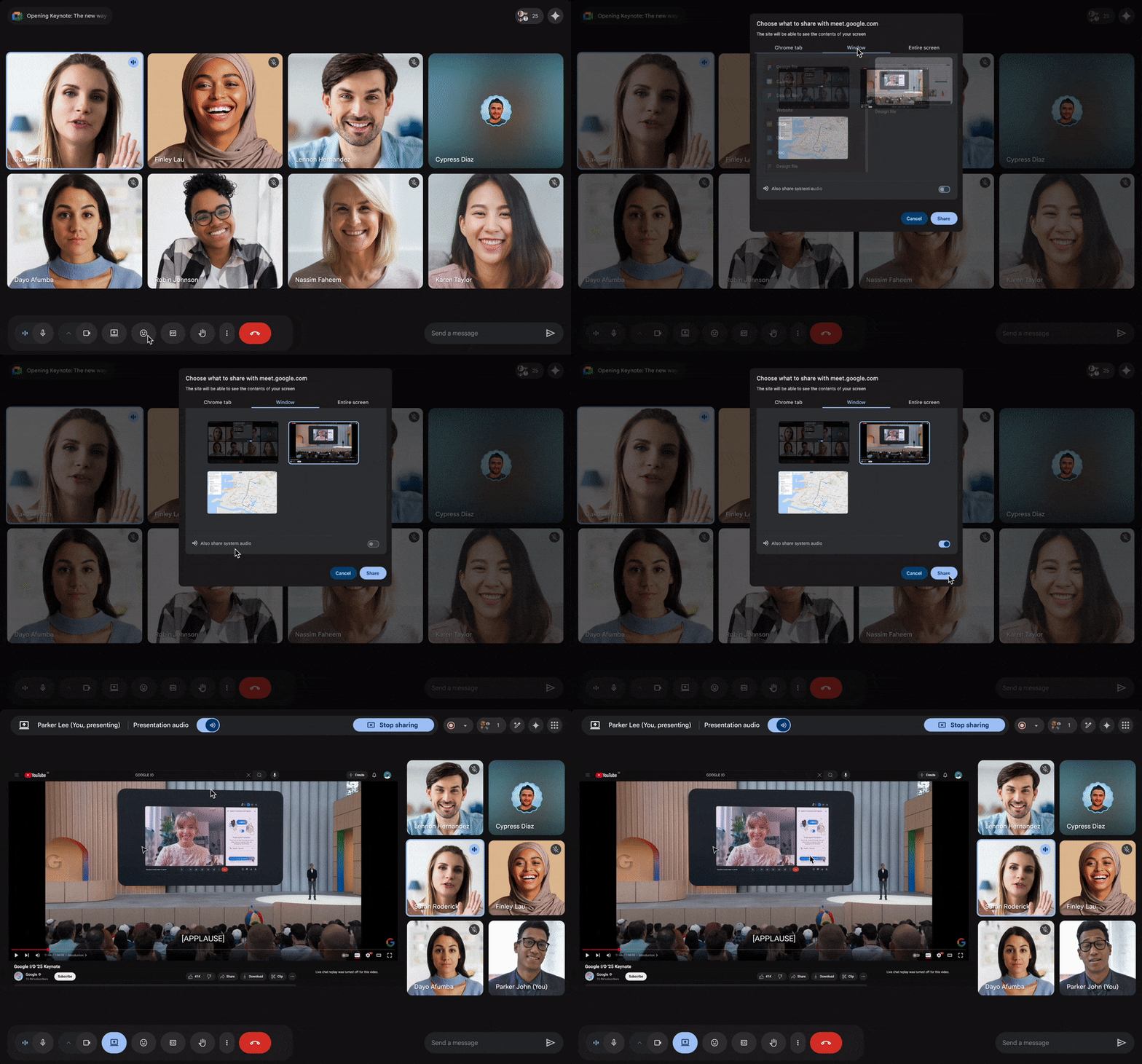
Share your device’s audio when presenting
You can now share your device audio when presenting a specific window or your entire screen during a Meet session. Previously, you could only share audio from the specific Chrome tab you were presenting. Technical requirements include macOS 14.2 or newer or Windows 11 or newer, and your browser must be Chrome 142 or newer. Toggle the Presentation audio setting on while presenting, or Also share system audio when selecting the content to screen share.
Move shared content to a separate window
Similar to Zoom’s tab feature, meeting participants can now move screen-shared content into a standalone window with the “Open in new window” option. This feature works for all screen share content types.