The eResearch Regulatory Management (eRRM) system upgrade to the latest vendor framework, effective September 28, 2025, brings a number of minor user interface look and feel changes and some new features.
Updates for All Roles
Home and Project Workspaces
Breadcrumb navigation trail
The Path tab was removed. It was previously located to the left of My Home. The Breadcrumb trail appears underneath, enabling easier access to navigate to the previous page, project, or Home workspace.
Example of Study Workspace Breadcrumb Trail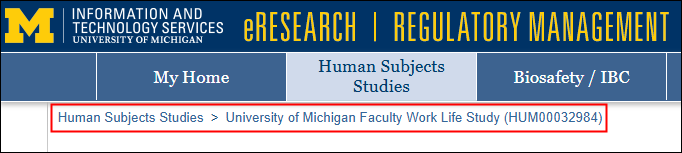
My Roles menu
Current dashboard/workspace indicator: A new arrow icon was added next to the role name, e.g., Committee Member, Core Committee, Study Team Member, etc., to further indicate which dashboard/workspace is currently selected. In addition, the roles were reordered alphabetically (if you have more than one role).
Example of My Roles Menu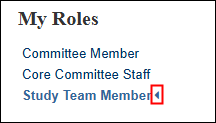
Searches / Tables
Alternate row shading: To help with readability, every other row of search results in tables appears shaded.
Example of Human Subject Studies “Approved” tab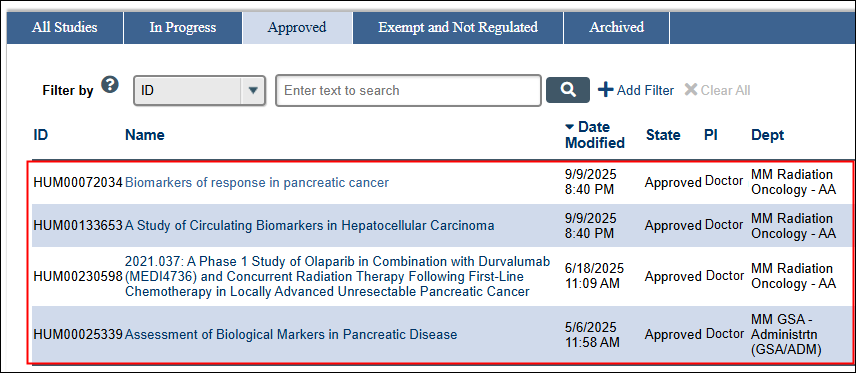
Filter bar: If “Filter by” options appear grayed-out, it means they are unavailable for use while search results are loading below it. Before and after a search is complete (i.e., when the results finish loading), Filter by will be available to use to search.
For more details, refer to the Filtering instructions.
Example of inactive Filter by menu
Personalize data table display and export results
In addition to filtering search results, you can personalize how data is displayed in a table using new personalization features. Available on project listers, activity logs, and custom searches, click the gear  icon in the top-right corner of a table to view options that allow you to change the columns that display, the order in which they display, and more.
Example of Gear icon on Study Team Member workspace, In Progress tab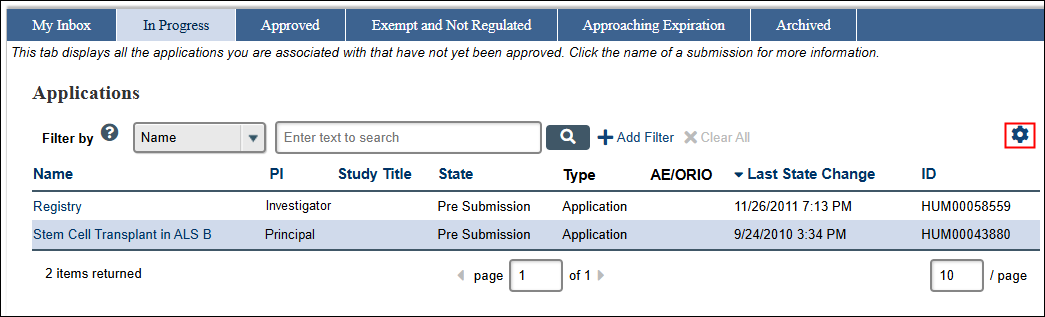
From the Personalize Table pop-up, you can:
- Show or hide fields in a table
- Change the order of fields
- Change the position of the paging bar
- Auto refresh the table data
- Export table data to a Comma Separated Value (CSV) format
Example of Personalize Table Window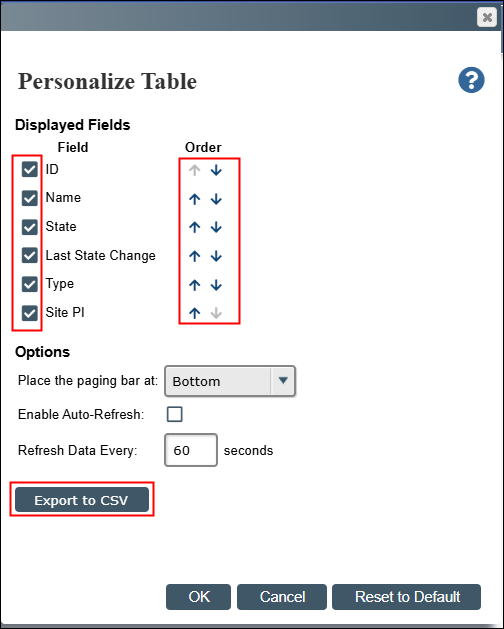
Notes:
- Any changes you make remain in place, even after logging out and back in, until you reset to default or make other personalization changes.
- Any customizations you make only affect your view of the lister. Anyone else who accesses the same lister will not see the same customizations.
For more details, refer to Personalize the Data Display instructions.
Activities and Correspondence
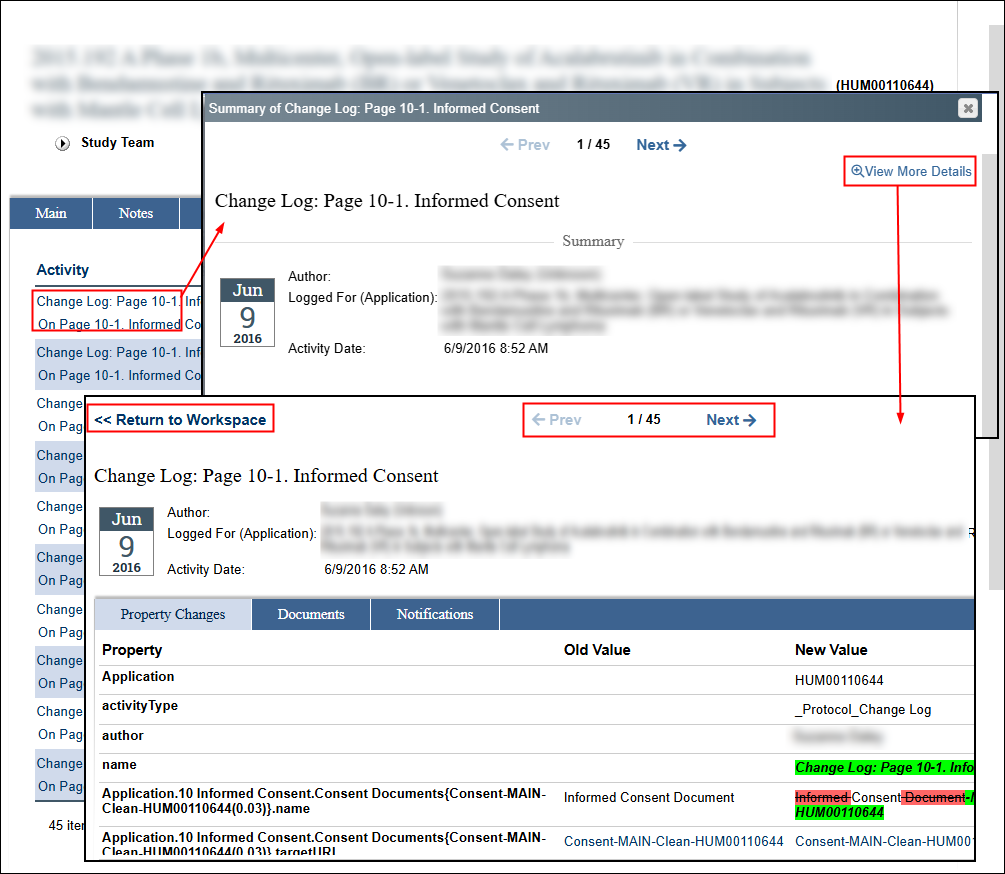
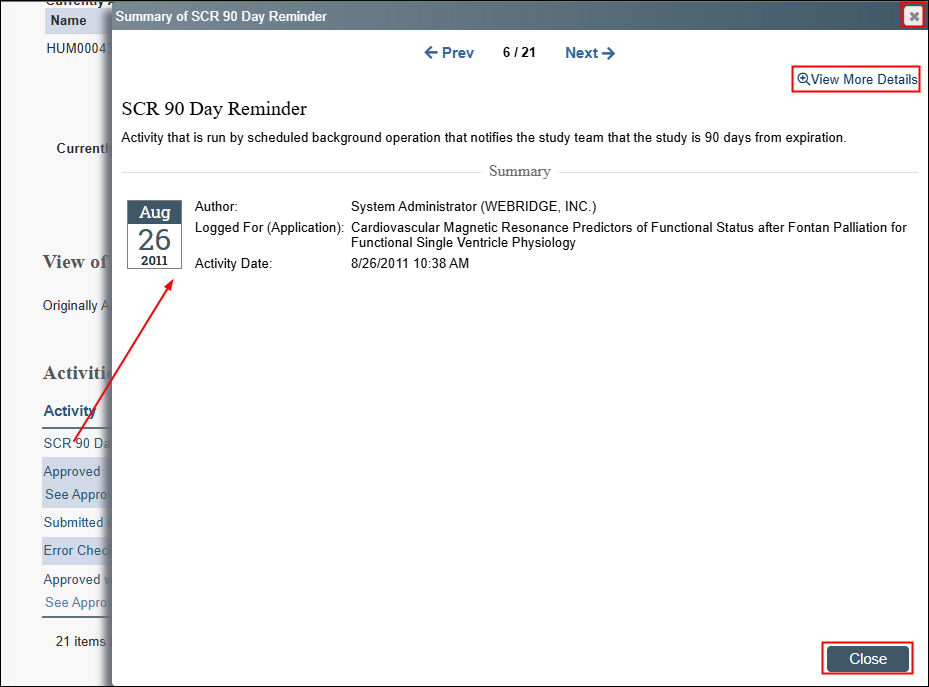
When clicking most Activity links from the Activities and Correspondence section, or from the History tab, a Summary view page will slide in. Click the View More Details link to view any additional information (property changes, notifications, etc.) about the changes, which opens in a new browser tab. Click <<Return to Workspace on the activity details page (in the new browser tab) to go back to the Study workspace. Or, click to Close the slide-in if you’re done with that screen.
Creating a New Human Subjects Study Application
When a PI or Study Team Member is creating a new Human Subjects Application, the Save button is no longer available on the first page.
- If you’ve completed all the required fields, click the Continue button to both save the page and proceed to the next page.
- The Save button is available on second and subsequent pages.
For more details, refer to the Creating an Application for a New Study instructions.
Searches and Reports
Export to CSV
The Export option on certain tables and custom search reports was relocated and renamed. It can be found on the Personalize Table window, which opens from clicking the gear icon. After clicking the Export to CSV button, the button text may indicate “please wait…” and the percentage “% complete” (for reports with larger results). 
Once ready, the .csv file will appear in your system/browser Downloads folder. 
Updates for IRB Staff and Core Committee Members
Reports
Actions
For Custom Search Reports, the Export to CSV link can be found under the Actions drop-down menu. An Export to CSV button can also be found on the Personalize Table window (which opens from the gear icon). After clicking "Export to CSV", the button/link text may indicate “please wait…” and the percentage “% complete” while the file prepares for download.
Example of Report Search Results window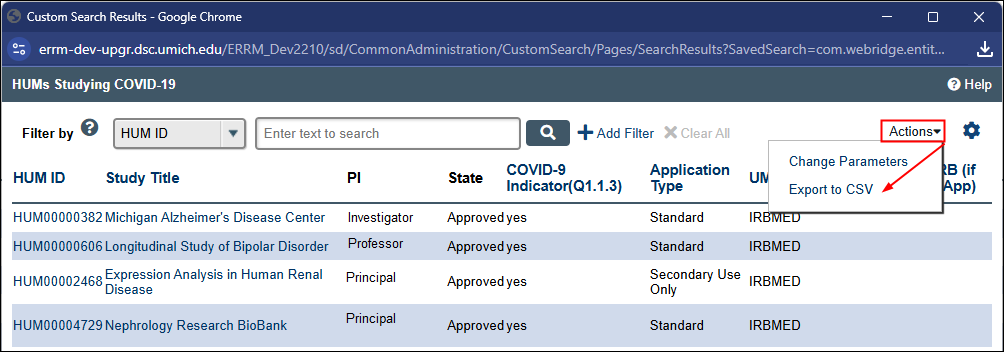
On reports with large result sets, an Export Status window does not pop up. You have to hover over the Actions menu or click it a few times to see the % progress.
The Change Parameters link is now found under the Actions drop-down menu, on Fast Find, for example.
Change Tracking
When clicking an activity from the Change Tracking table, a “Summary of [Change log]” window will slide-in. Click the View More Details link to see additional information about the changes, which opens in a new browser tab. Use the ← Prev(ious) and Next → links to page through the log and view property changes, date, notifications, etc. This behavior also applies to Activity and Correspondence history. For more details, refer to the Change Log and Audit Trail instructions.
Change Tracking tab > Activity link > Summary > View More Details